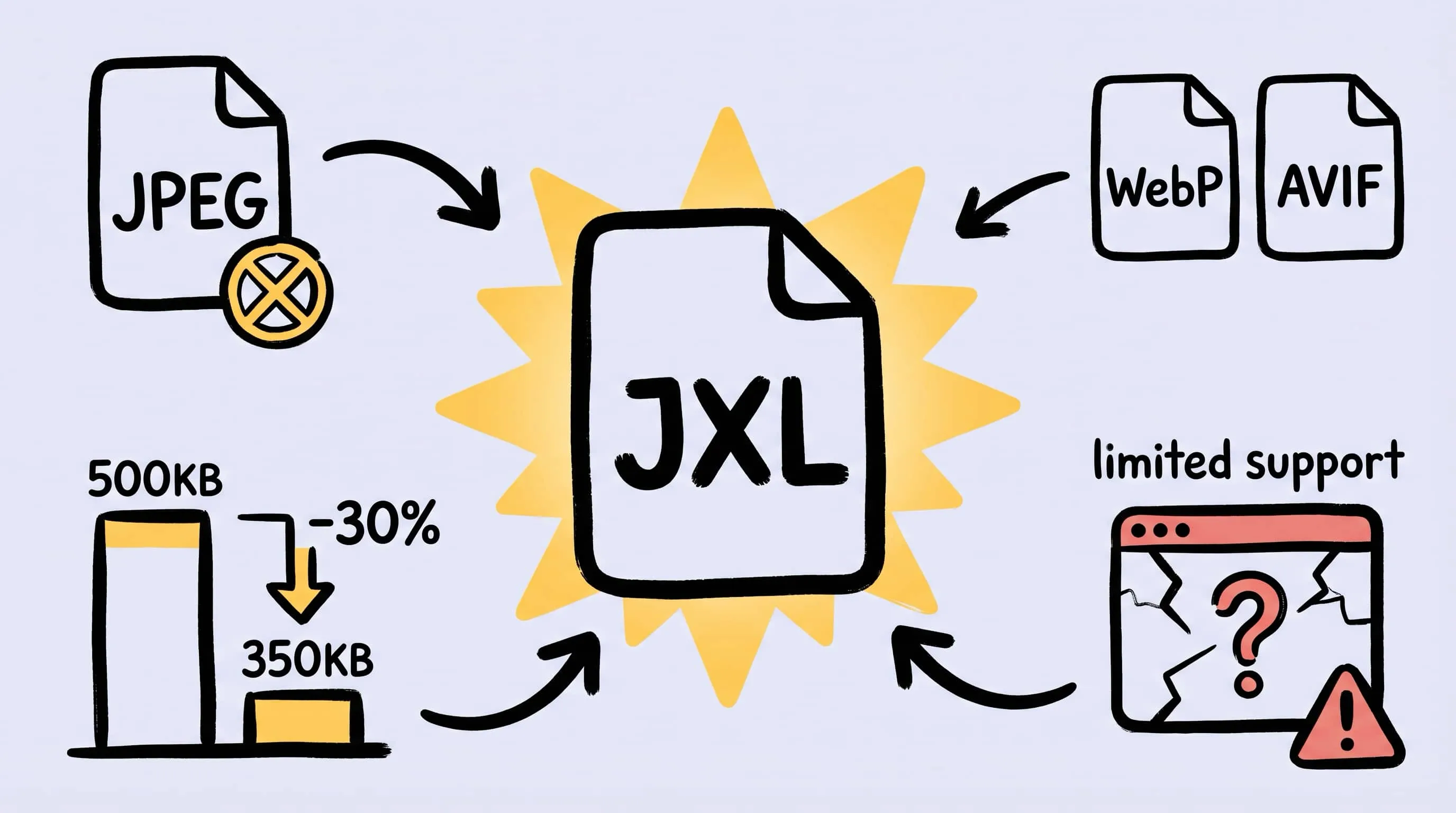
JPEG XL Converter for Mac: Batch Convert Images to JXL
Looking for a JPEG XL converter on Mac? Learn how to batch convert images to JXL with Zipic, when JPEG XL actually makes sense, and when to fall back to AVIF or WebP.
If you have been looking for a JPEG XL converter on Mac, you are probably in one of two camps: either you already know what JPEG XL is and you want a clean batch workflow, or you keep seeing .jxl files show up and you are not sure whether you should care. This guide covers both.
Zipic supports JPEG XL (JXL) as both input and output. You can convert any supported format — JPEG, PNG, HEIC, WebP, TIFF — into JXL with the same preset-based workflow the app uses for everything else. No extra tool, no command line, no conversion dialog.
But before you click “convert all” on a hundred thousand photos, there is a reality check worth having. JPEG XL is technically brilliant. Its actual deployment story in 2026 is more complicated.
What Is JPEG XL (JXL) and Why It Matters in 2026
JPEG XL was designed to be the long-term successor to the original JPEG. It is built around a few concrete goals:
- Much better compression than JPEG at the same visual quality (typically 20–60% smaller)
- Lossless JPEG transcoding — you can take an existing JPEG and losslessly re-encode it into JXL, usually saving around 20% of file size, and you can reverse it back to the original JPEG bit-for-bit
- Lossless or lossy from the same codec
- HDR, wide gamut, 16-bit color depth, alpha transparency
- Progressive decoding (the image sharpens as it loads)
- Responsive by design — one file can serve multiple resolutions
On paper it is the clearest technical upgrade to the photo ecosystem in two decades. In practice, its fate depends almost entirely on browser support, which is where things get messy.
JPEG XL vs AVIF vs WebP vs JPEG
A quick comparison for the next-gen formats Zipic can output:
| Feature | JPEG | WebP | AVIF | JPEG XL |
|---|---|---|---|---|
| Typical size vs JPEG | baseline | ~25–35% smaller | ~35–50% smaller | ~20–60% smaller |
| Lossless mode | no | yes | yes | yes |
| Transparency (alpha) | no | yes | yes | yes |
| HDR / wide gamut | no | no | yes | yes |
| Encode speed | very fast | fast | slow | moderate |
| Lossless JPEG transcoding | — | no | no | yes |
| Browser support (2026) | universal | universal | universal | limited |
JPEG XL’s biggest technical trick — the one the other formats cannot copy — is lossless JPEG-to-JXL transcoding. If you have a 500 GB archive of JPEGs, you can re-encode the whole thing into JXL, save around 20% of disk, and still have the ability to round-trip back to the original JPEG bytes if you ever need to. No other modern format lets you do that.
For a broader decision framework across formats, see How to Choose the Right Image Format for Your Project and JPEG vs PNG vs WebP: Which Image Format Should You Use?.
Who Should Actually Use JPEG XL Today
JPEG XL makes real sense for:
- Photography archives. Re-encode JPEG masters losslessly, save a meaningful chunk of disk, keep round-trippability.
- RAW-lite delivery. For client delivery where size matters and you still want HDR + 16-bit headroom, JXL is a genuinely strong choice.
- Internal pipelines. Anywhere you control both sides — ingest, storage, and the tool that reads it — JXL gives you the best file-size-per-quality in the Zipic lineup.
- Long-term storage. If you are archiving and you want room to grow into HDR and higher bit depth later, JXL leaves the most options open.
JPEG XL does not currently make sense for:
- Serving images to browsers. More on this below.
- Anywhere an end user might want to open the file in a random viewer. Compatibility is still building.
For web-facing work in 2026, the pragmatic choices remain WebP (universal support) and AVIF (widely supported, better compression). JPEG XL is the right answer for archival and internal workflows. For a deeper dive into AVIF, read Best AVIF Compression Tool for Mac, and for WebP see WebP Image Optimizer for Mac.
How to Convert Images to JPEG XL on Mac With Zipic
Zipic handles JPEG XL the same way it handles every other format: through a preset. Configure once, drop files in, done.
Step 1: Open the Preset Editor
Open Zipic, click Compression Settings at the bottom left of the main window, and open the preset you want to edit — or create a new one specifically for JPEG XL output.
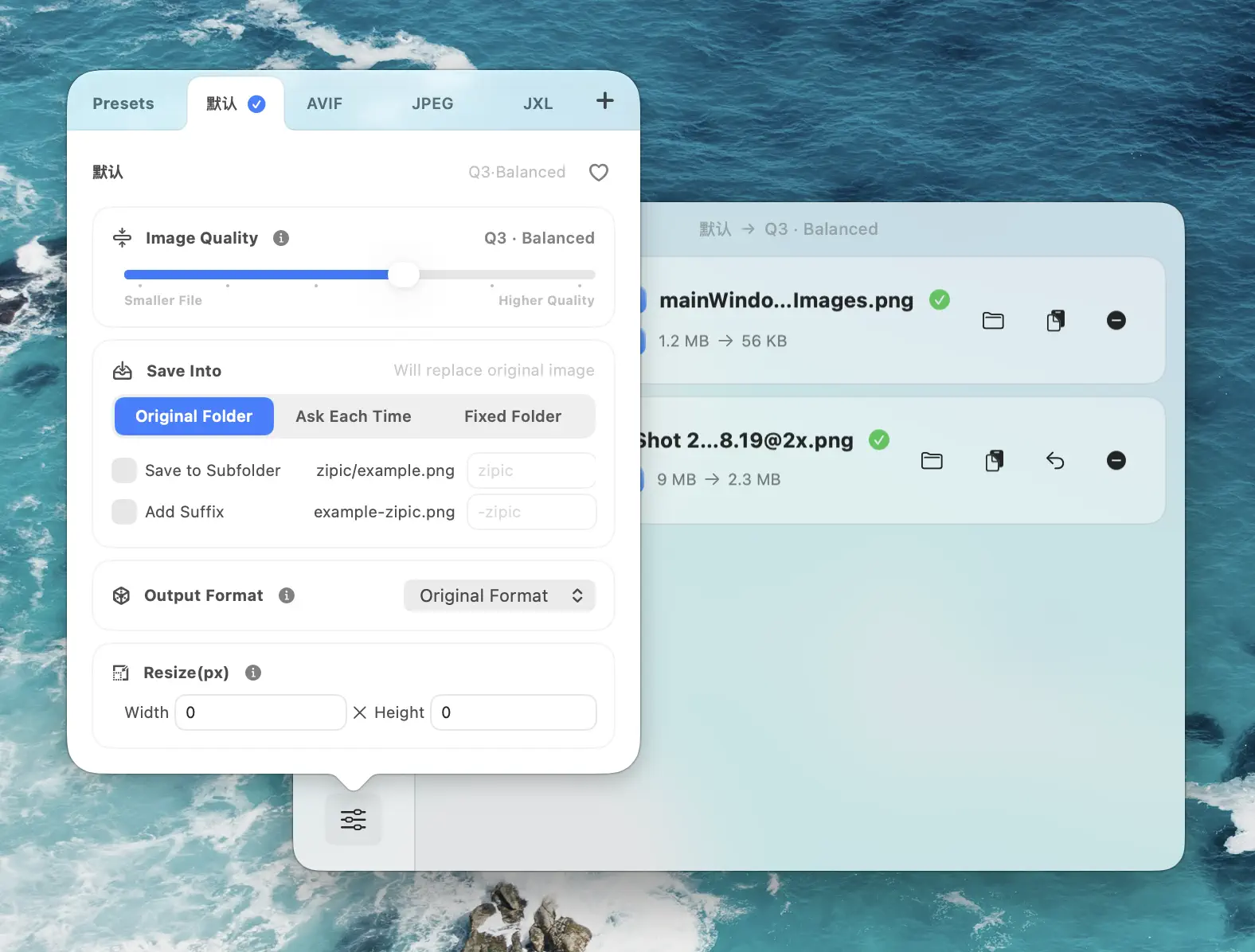
Step 2: Set Save Format to JPEG XL (JXL)
Inside the preset editor, configure these four fields:
- Save Format →
JPEG XL (JXL) - Image Quality → Q2 for near-transparent quality, Q3 for smaller files
- Save To → a dedicated output folder (never overwrite originals during format migration)
- Resize → optional
The key piece is the Save Format dropdown. This is where you pick JXL explicitly:
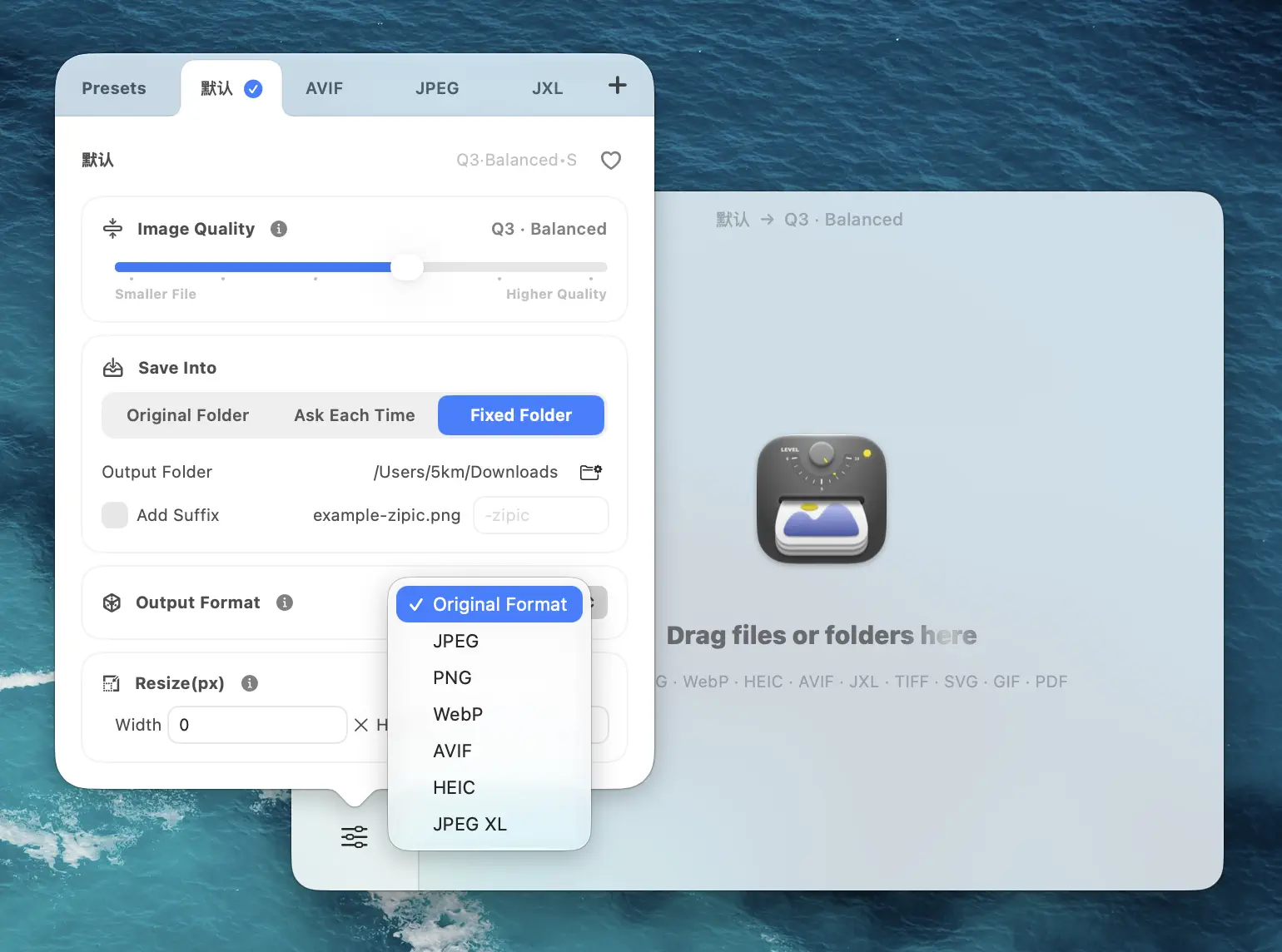
Zipic’s documentation confirms JPEG XL is supported for both input and output alongside JPEG, PNG, WebP, HEIC, and AVIF. The official format guide lives at Choosing Image Formats.
Step 3: Drop Files In
Drag files, folders, or a mixed batch into the Zipic main window. That is the trigger — there is no explicit “Convert” button. Zipic picks up the current preset and runs the conversion in parallel.
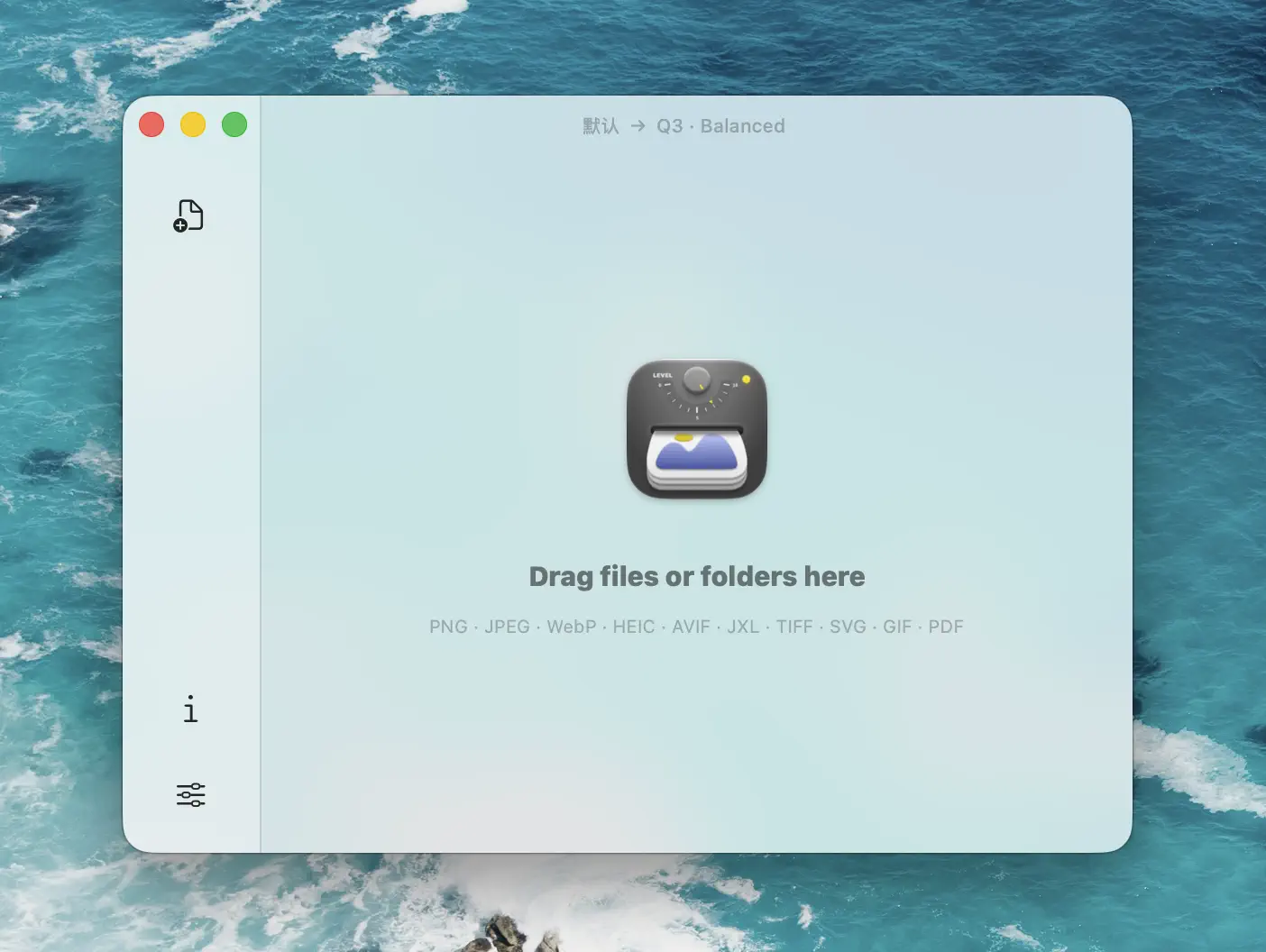
For a single file or a hundred thousand, the workflow is identical. Edit the preset, drop again if needed.
Batch Convert to JPEG XL for Photo Libraries
This is where JPEG XL’s biggest real-world advantage shows up: lossless transcoding of existing JPEG archives.
If you have a photography library that grew organically over a decade — RAW in one place, exported JPEGs in another, client deliveries scattered around — you can set up a Zipic preset that:
- Reads JPEG files from a source folder
- Outputs JPEG XL to a parallel archive folder
- Uses lossless mode (highest compression level without quality loss) so nothing is thrown away
The result is typically 15–25% less disk usage across the archive with zero pixel-level loss. Because JPEG XL supports reversible JPEG transcoding, you can always round-trip back to the original JPEG bytes if a downstream tool ever demands it.
For high-volume batch strategies, read Batch Compress Images on Mac: Complete Tutorial.
Browser Support Reality Check
This is the part that gets skipped in most “JPEG XL is the future” articles and it matters.
As of 2026, JPEG XL’s browser support story looks roughly like this:
- Safari supports JPEG XL natively starting in Safari 17 on macOS Sonoma and iOS 17.
- Firefox supports JPEG XL only behind a
image.jxl.enabledconfig flag — not on by default. - Chrome and the broader Chromium family (Edge, Opera, Brave, etc.) removed experimental JPEG XL support back in 2023 and have not reinstated it by default.
That means if you serve a .jxl file on a public website, somewhere between half and three quarters of your visitors’ browsers will not render it without fallbacks. This is exactly the situation WebP was in a decade ago, and exactly why AVIF has been moving faster in practice.
Practical takeaways:
- For web delivery, ship WebP or AVIF today. Keep JPEG XL on a watchlist for when Chrome re-ships it by default.
- For archival, photography pipelines, and anywhere you control the reader, JPEG XL is already a legitimately good pick.
- If you do ship JXL to the web, use
<picture>with a WebP or JPEG fallback so non-supporting browsers still render something.
For format background, What Is Image Compression? is a good foundation.
Related Articles
- JPEG vs PNG vs WebP: Which Image Format Should You Use?
- Best AVIF Compression Tool for Mac
- WebP Image Optimizer for Mac
- How to Choose the Right Image Format for Your Project
- What Is Image Compression?
Learn more: Choosing Image Formats
Want to add JPEG XL to your Mac image workflow? Download Zipic and convert to JXL with reusable presets. Every download includes a full 7-day Pro trial. Zipic Pro unlocks unlimited presets, Drag to Notch, and advanced automation.
Related Reading
Best gifski Alternative on Mac: When One Video at a Time Isn't Enough
gifski is a great video-to-GIF encoder, but it cannot batch, monitor folders, or compress existing GIFs. Here is the Mac gifski alternative for those jobs.
How to Compress and Optimize SVG Files on Mac with Zipic
Need an SVG optimizer on Mac? Compress and optimize SVG files with Zipic — strip editor bloat, pick from six quality steps (Q1–Q6), and batch entire icon sets.
TIFF Compression: How to Reduce Large TIFF Files on Mac
Compress TIFF files on Mac without losing quality. Compare LZW vs ZIP, shrink 100 MB scans, and batch convert TIFF to JPEG, WebP, AVIF, HEIC, or JXL with Zipic.
GIF Compression on Mac: Reduce Size and Keep Animation
Animated GIFs are often 10x larger than they need to be. Learn why, when to keep GIF vs convert to WebP/MP4, and how to compress GIFs on Mac in 2026.