WebP vs PNG: Quality, File Size & Transparency Compared
WebP vs PNG: both support transparency. Compare file size, lossless quality and compatibility for photos, screenshots and logos, with JPEG as a fallback.
Updated:
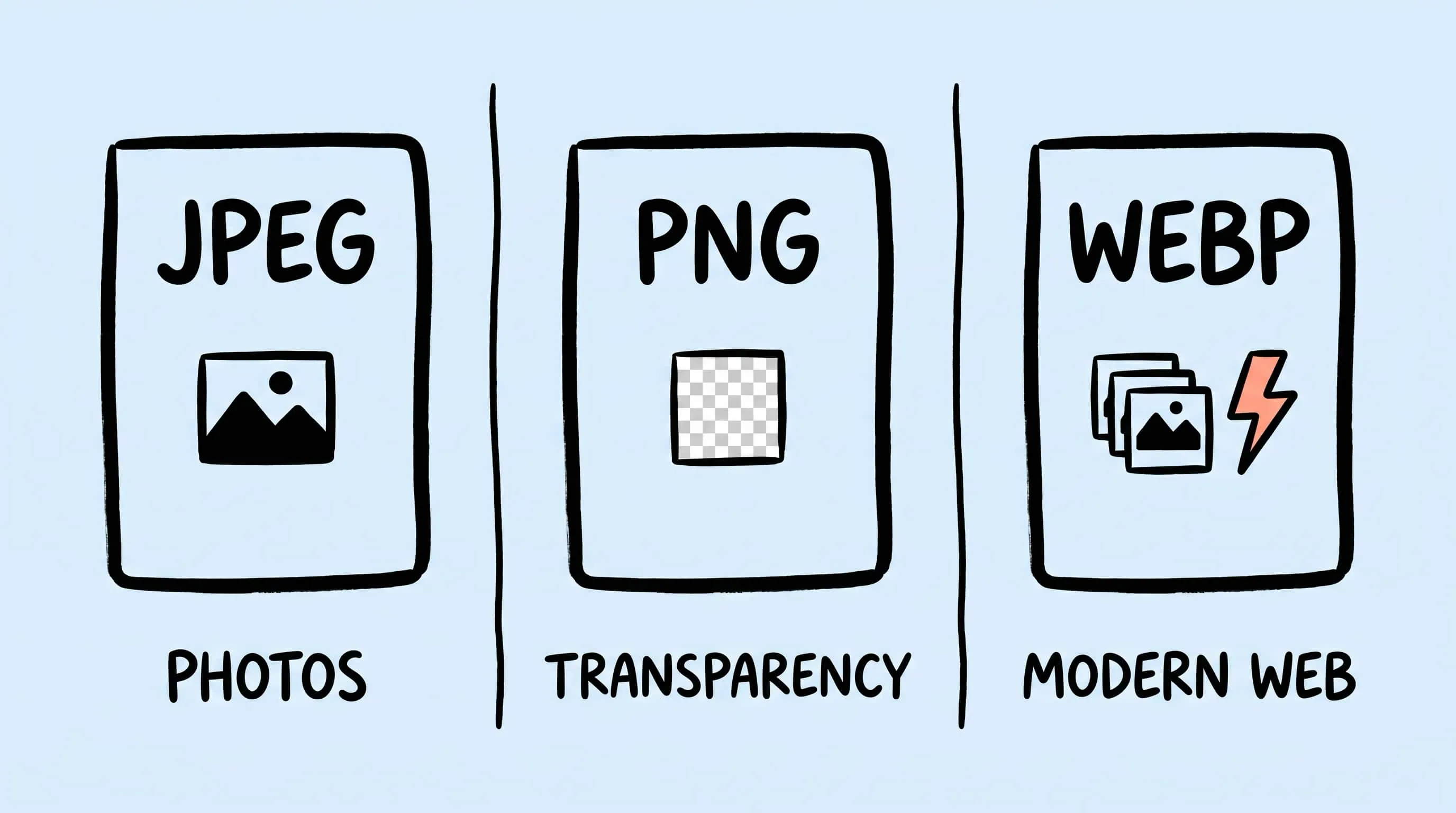
Choose WebP for most web delivery, JPEG when maximum compatibility matters, and PNG for screenshots, transparent graphics, or pixel-perfect UI. That is the short answer to JPEG vs PNG vs WebP; the right final choice still depends on the image, required features, and the system receiving it.
JPEG vs PNG vs WebP: Quick Answer
- Use JPEG for photographs sent to apps, email clients, marketplaces, or other destinations where broad compatibility matters more than transparency.
- Use PNG for screenshots, interface graphics, diagrams, and logos that need lossless pixels or an alpha channel.
- Use WebP for modern websites when you want one format that supports lossy photos, lossless graphics, transparency, and animation.
For a typical website, start with lossy WebP for photographs and PNG or lossless WebP for sharp transparent assets. Keep JPEG as a fallback only when your actual audience, CMS, or publishing destination needs it.
Already know which format you need? Download Zipic to batch convert or compress on Mac — free daily allowance plus a full 7-day Pro trial.
JPEG vs PNG vs WebP Comparison Table
| Format | Compression | Transparency | Animation | Compatibility | Best for | Avoid when |
|---|---|---|---|---|---|---|
| JPEG | Lossy | No | No | Broadest across browsers, apps, and upload systems | Photos, email, social and marketplace uploads | You need transparency, exact pixels, or crisp text |
| PNG | Lossless encoding | Yes | APNG extension | Broad across browsers and editors | Screenshots, UI, logos, diagrams | The image is a large continuous-tone photograph |
| WebP | Lossy and lossless | Yes | Yes | Supported by modern browsers; check older tools and upload systems | Most web photos and graphics | A required destination rejects or re-encodes it poorly |
The extension is only part of the answer. WebP can be lossy or lossless, and a PNG can contain altered pixels if it was resized or color-quantized before PNG encoding. If that distinction matters, read Lossy vs Lossless Compression.
How JPEG, PNG, and WebP Differ
JPEG: the compatibility choice for photographs
JPEG uses lossy compression designed around continuous-tone images. It has no alpha channel and does not support animation, but almost every image workflow can read it.
Choose JPEG when:
- The source is a photograph or product image
- The destination may not accept WebP
- You are attaching images to email or uploading to a platform with strict format rules
- A progressive JPEG is useful for large web images
Watch for: ringing around text and hard edges, block artifacts at aggressive settings, and generation loss after repeated saves. Return to the original for each export. See How to Reduce JPEG File Size Without Losing Quality for a JPEG-specific workflow.
PNG: the lossless choice for UI and transparency
PNG uses lossless compression and supports full alpha transparency. It is strongest when neighboring pixels repeat or change predictably, which suits interface screenshots, flat graphics, diagrams, and logos.
Choose PNG when:
- Small text, one-pixel lines, or hard edges must stay crisp
- The graphic needs partial transparency
- You need an exact-pixel delivery format supported almost everywhere
- The image has a limited palette or large flat-color regions
Watch for: photographs with noise, gradients, or complex texture can be much larger as PNG than as a well-tuned lossy format. Re-saving remains pixel-safe only if the workflow does not resize, quantize colors, or alter color management. See How to Compress PNG Files on Mac.
WebP: the flexible web-delivery choice
WebP supports lossy and lossless compression, alpha transparency, and animation. That makes it a practical replacement for JPEG, PNG, or GIF in many browser-delivery workflows. The WebP documentation explains its modes and container features.
Choose WebP when:
- You control a website or app delivery pipeline
- You want lossy output for photos and lossless output for UI from one format family
- A transparent photograph or animated image would otherwise require a heavier format
- Your CMS, CDN, and downstream tools have been tested with WebP
Watch for: WebP is not automatically smaller for every source. An optimized PNG can beat lossless WebP on some graphics, and upload platforms may transcode WebP. Test the actual image and destination. See WebP Image Optimizer for Mac for the conversion workflow.
How to Choose JPEG, PNG, or WebP by Use Case
| Use case | First choice | Alternative | Decision check |
|---|---|---|---|
| Website hero or editorial photo | Lossy WebP | JPEG | Does the production pipeline and target browser set accept WebP? |
| UI screenshot with small text | PNG | Lossless WebP | Which one is smaller while keeping decoded pixels and text edges intact? |
| Transparent logo or icon | PNG | Lossless WebP | Does every destination accept WebP alpha? |
| E-commerce product photo | WebP or JPEG | PNG only when transparency is required | What formats does the marketplace or CMS accept without unwanted transcoding? |
| Email attachment | JPEG | PNG for graphics | Will every recipient’s client preview the format reliably? |
| Social upload | JPEG | PNG for text-heavy graphics | What does that platform accept, and will it re-encode the upload? |
| Short animation | Animated WebP | APNG or GIF | Which format does the destination support, and is transparency required? |
| Editing or archival master | Original or lossless format | PNG, TIFF, or another verified lossless option | Can you prove the pixels and required metadata survive the workflow? |
Two rules cover most mistakes: do not store photographs as PNG merely because “lossless” sounds better, and do not convert a master to WebP merely because “modern” sounds better. Optimize the delivery copy; preserve the source.
A Reproducible JPEG vs PNG vs WebP Test
Fixed compression percentages are not portable across images or encoders. Use three real assets from your own workflow:
- A full-color photograph with gradients and fine texture
- A PNG screenshot containing small text and one-pixel lines
- A transparent logo with soft alpha edges
Keep the pixel dimensions and metadata policy fixed. Export the photo as JPEG and lossy WebP; export the screenshot and logo as PNG and lossless WebP. If you also export PNG for the photo, treat it as a reference, not an automatic winner.
| Source | Compare | What to verify |
|---|---|---|
| Photograph | JPEG vs lossy WebP | File size at the same acceptable visual result, plus banding and texture detail |
| UI screenshot | PNG vs lossless WebP | File size, exact pixel comparison, and small-text sharpness |
| Transparent logo | PNG vs lossless WebP | Alpha edges, color, decoded pixels, and destination support |
On macOS, record the exact file sizes instead of rounding them in Finder:
stat -f "%N: %z bytes" photo.jpg photo.webp screenshot.png screenshot.webpCompare outputs first at the size users will see, then at 200% around edges and gradients. Do not match JPEG quality 80 to WebP quality 80 and call the test fair: quality scales are encoder-specific. Adjust each format until both outputs meet the same visual acceptance bar, then compare bytes.
Convert JPEG, PNG, and WebP with Zipic
Zipic’s image format guide covers output-format trade-offs; in the app, format conversion is part of the compression preset. Choose the output, keep the dimensions fixed for a fair test, and add the source files.
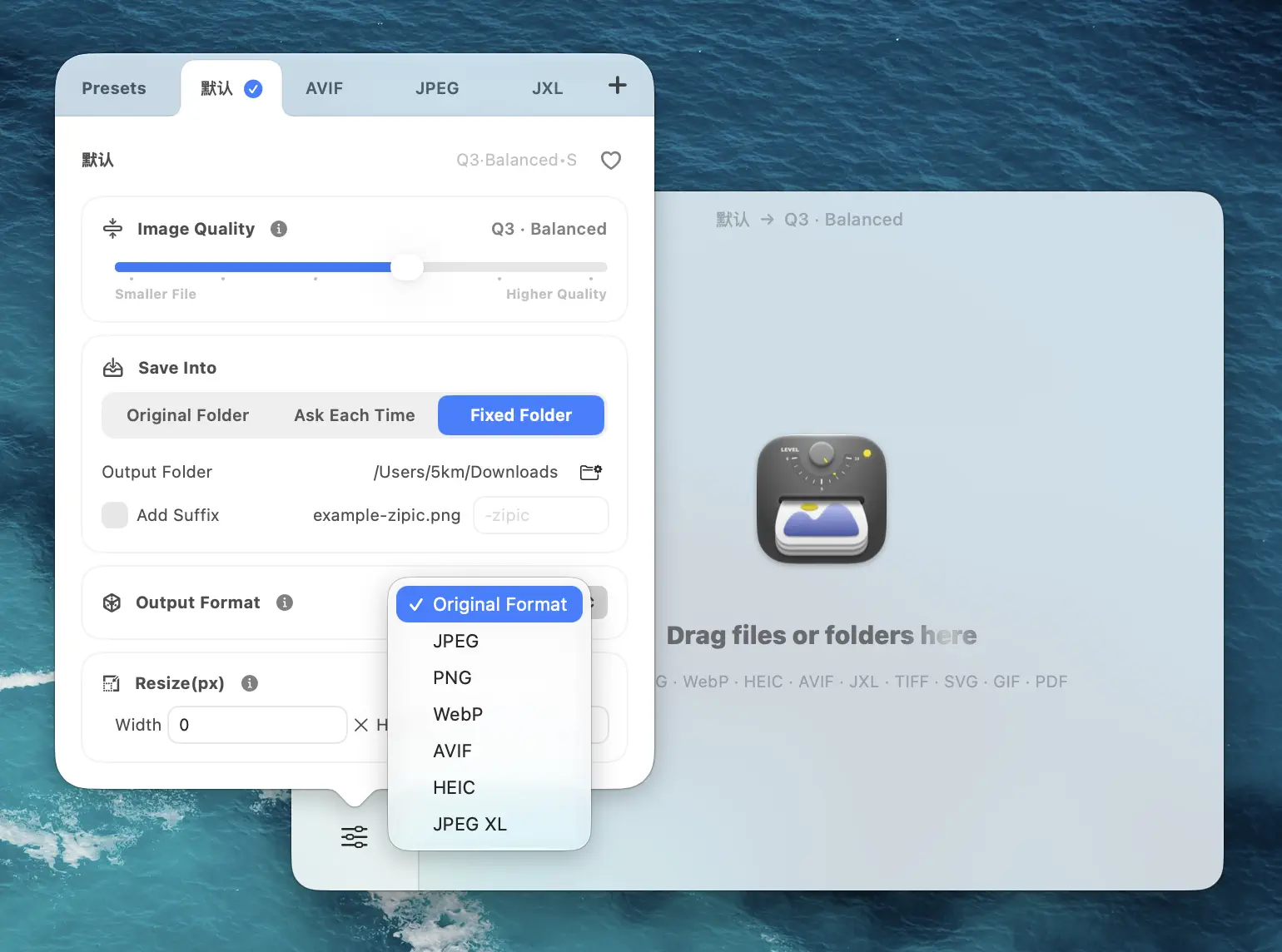
Three useful presets are:
- Web photos: WebP output, starting at compression Q2 or 3
- Compatible photos: JPEG output, matched to the same visual acceptance bar
- UI and transparent graphics: PNG or lossless WebP, original dimensions
For repeat exports, folder monitoring can attach a preset to an export directory. Keep masters outside the watched output folder so a delivery file never becomes the next generation’s source.
Key Takeaways
- WebP is the strongest starting point for modern web delivery because it supports photos, lossless graphics, transparency, and animation.
- JPEG remains the broadest compatibility choice for photographs and platform uploads.
- PNG remains the safe choice for screenshots, UI, and transparent graphics when pixel fidelity matters.
- The smallest format depends on the image and encoder. Compare real outputs at the same dimensions and acceptable visual quality.
- Preserve the original. Format conversion should create delivery copies, not overwrite the master.
Need to compare all three on a real batch? Download Zipic and build one preset per output format. Every download includes a full 7-day Pro trial; Zipic Pro unlocks unlimited compression and the complete batch workflow.
Related Articles
Related Reading
How to Choose the Right Image Format for Your Project
Not sure whether to use JPEG, PNG, WebP, or AVIF? This practical guide helps you pick the best image format based on your project type, platform, and priorities.
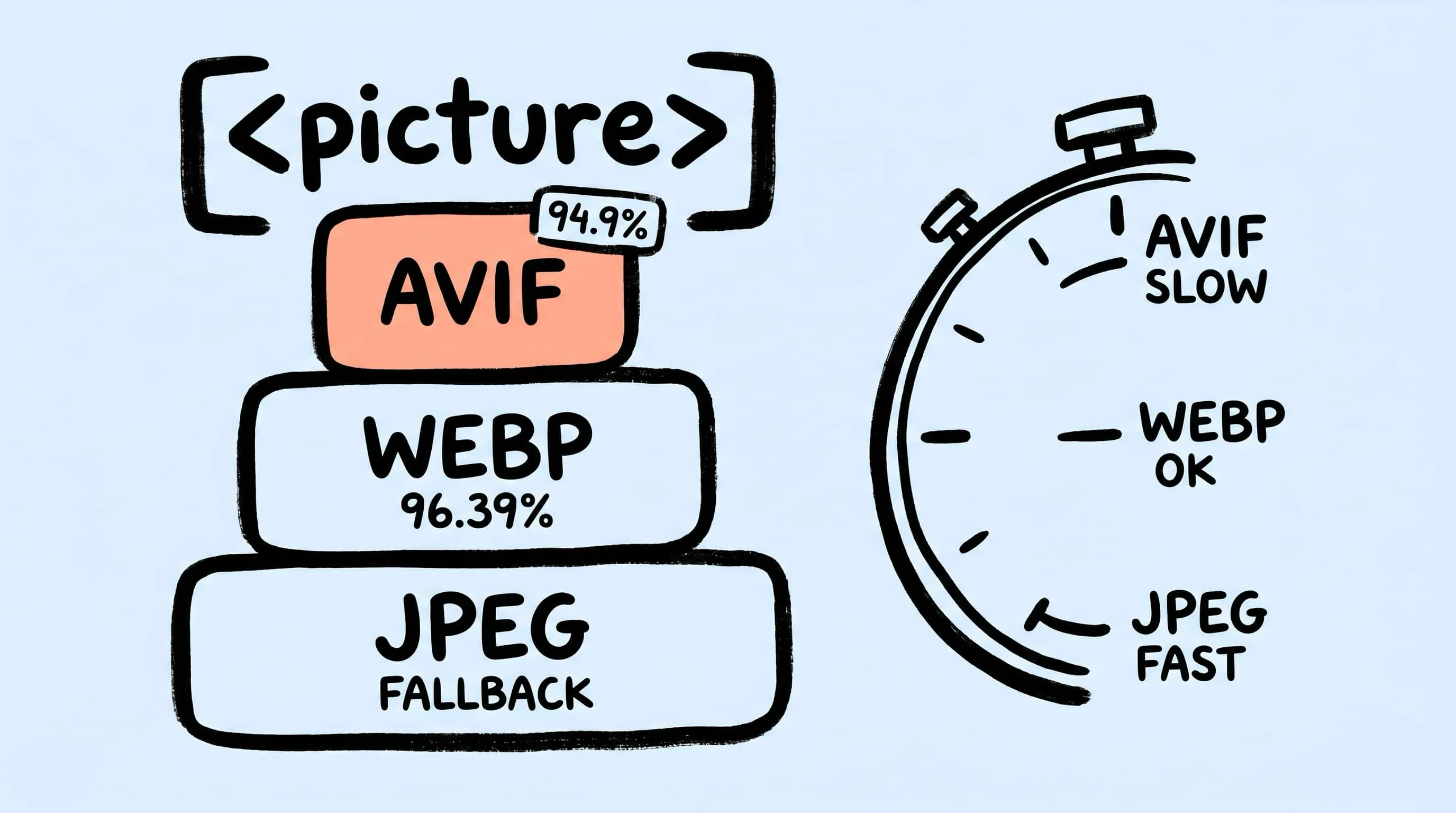
AVIF vs WebP vs JPEG: The Ultimate Format Comparison
AVIF vs WebP in 2026: browser support, compression ratios, encoding cost, transparency, and fallback strategy — with cited benchmarks and decision matrix.
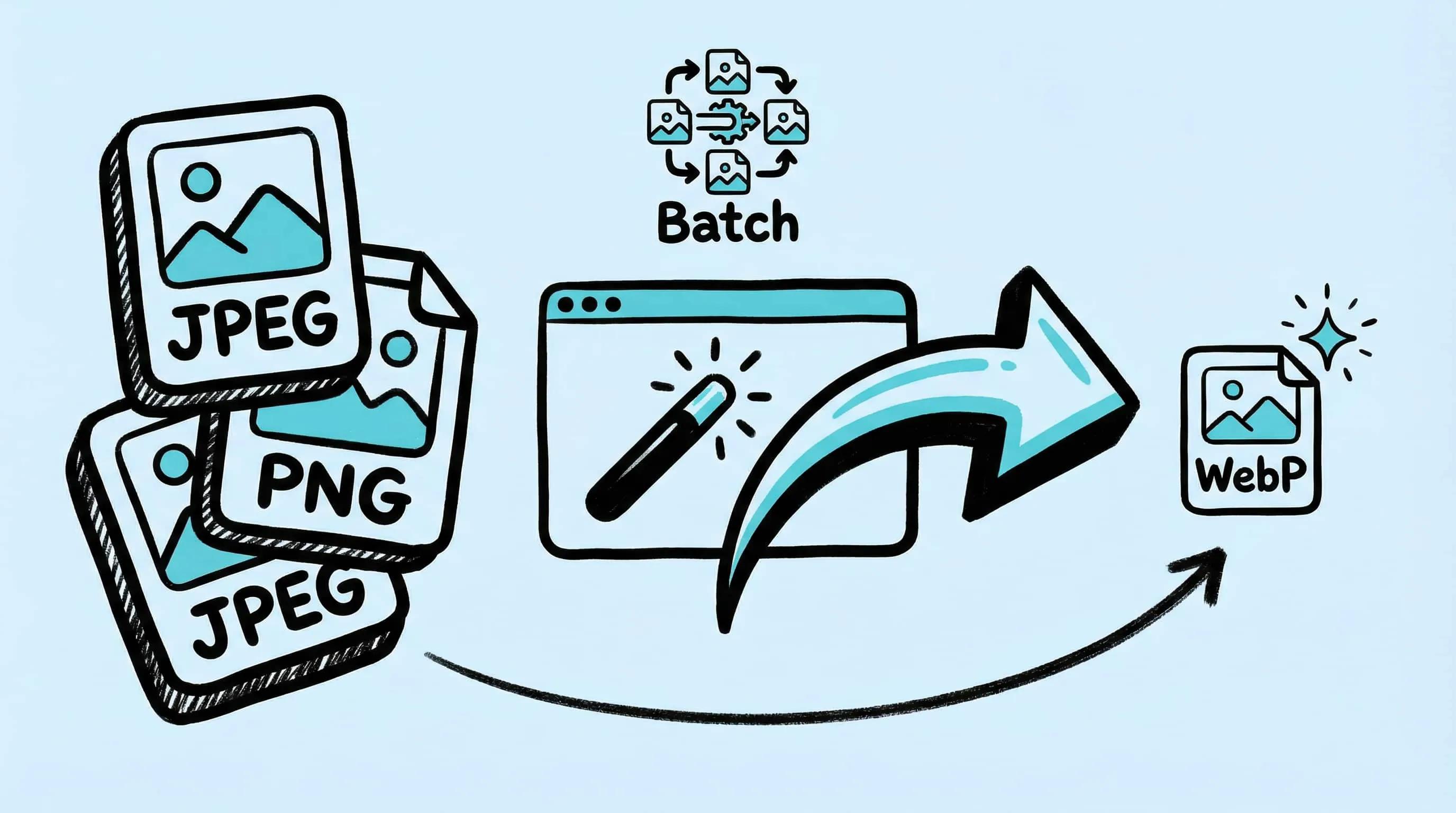
WebP Image Optimizer for Mac: Convert and Compress to WebP
Looking for a WebP image optimizer on Mac? Zipic is a native WebP compression tool that converts JPEG, PNG, and HEIC to WebP with batch processing and quality control.
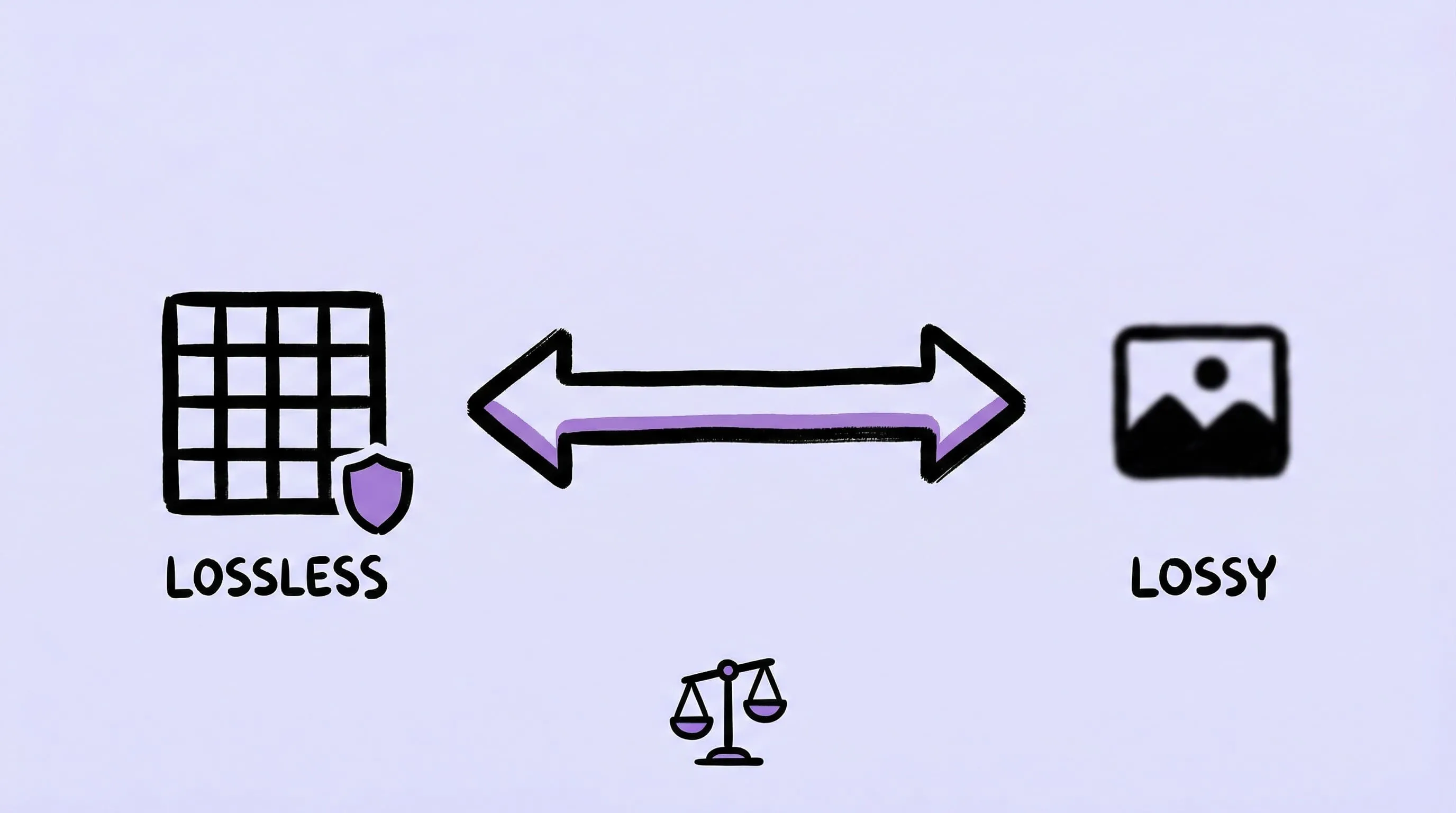
Lossy vs Lossless Compression: Which Should You Use?
Lossy discards data for smaller files; lossless keeps exact pixels. Use lossy for web photos, lossless for screenshots, logos, and masters.