Image Compression for Email: Smaller Attachments on Mac
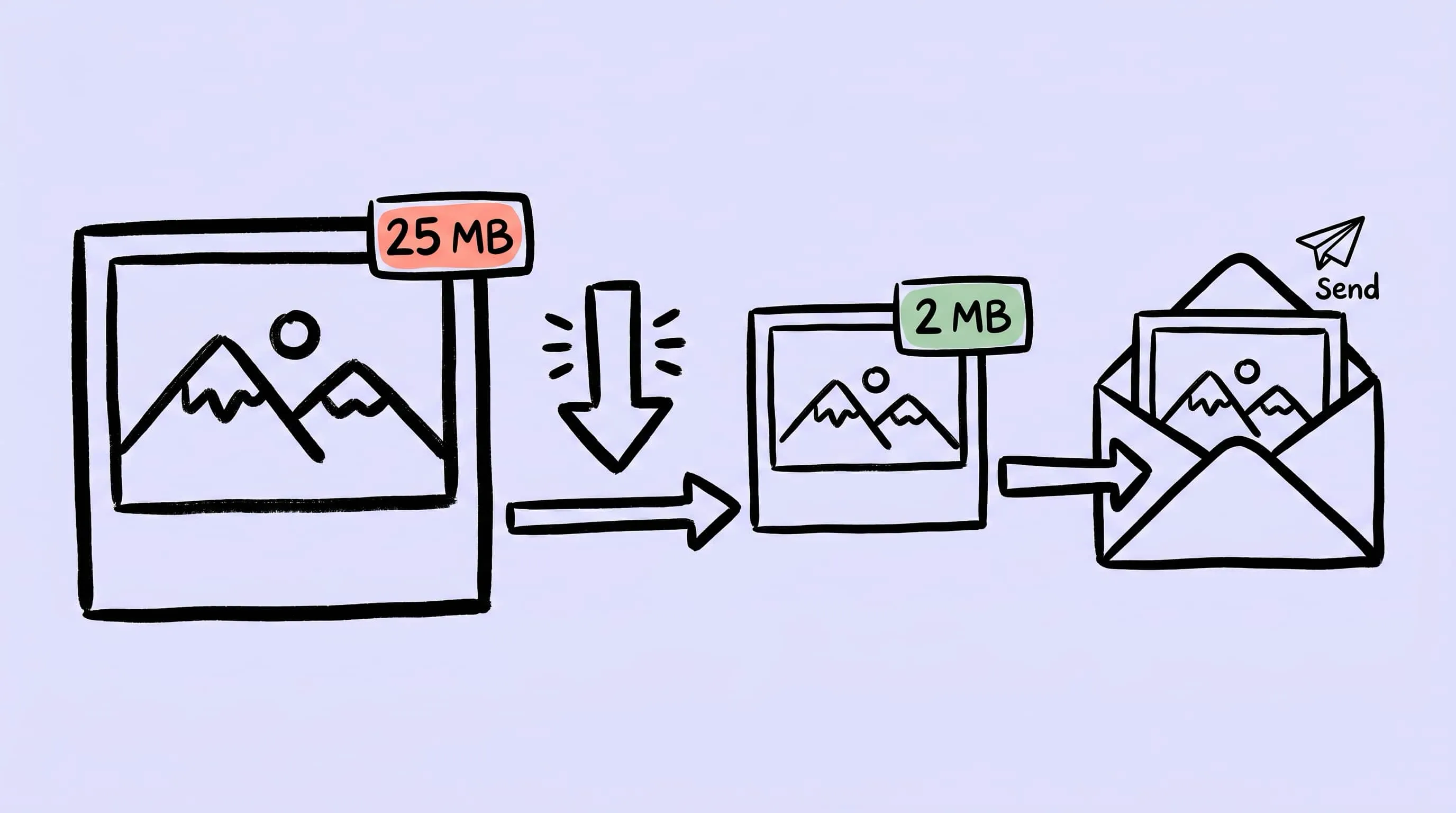
Email attachment limits trip up image-heavy messages. Learn 2026 provider caps, Apple Mail's built-in resize, and a Zipic preset for email-ready photos.
Sending photos by email looks simple until your message bounces back with “size exceeds the maximum allowed,” or your recipient complains that an inline picture took an entire data plan to load. Email is one of the noisiest delivery channels for images: every provider enforces a different size cap, mobile clients clip oversized HTML, and the attachment that worked from your laptop may fail from the same recipient’s iPhone.
This guide is a practical playbook for image compression for email on a Mac. It covers what each major provider actually allows in 2026, how Apple Mail’s built-in resize compares to a Zipic preset workflow, and when you should give up on attachments altogether and switch to Mail Drop or a Drive link.
What Email Providers Actually Allow in 2026
Hidden behind every “your file is too large” error is one of these limits:
| Provider | Per-message limit | Notes |
|---|---|---|
| Gmail | 25 MB | Anything larger is auto-converted to a Google Drive link in the message body |
| Outlook.com (consumer) | 20 MB | Same total cap for all attachments and inline images combined |
| Microsoft 365 (Outlook + Exchange Online) | 35 MB default; admin can raise up to 150 MB | OWA limit = 25% below configured (~26 MB at default, 112 MB at max); new Outlook for Mac and Outlook mobile cap at 33 MB |
| Yahoo Mail | 25 MB | Total per message |
| iCloud Mail (direct attachment) | 20 MB | Larger sends prompt Mail Drop |
| iCloud Mail Drop | 5 GB per attachment, 1 TB per account | Recipient has 30 days to download; doesn’t count against your iCloud storage |
(Sources cited at the end.)
A few practical implications. First, the lowest common denominator for cross-provider sends is roughly 20 MB, not 25. If you’re emailing a Microsoft 365 inbox you don’t control, assume you have 35 MB at most and far less in practice. Second, the limits cover the entire MIME-encoded message — body, inline images, and attachments all share the budget, and base64 encoding adds about 33% overhead, so a 20 MB raw file becomes roughly 27 MB on the wire. The number you see in Finder is not the number the email server measures.
Why “It Fits” Isn’t Good Enough
Even when an image squeezes inside the provider limit, oversized attachments cause problems further down the line.
Gmail’s web client clips the rendered email body once the HTML message body exceeds 102 KB, hiding everything below that behind a “[Message clipped]” link. The 102 KB ceiling applies to the HTML code itself — externally-hosted <img src="https://…"> images don’t count toward it, but bloated inline CSS, base64 data-URI embedded images, and tracking pixels do. For one-off photo emails this rarely matters; for newsletter senders it’s the single most common reason recipients miss your CTA.
Mobile clients are stricter on the bandwidth side. iOS Mail and Outlook Mobile defer image downloads on cellular by default; a 6 MB hero image either delays the message render by several seconds on a slow connection, or simply doesn’t load until the recipient is back on Wi-Fi. The user blames your sender reputation, not their carrier.
Finally, attachment-heavy emails rank lower in deliverability scoring. Spam filters treat oversized images as a signal — not because images are spam, but because spam disproportionately uses bulky graphics. Lighter is genuinely better.
How Small Should Your Email Images Be?
There is no single answer, but these targets cover the cases that come up most often:
| Use case | Target dimensions | Target file size |
|---|---|---|
| Inline screenshot for a colleague | 1200–1600 px wide | 150–300 KB |
| Email newsletter hero image | 600–650 px wide | 100–200 KB |
| Photo for family or friends | 1600–2400 px long edge | 300–800 KB |
| Multi-photo gallery (5+ images) | 1280 px long edge each | ~150 KB each |
| Document scan or receipt | 1500 px long edge | 200–400 KB |
For email newsletters specifically, Mailjet, Moosend, and Litmus converge on the same advice: keep individual images under 200 KB at 600 px wide, and keep total HTML under 102 KB so Gmail doesn’t clip you.
Apple Mail’s Built-in Resize: What It Does and Doesn’t Do
When you drop an image into a Mac Mail compose window, an Image Size popup appears at the top-right of the message. It offers four choices:
- Small → 320 px wide
- Medium → 640 px wide
- Large → 1280 px wide
- Actual Size → original dimensions
This is genuinely useful for one-off sends, with two important caveats. The popup only resizes JPEG and GIF files; PNG attachments are sent at their original size regardless of the dropdown selection. And the choice persists between sessions, so if you set “Actual Size” once for an important client deliverable, the next casual photo will go out at full resolution unless you remember to switch it back.
So Apple Mail’s built-in tool covers the simple case (one JPEG, send it small). It doesn’t help with PNGs, doesn’t change format, doesn’t compress beyond resizing, and doesn’t give you per-recipient or per-context defaults. For anything more than ad-hoc sharing, a dedicated compression step in front of Mail is faster and produces better files.
A Reusable Email-Ready Preset in Zipic
Zipic uses a preset-based workflow: configure compression settings first, then add images and let it process automatically. There is no “Start” button — adding files is what triggers the job.
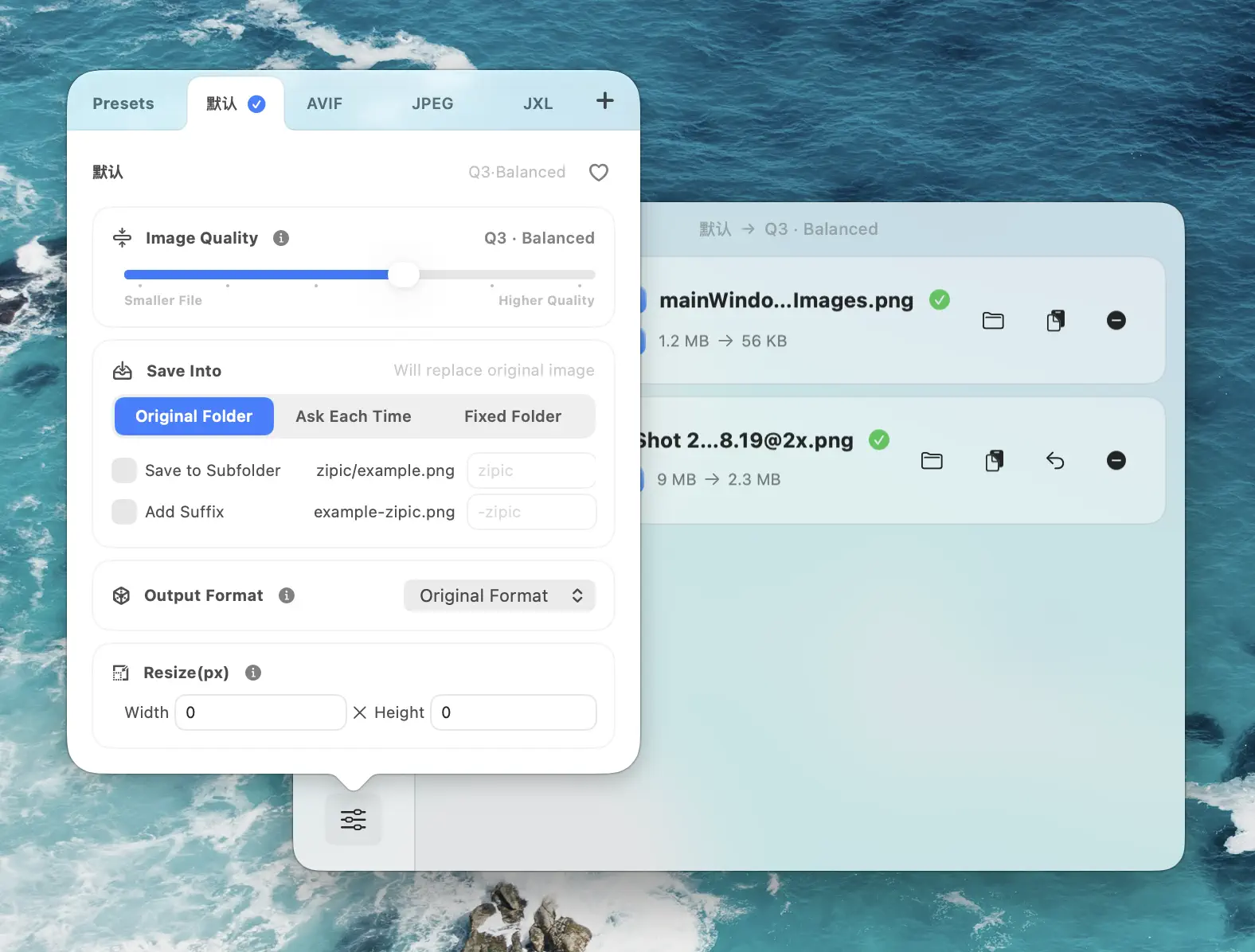
I keep a single “Email” preset that covers about 90% of my outgoing image attachments:
- Image Quality: 3 (balanced — visually lossless for photos, still small)
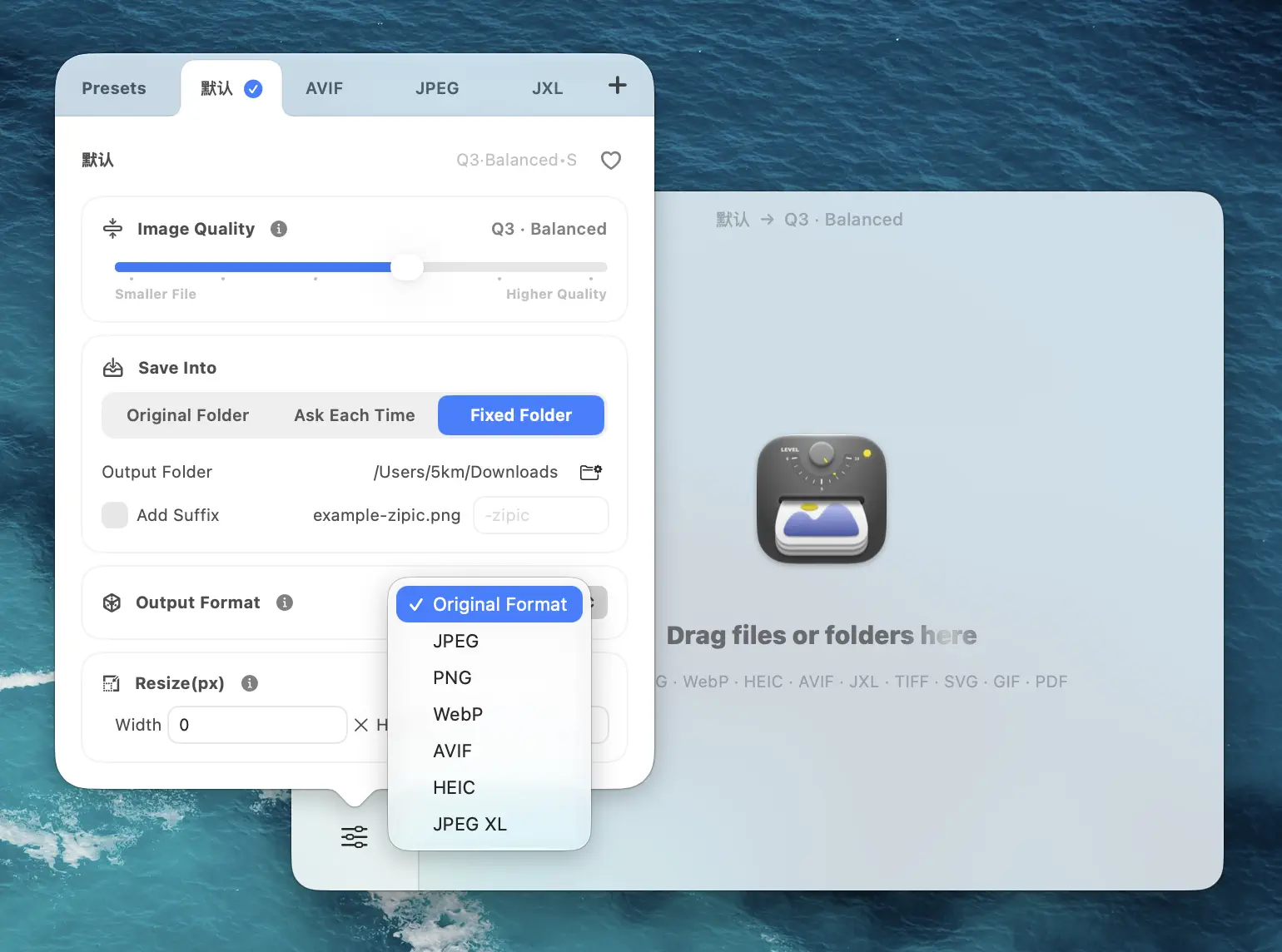
- Save Format: WebP for technical recipients, JPEG for everyone else
- Resize: Long edge 1600 px (skipped if the source is already smaller)
- Save Location: Custom folder
~/Desktop/Email Images/so attachments are easy to find
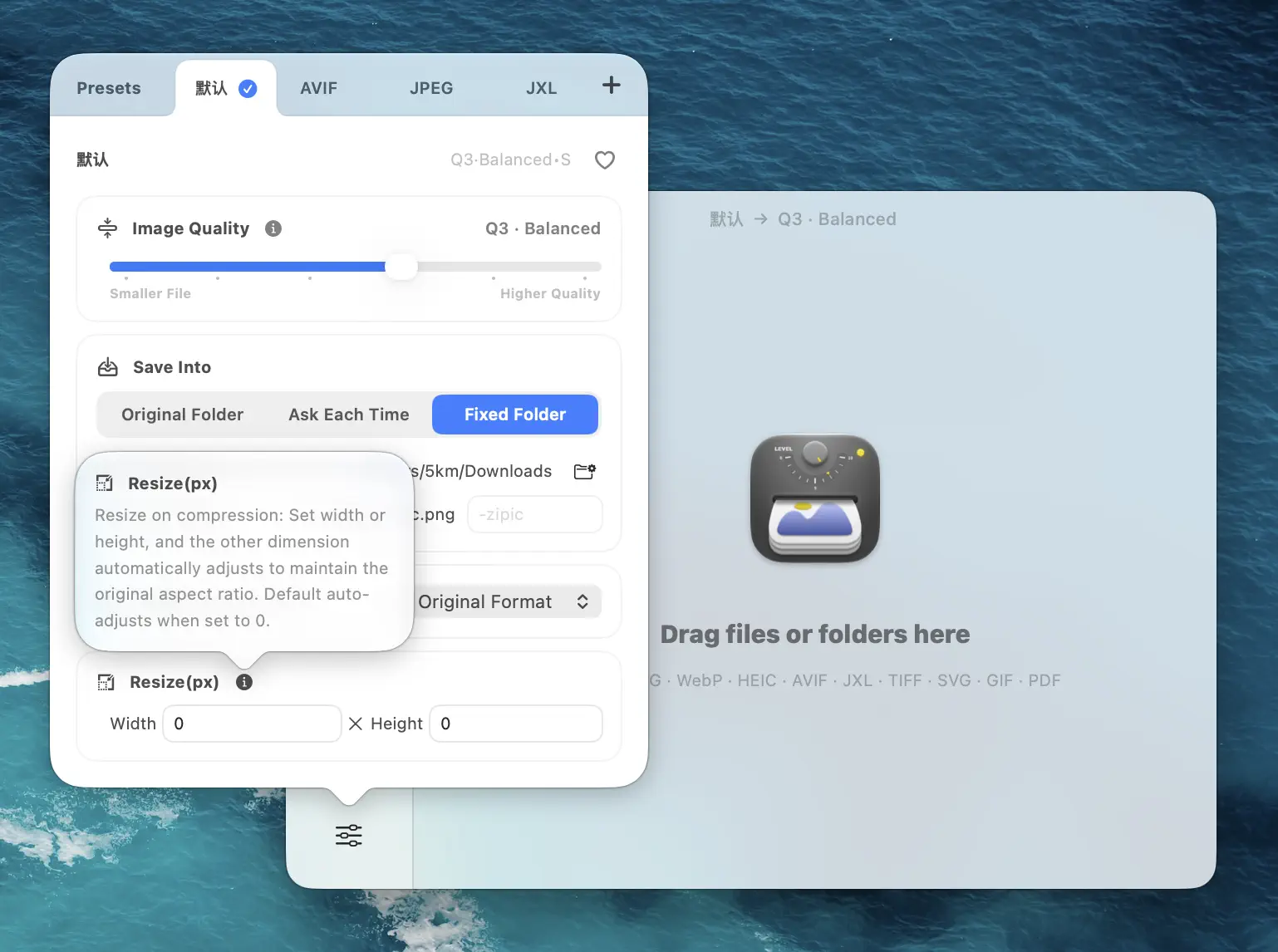
Open Compression Settings at the bottom-left of Zipic’s main window, edit or create a preset with the values above, then drag your photos in. Zipic resizes, converts, and compresses every file in one pass.
Drag the output straight from the result list into your Mail compose window — none of the size dropdowns matter anymore because the source file is already the right size.
For a deeper walkthrough of the preset system see Batch Compress Images on Mac, and for hitting a specific KB target see Compress Images to Specific File Size. Read more about preset basics in the Zipic image compression guide.
When to Stop Compressing and Use a Link Instead
Compressing photos works wonderfully right up until it doesn’t. Twenty product shots at print resolution, a 30-second screen recording, a folder of RAW images for a client — these aren’t email problems, they’re file-transfer problems disguised as email.
The line I draw:
- Compress and attach when the compressed total fits comfortably under 15 MB. That keeps you safely below every consumer provider limit even with base64 overhead.
- Use Mail Drop (Apple Mail / iCloud) for sends between 15 MB and 5 GB. The recipient has 30 days to download, the attachment doesn’t count against your iCloud storage, and they get a normal-looking download link in the message.
- Use a Drive link (Gmail) when you want longer-term access or controlled sharing. Gmail does this automatically over 25 MB, but you can also share a Drive file deliberately, which gives you revocation, view counts, and link expiration.
For the typical case — a few screenshots, a couple of photos, a PDF — compression keeps the email a normal email. For everything else, a link is the right answer.
FAQ
Does compressing an image hurt how it looks in email? At Q2 or 3 with Zipic’s defaults, recipients won’t notice. Q4 or 5 starts to soften photo detail and is fine for thumbnail-sized inline images, but visible on larger hero shots.
Should I send PNG or JPEG by email? JPEG for photos and any image where file size matters more than pixel-perfect lossless reproduction. PNG only when the image is a screenshot of UI text, a logo with hard edges, or something with transparency. WebP is a better default than both, but only when you know the recipient’s mail client renders WebP — classic Outlook desktop (2019/2021/2024 classic) still does not.
Why does my recipient see a “Message clipped” link? Gmail clips the email body when the HTML code exceeds 102 KB. Externally-hosted images don’t add to that count, but data-URI embedded images and heavy inline CSS do. Slim down the template’s HTML, drop unused tracking pixels, and host images on a CDN rather than embedding as base64.
Can I send WebP attachments by email? Yes — modern Apple Mail, Gmail web, the new Outlook for Windows/Mac, and Outlook mobile all render WebP inline. The classic Outlook desktop (2019/2021/2024 classic) and Outlook on the web running in browsers without WebP support fall back to “open with default app.” If in doubt, use JPEG.
Sources
- Mail Drop limits — Apple Support
- Exchange Online limits — Microsoft Learn
- Send attachments with your Gmail message — Google Support
- Email file sizes guidance — Mailjet
- Zipic image compression basics
- Zipic resizing images
Related Articles
- How to Compress Images on Mac — The Complete Guide
- Compress Images to Specific File Size (50KB, 100KB, 200KB)
- Compress Images for Notion, Obsidian, and Apple Notes on Mac
- Compress Screenshots on Mac
- How to Resize Images on Mac
Try Zipic
Stop fighting the 25 MB email limit. Download Zipic and set up an Email preset that compresses photos to attachment-friendly sizes in one drop. Every download includes a full 7-day Pro trial. See pricing.
Related Reading
How to Compress Images on Mac Fast (Without Ruining Quality)
Compress images on Mac with drag-and-drop, Finder, presets, and batch automation — protect originals, check quality at 100%, then scale the workflow.
Why Zipic Kept libwebp for WebP but Built Its Own AVIF Encoder
Zipic keeps Google's libwebp for WebP but built avifoptim after libavif failed to preserve iPhone HDR photos. The engineering trade-off explained.
Best gifski Alternative on Mac: When One Video at a Time Isn't Enough
gifski is a great video-to-GIF encoder, but it cannot batch, monitor folders, or compress existing GIFs. Here is the Mac gifski alternative for those jobs.
How to Compress and Optimize SVG Files on Mac with Zipic
Need an SVG optimizer on Mac? Compress and optimize SVG files with Zipic — strip editor bloat, pick from six quality steps (Q1–Q6), and batch entire icon sets.