Lossy vs Lossless Compression Explained
Understand the difference between lossy and lossless image compression. Learn when to use each type, which formats support them, and how to choose.
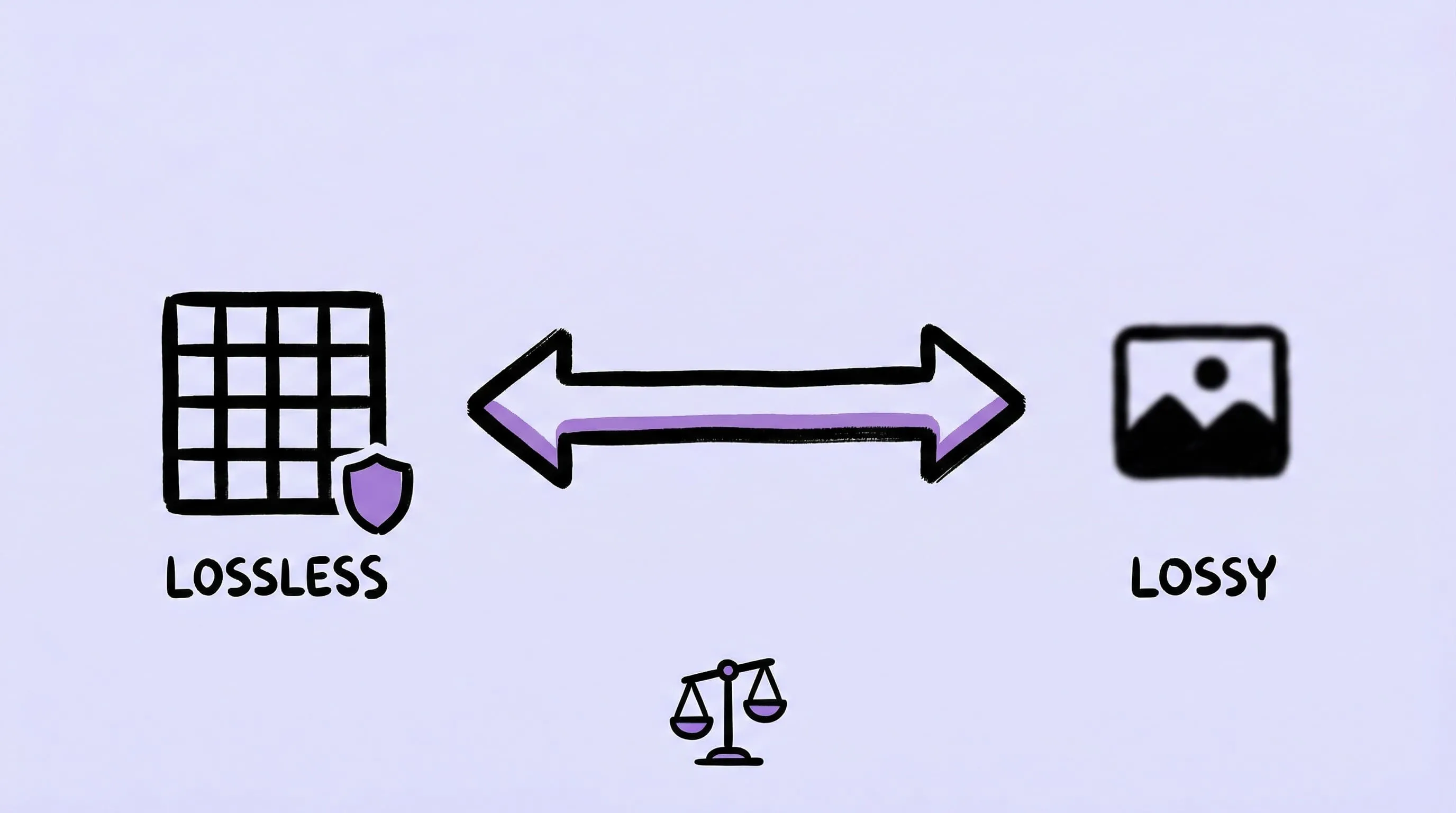
Every time you compress an image, a fundamental choice is being made: lossy or lossless. Understanding the difference helps you pick the right settings for every situation — whether you’re optimizing web images, archiving photos, or preparing assets for print.
The Simple Explanation
Lossless compression makes files smaller without changing any pixel data. Decompress the file and you get back the exact original image, bit for bit.
Lossy compression makes files much smaller by permanently removing data that the human eye is unlikely to notice. The result looks nearly identical but isn’t pixel-for-pixel the same.
Think of it this way:
- Lossless = vacuum-sealing a sweater. It takes less space, but you get the exact same sweater back.
- Lossy = removing the packing peanuts from a box. The item still arrives fine, but some packaging material is gone forever.
How Lossless Compression Works
Lossless algorithms find patterns and redundancies in image data and encode them more efficiently. Common techniques:
- Run-length encoding — “10 blue pixels in a row” instead of listing each one
- Huffman coding — frequent patterns get shorter codes
- Dictionary compression — repeated sequences reference a lookup table
- Predictive filtering — storing differences between adjacent pixels
The result is typically 10–30% smaller than the original. Not dramatic, but guaranteed to be identical when decompressed.
Formats That Support Lossless
| Format | Lossless Support |
|---|---|
| PNG | Always lossless |
| WebP | Optional (lossless mode) |
| AVIF | Optional (lossless mode) |
| TIFF | Configurable |
| JPEG-XL | Optional (lossless mode) |
| GIF | Always lossless (limited palette) |
When to Use Lossless
- Screenshots and UI elements — text and sharp edges must stay crisp
- Logos and icons — precise color reproduction matters
- Medical or scientific images — no data loss acceptable
- Source files for editing — preserve all data for future modifications
- Archival storage — keep originals intact for long-term preservation
How Lossy Compression Works
Lossy algorithms analyze an image and remove information that contributes least to perceived quality. Common techniques:
- Quantization — reducing the precision of color values (similar colors merged)
- Chroma subsampling — reducing color detail while preserving brightness detail (human vision is more sensitive to brightness)
- Frequency domain transformation — removing high-frequency details that are hard to see
- Perceptual modeling — using knowledge of human vision to decide what to keep
The result can be 60–90% smaller than the original. At moderate quality settings, the difference is invisible to most people.
Formats That Support Lossy
| Format | Lossy Support |
|---|---|
| JPEG | Always lossy |
| WebP | Default (lossy mode) |
| AVIF | Default (lossy mode) |
| HEIC | Default (lossy mode) |
| JPEG-XL | Optional (lossy mode) |
When to Use Lossy
- Web images — faster loading is worth imperceptible quality loss
- Social media uploads — platforms re-compress anyway
- Email attachments — smaller files for faster delivery
- Blog and article images — readers won’t zoom to pixel level
- Thumbnails and previews — viewed at small sizes where detail is invisible
Side-by-Side: The Real Difference
At moderate compression (quality ~80), most people cannot tell lossy from lossless in a normal viewing context. The differences become visible only when:
- Zooming to 200%+ on fine text or sharp edges
- Comparing the same region pixel-by-pixel
- Using very aggressive compression (quality < 50)
For photographs viewed at normal size, quality 70–85 lossy compression is effectively indistinguishable from lossless.
How Zipic Handles Both
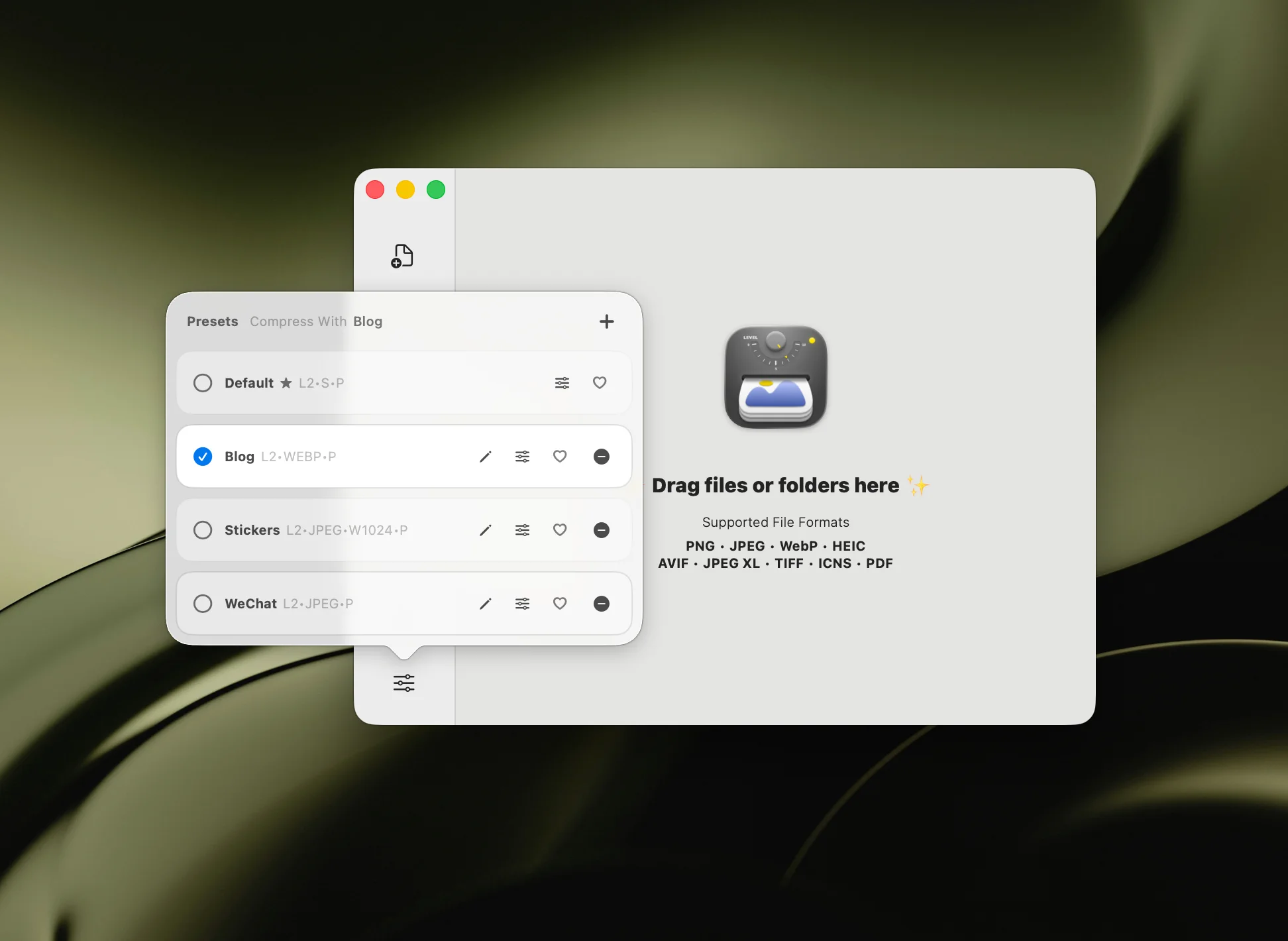
Zipic gives you full control over the lossy-lossless spectrum through its 6 compression levels:
- Level 1 — near-lossless: minimal data removal, maximum quality preservation
- Level 2 — light compression: barely perceptible changes
- Level 3 — balanced: recommended for most use cases
- Level 4 — moderate: noticeable on close inspection
- Level 5 — aggressive: significant size reduction
- Level 6 — maximum: smallest files, visible quality trade-offs
In version 1.9.0, Zipic enhanced its JPEG and PNG compression engines for a better quality-to-size balance — achieving smaller files at the same visual quality across all levels.
Zipic preserves ICC color profiles across WebP, AVIF, TIFF and other formats, ensuring consistent color reproduction for professional workflows.
You can save different presets for different scenarios — archival at level 1, web at level 3, thumbnails at level 5. See the compression settings guide for details.
Quick Decision Guide
| Question | Answer → Recommendation |
|---|---|
| Will anyone zoom in on the details? | Yes → Lossless (Level 1) |
| Is this for a website? | Yes → Lossy (Level 2-3) |
| Does it contain text or line art? | Yes → Lossless or very light lossy (Level 1-2) |
| Is this a photograph? | Yes → Lossy is fine (Level 2-4) |
| Am I archiving the original? | Yes → Lossless (Level 1, keep original format) |
| Do I need the smallest possible file? | Yes → Lossy (Level 4-6) |
Key Takeaways
- Lossless preserves every pixel — use for screenshots, logos, archives, and source files
- Lossy removes imperceptible detail — use for web images, photos, and sharing
- Most people cannot see the difference at moderate lossy settings (quality 70-85)
- Choosing the right format matters as much as choosing the compression type — AVIF lossy often produces smaller files than PNG lossless for photographs
- Don’t re-compress lossy files — quality degrades with each generation. Start from the original when possible
Want to try both approaches? Download Zipic and experiment with all 6 compression levels on your own images. See the difference for yourself.
Related Articles
- JPEG vs PNG vs WebP: Which Image Format Should You Use?
- Optimize Images for Web Performance
- How to Compress Images on Mac
- Batch Compress Images on Mac: Complete Tutorial
Learn more: Image Compression Basic | Choosing Image Formats