How to Compress Images on Mac — The Complete Guide
Learn how to compress JPEG, PNG, WebP, HEIC, and AVIF images on Mac without losing quality. Step-by-step guide using Zipic, the best Mac image compression tool.
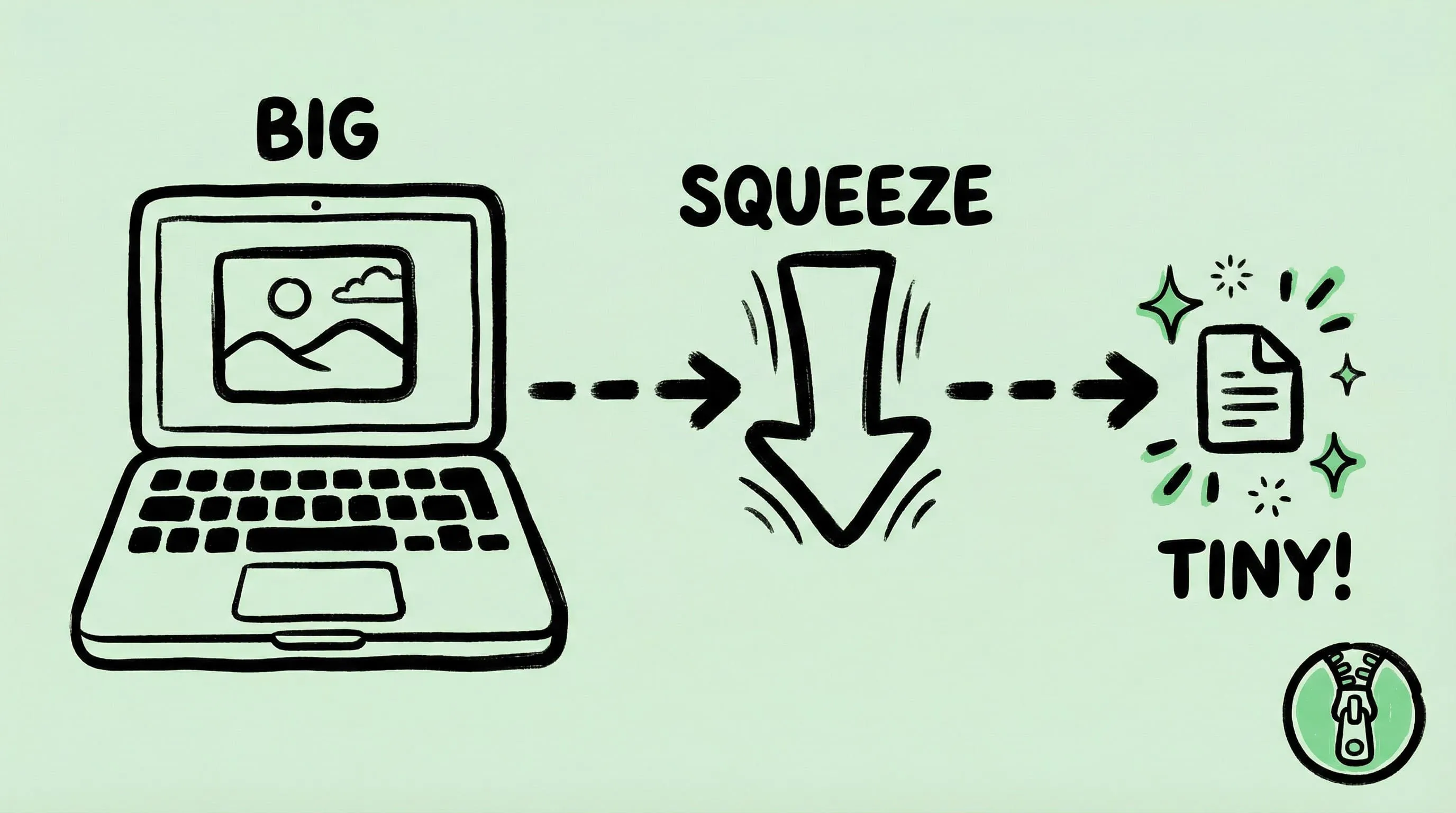
Large image files slow down websites, fill up hard drives, and make sharing a pain. If you’re on a Mac, Zipic makes image compression effortless — supporting JPEG, PNG, WebP, HEIC, AVIF, TIFF, ICNS, PDF, JPEG-XL, SVG, and APNG in one native app.
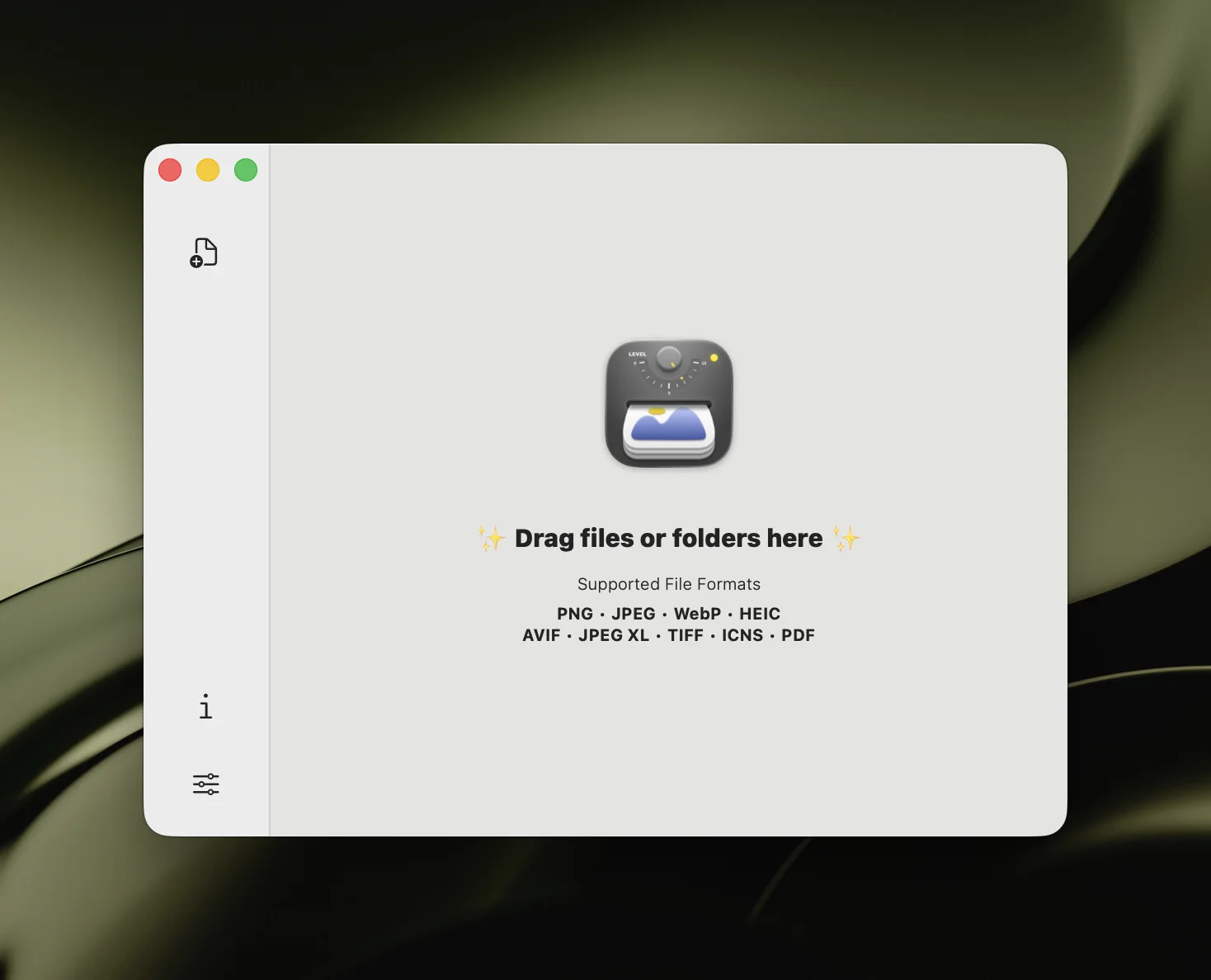
Here’s everything you need to get started.
Choose Your Compression Preset
Before compressing, pick a preset that matches your goal. Zipic’s preset system lets you save different configurations for different workflows — web optimization, email sharing, archival quality, and more.
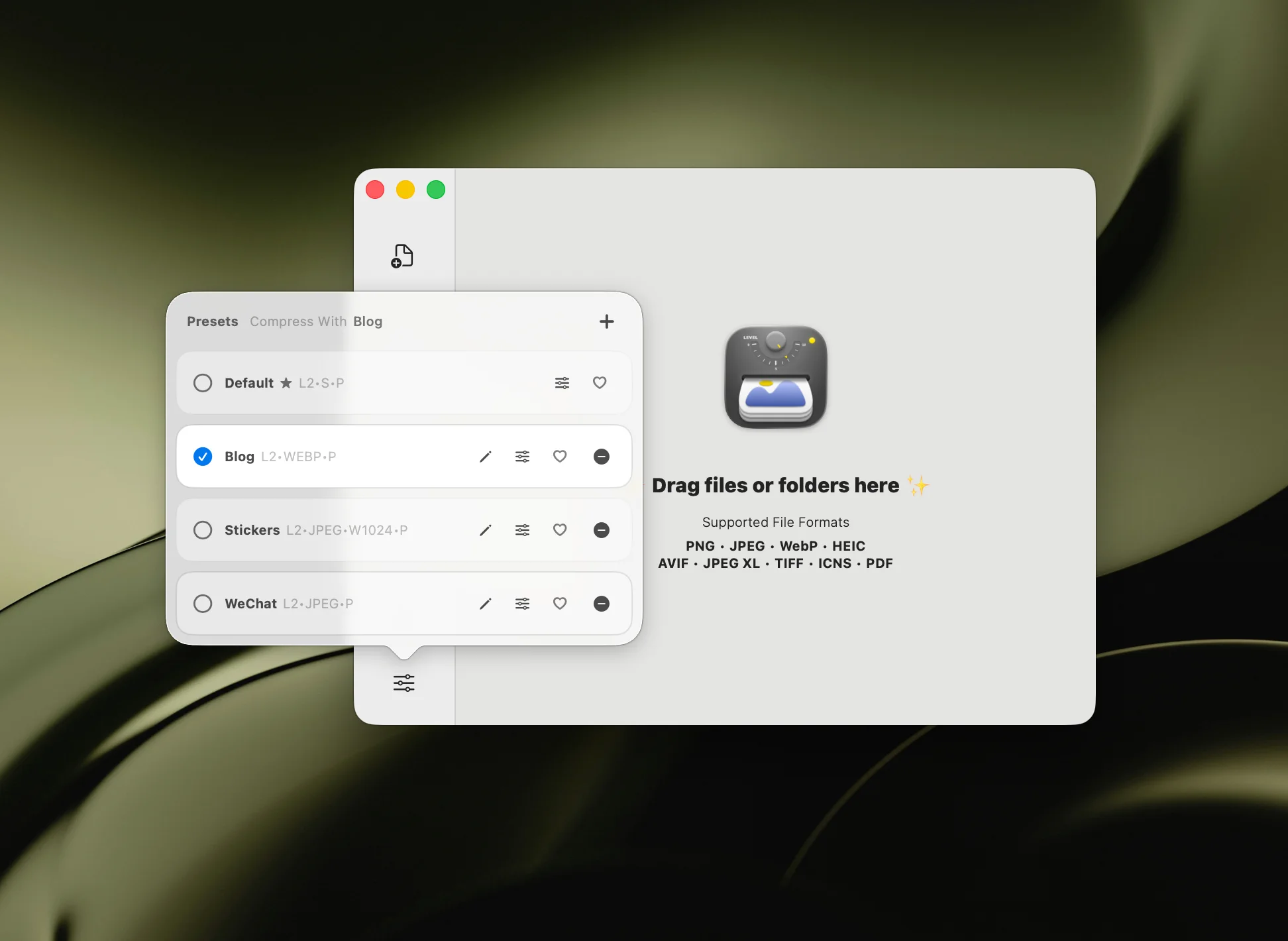
- Level 1 — Minimal compression, virtually no quality loss. Best for archival.
- Level 2-3 — Recommended for most users. Great balance of size and quality.
- Level 4-5 — Aggressive compression for maximum space savings.
Tip: Start with the default preset. You can always fine-tune later.
For the full guide on presets and compression options, see the Basic Image Compression documentation.
Compression Methods
Zipic fits into your macOS workflow with multiple compression triggers. Here are the key methods with live demos.
Drag and Drop
The simplest way — drag images or entire folders from Finder straight into the Zipic window.
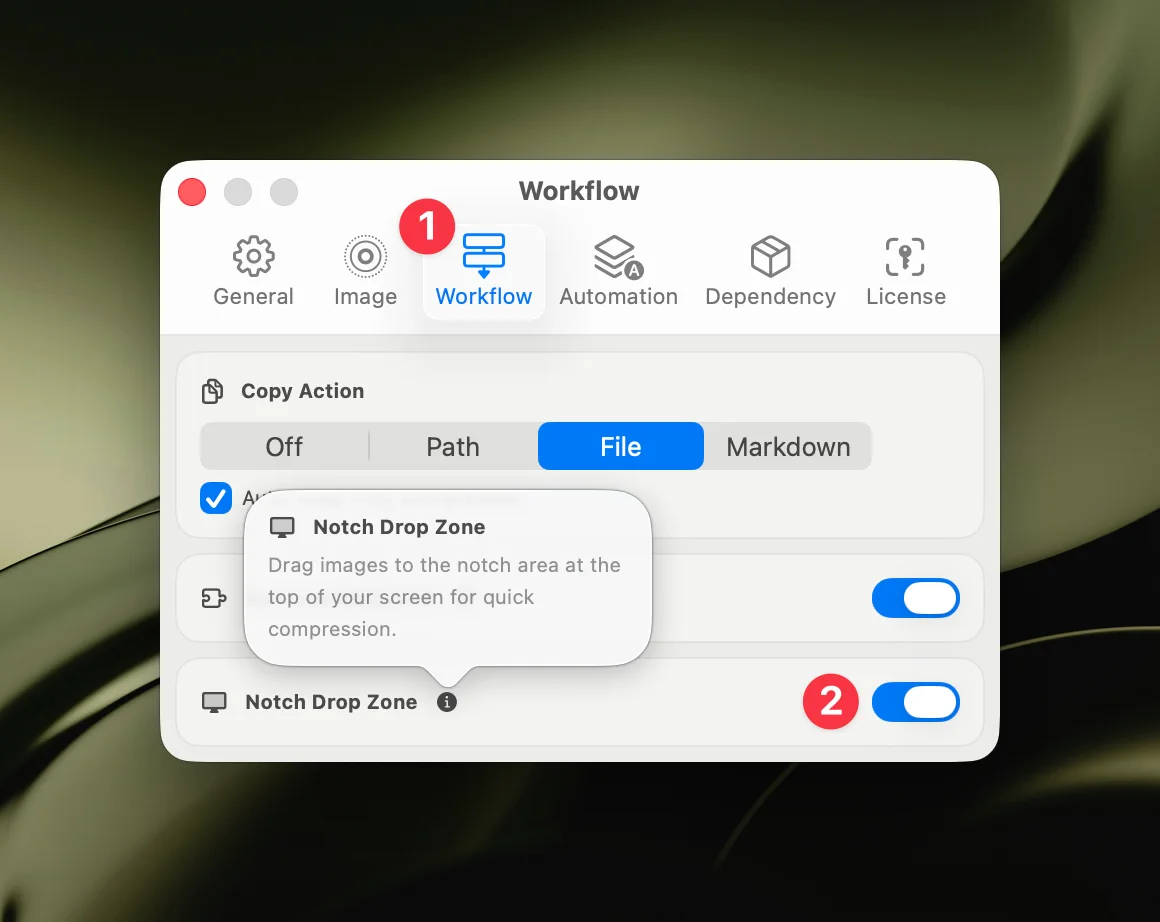
Notch Drop (Pro)
Zipic’s signature feature. Drag files toward the top of your screen and a drop zone appears — release to compress instantly, without even opening the main window.
Finder Context Menu
Right-click any image in Finder, select Open With → Zipic, and it compresses with your current preset.
More Methods
Zipic also supports:
- Raycast Extension — Compress from the Raycast command palette without switching apps. See the Raycast Extension guide.
- Paste Compression (Pro) — Copy an image, press
⌘+Vin Zipic, done. - URL Scheme & Shortcuts — Automate compression via macOS Shortcuts or terminal commands. See Integrating Zipic into your workflow.
Choose the Right Format
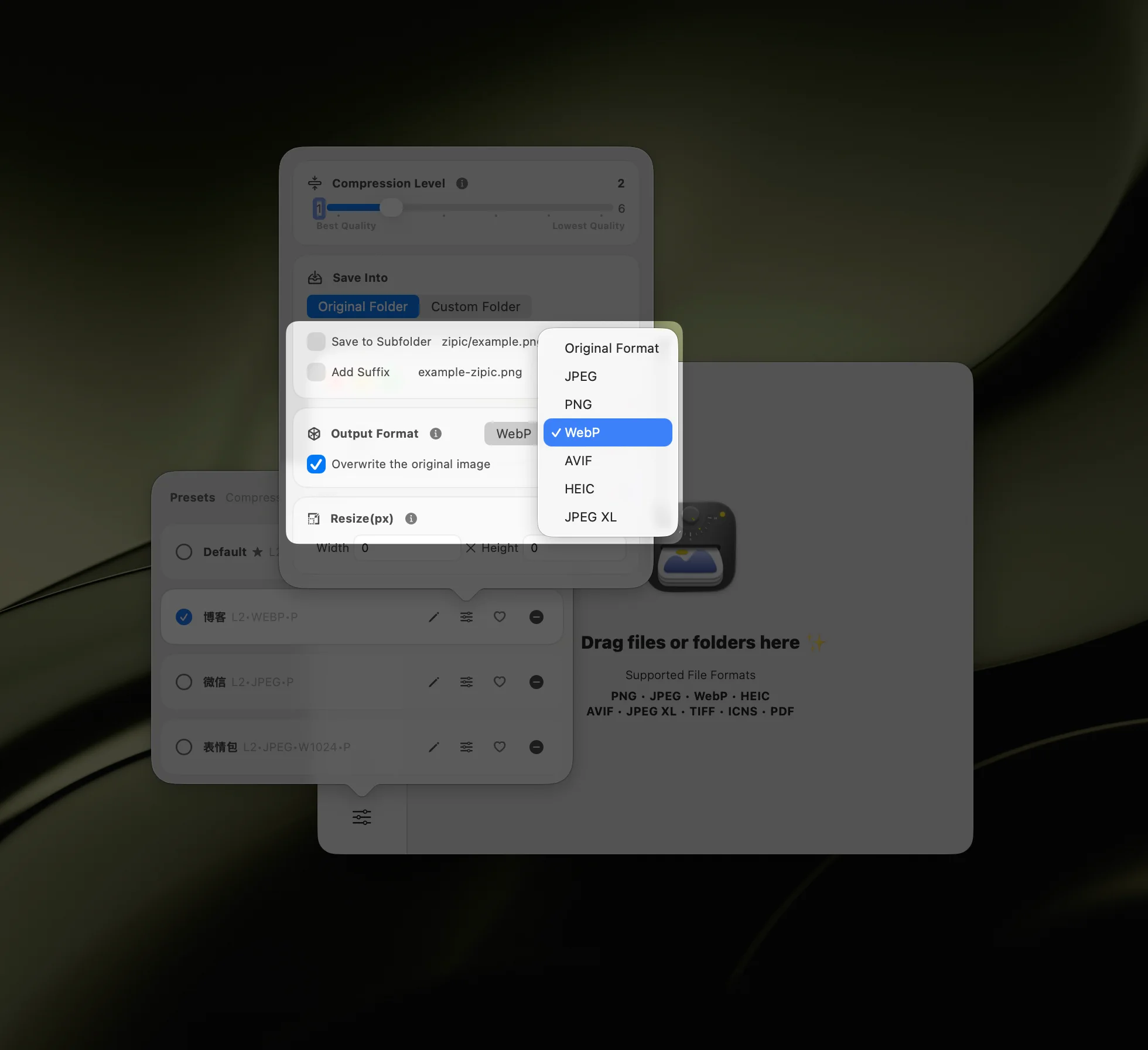
Zipic can convert between formats during compression. Pick the right output format for your use case:
| Format | Best For | Transparency | Typical Savings |
|---|---|---|---|
| JPEG | Photos, web images | No | 60-80% |
| PNG | Screenshots, graphics | Yes | 10-30% (lossless) |
| WebP | Web-optimized images | Yes | 25-35% vs JPEG |
| AVIF | Next-gen web | Yes | 30-50% vs JPEG |
| HEIC | Apple ecosystem | Yes | Similar to AVIF |
| JPEG-XL | Future-proof archival | Yes | Best overall |
| SVG | Vector graphics, logos, icons | Yes | Varies (Pro) |
| APNG | Animated graphics | Yes | 10-30% (Pro) |
For web use, WebP and AVIF offer the best compression-to-quality ratio. For Apple ecosystem sharing, HEIC is the native choice.
Here’s a quick demo of batch format conversion:
For detailed format comparison and recommendations, see the Image Compression Formats documentation.
Batch Compression and Folder Monitoring
Don’t process files one by one — drag entire folders into Zipic to compress everything inside. Mix formats freely; Zipic handles JPEG, PNG, WebP, and more in a single batch.
For ongoing workflows, set up folder monitoring — Zipic watches a directory and automatically compresses any new images added to it.
Learn how to set up automated folder monitoring in the Directory Monitoring guide.
Resize While Compressing
Need thumbnails or web-sized images? Zipic can resize during compression — set a target width or height, and the aspect ratio is preserved automatically.
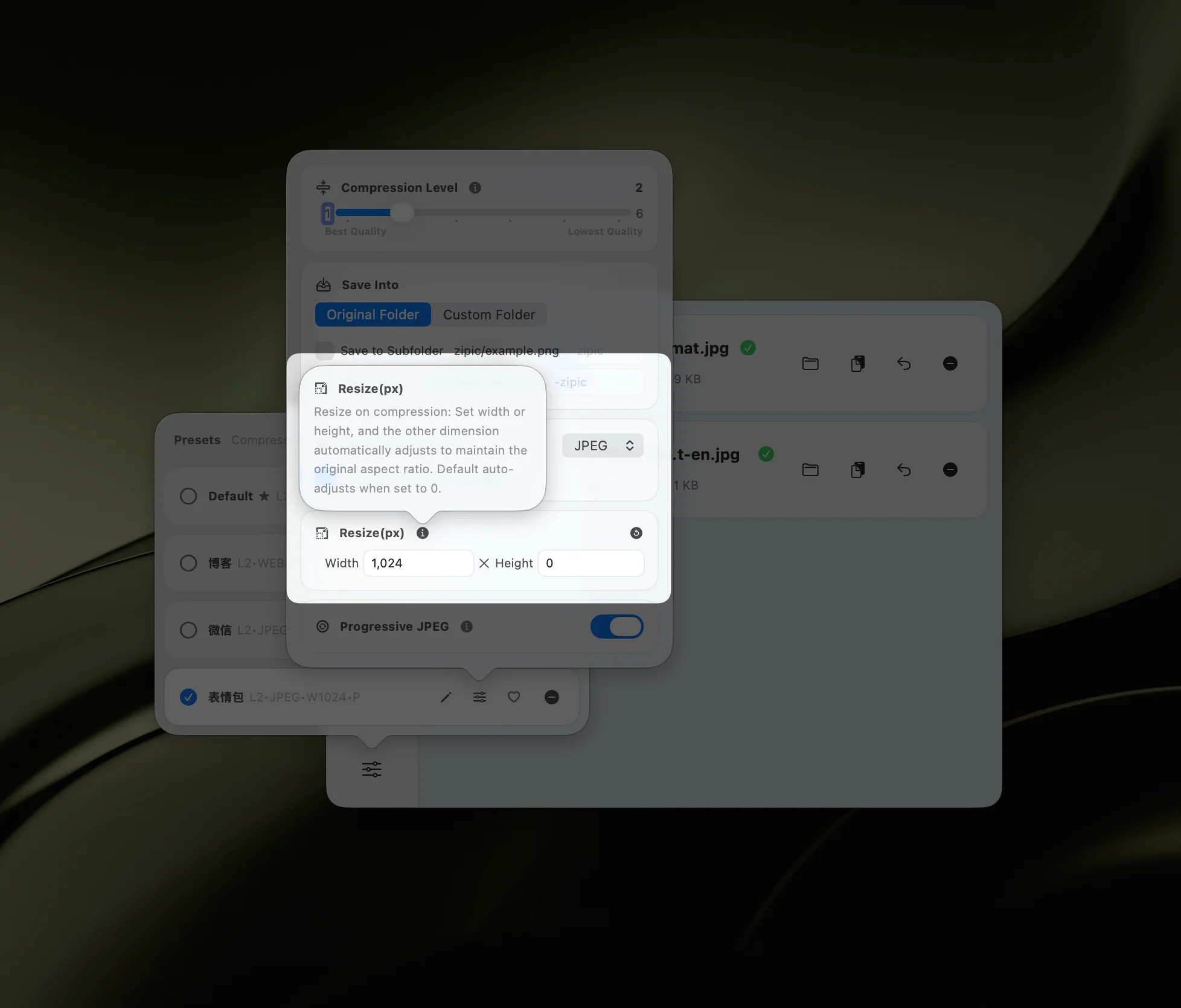
See the full Resizing Images documentation for all options.
Save Options
Control where compressed files go:
- Replace original — Overwrite the source file
- Subfolder — Save to a subfolder next to the original
- Custom folder — Pick any destination directory
- Add suffix — Keep the original, save a copy with a suffix like
_compressed
Details on all save modes: Configuring Save Options.
Get Started
Zipic is free to download and works on macOS out of the box.
- Download Zipic
- Drag it to Applications
- Drop your first image in and see the results
Upgrade to Zipic Pro for Notch Drop, paste compression, folder monitoring, unlimited presets, and the side-by-side comparison preview.
Related Articles
- Zipic vs ImageOptim: Which Mac Image Compressor Wins?
- Batch Compress Images on Mac: Complete Tutorial
- JPEG vs PNG vs WebP: Which Image Format Should You Use?
- macOS Automation: Auto-Compress with Folder Monitoring
- Lossy vs Lossless Compression Explained
For the full feature documentation, visit docs.zipic.app.