Best Free Image Compression Tools for Mac in 2026
The best free image compressor apps for Mac in 2026 — Zipic free, ImageOptim, Squoosh, macOS Preview, TinyPNG, Optimage, and JPEGmini. What each free tier actually lets you do.
You don’t need to spend a cent to compress images on Mac in 2026. Between the app already installed on your machine, two excellent free desktop apps, a browser tool from Google, and the free tiers of three otherwise paid apps, the question isn’t whether a free image compressor exists — it’s which one fits your workflow before you bump into its limits.
This guide walks through seven options that cost nothing to start. For each, we cover what the free experience actually includes, where the ceiling is, and when “free” becomes a bottleneck worth upgrading from.
What “Free” Really Means for Image Compression
Three different things tend to get bundled under “free image compressor for Mac”:
- Truly free apps. No payment, no daily quota, no upload required. ImageOptim and Squoosh fit here. The catch is usually narrow scope — fewer formats, fewer controls, or no batch processing.
- Free tiers of paid apps. A daily quota or feature subset that lets you use the tool indefinitely without paying, but routes serious users to a paid plan. Zipic Free, Optimage Free, and JPEGmini Free work this way. The catch is the quota — fine for occasional use, frustrating once compression becomes routine.
- Free with upload caps. Web-based tools that are free up to a per-session ceiling, then ask for an account or subscription. TinyPNG fits here.
Knowing which model you’re using changes how you evaluate it. A 25-image-per-day cap is generous for a blogger publishing twice a week and a wall for a developer building a sprite atlas.
Quick Comparison
| Tool | Free model | Daily / session limit | Formats covered | Batch | Native macOS |
|---|---|---|---|---|---|
| Zipic Free | Free tier | 25 images/day | 5 (JPEG, PNG, WebP, HEIC, GIF) | ✅ | ✅ |
| ImageOptim | Truly free | None | 4 (JPEG, PNG, GIF, SVG) | ✅ | ✅ |
| Squoosh | Truly free | None (1 image at a time) | 6 (JPEG, PNG, WebP, AVIF, JPEG-XL, OxiPNG) | ❌ | ❌ (browser) |
| macOS Preview | Built-in | None | JPEG, PNG, HEIC, TIFF, PDF | ✅ (via Finder) | ✅ |
| TinyPNG (web) | Free with caps | 20 images/session, 5 MB/file | JPEG, PNG, WebP, AVIF | ✅ | ❌ (browser) |
| Optimage Free | Free tier | 24 images/day | 10+ (JPEG, PNG, WebP, HEIC, GIF, TIFF, SVG, PDF, ICNS, APNG) | ✅ | ✅ |
| JPEGmini Free | Free tier | 50 images/day | JPEG only | ✅ | ✅ |
The 7 Best Free Image Compressors on Mac
1. Zipic Free — Best Free Tier With Modern Formats and Automation
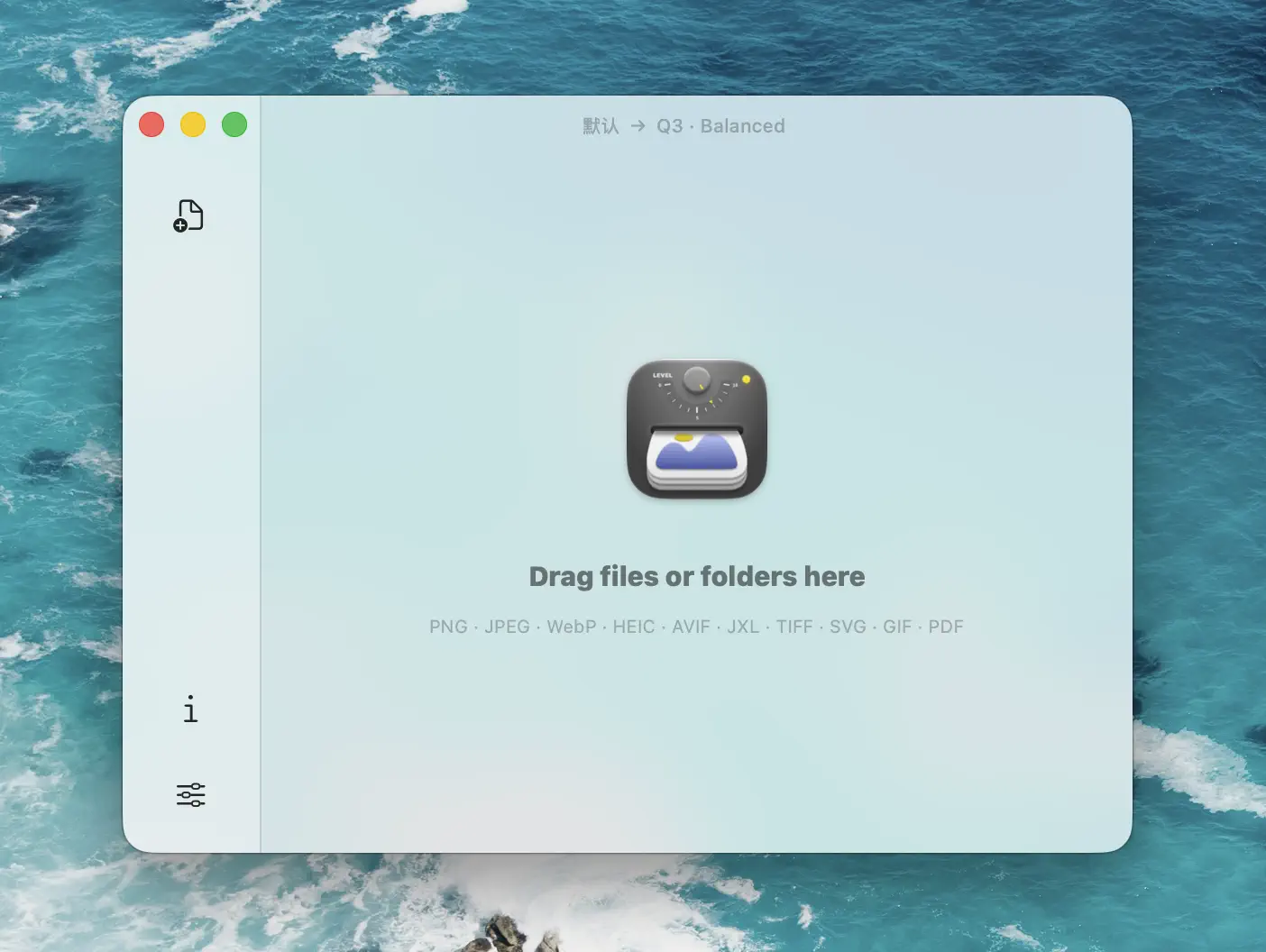
Zipic’s free tier gives you 25 image compressions per day across five formats — JPEG, PNG, WebP, HEIC, and GIF. That’s the same native app, the same six quality steps (Q1–Q6), the same batch UI, and the same drag-to-the-notch convenience that paid users get. Nothing is artificially crippled inside the quota.
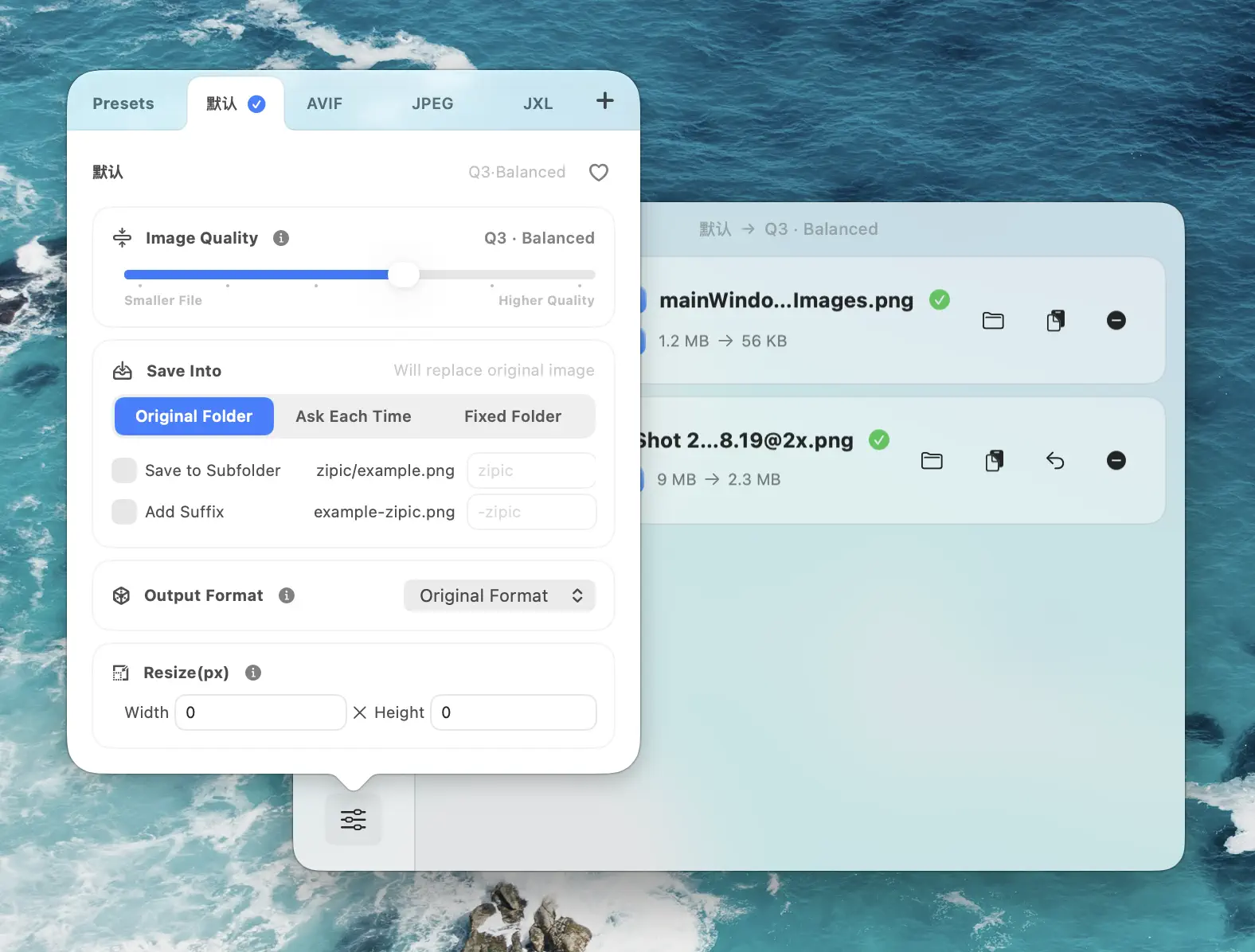
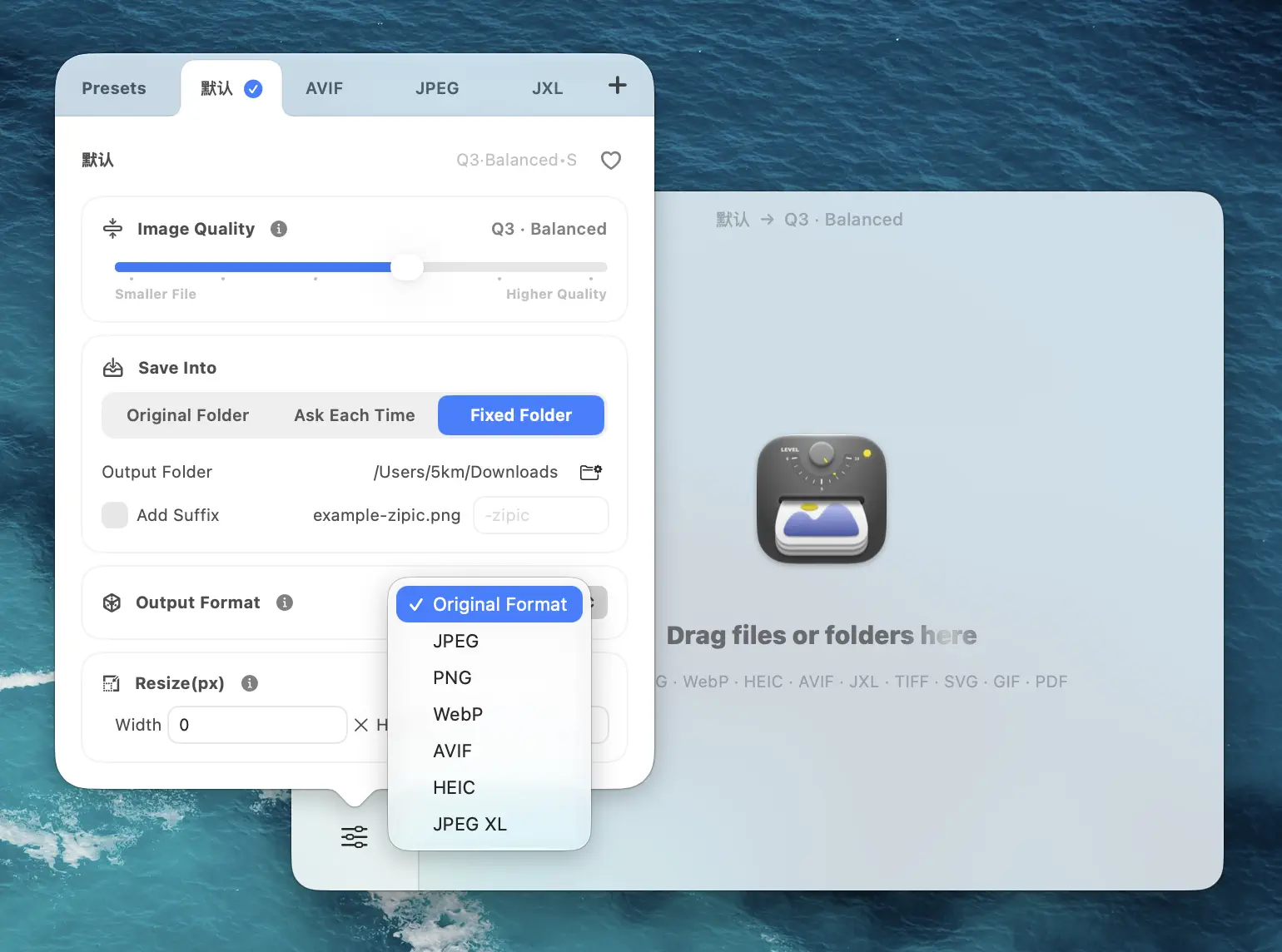
Where the free tier shines is the combination of modern format support and real automation — neither of which most other free options offer. WebP and HEIC are first-class citizens for free, where ImageOptim simply can’t help. And while you’re under quota, folder monitoring, Notch Drop, and the Finder context menu all work — so a hands-off screenshot workflow is reachable without paying.
The 25/day cap is enough for casual blog publishing, occasional UI screenshot pipelines, and weekend photo exports. You’ll feel it the day you import a vacation album or a sprint’s worth of product photos. AVIF, JPEG-XL, TIFF, ICNS, PDF, SVG, and APNG are gated behind Zipic Pro.
Free if: you process up to ~25 images a day across the five common formats and want a real Mac app, not a browser tab. Hits the wall: large batches, AVIF/JPEG-XL output, or Apple Shortcuts and URL Scheme automation.
2. ImageOptim — Best Truly Free, No-Quota Optimizer
ImageOptim is donationware with no daily limit and no premium upsell. Drop a folder of JPEG, PNG, GIF, or SVG files into the window and it strips metadata and re-encodes them losslessly using a chain of open-source engines (MozJPEG, pngquant, OxiPNG, Gifsicle, SVGO, Zopfli, and more). The output replaces the originals in place.
There are no compression levels by default — ImageOptim picks settings that aim for visually identical output. You can switch on lossy mode in preferences for more aggressive PNG/JPEG savings, but the interface stays minimal on purpose. There’s a CLI for build pipelines, which is one of the few automation hooks in any free tool here.
The cost of “truly free” is scope. No WebP, AVIF, HEIC, JPEG-XL, TIFF, or ICNS. No format conversion. No resize. Once your workflow involves anything beyond the four classic formats, ImageOptim quietly stops being relevant.
Free if: every image you touch is JPEG, PNG, GIF, or SVG and lossless is the goal. Hits the wall: anything modern (WebP, AVIF, HEIC, JPEG-XL) or any need to convert between formats.
3. Squoosh — Best Free Tool for One-Image Fine-Tuning
Squoosh is Google Chrome Labs’ browser compressor. It runs entirely in WebAssembly, so images stay on your machine — nothing uploads. The split-view slider lets you drag between original and compressed versions while every encoder parameter (quality, effort, chroma subsampling, color space) is exposed in the sidebar.
Format coverage is broad for a free tool: MozJPEG, OxiPNG, WebP, AVIF, JPEG-XL, and QOI are all built in. For a hero image where you want to find the exact lowest quality setting that still looks clean, nothing matches Squoosh’s live preview.
The hard limit is one image at a time. There is no batch UI, no folder support, and no native Mac integration. The official Squoosh CLI was deprecated in January 2023; community forks exist but are unsupported. So Squoosh is a precision instrument, not a workflow.
Free if: you tune individual hero images, want next-gen formats without installing anything, and care about local-only processing. Hits the wall: the moment you have more than one image to compress.
4. macOS Preview — The Free Tool Already on Your Mac
Apple’s built-in Preview app is the free image compressor most users forget they own. Open any JPEG, PNG, HEIC, or TIFF, choose File → Export, and you get a quality slider plus a format dropdown — including HEIC, which compresses photographs roughly half the size of equivalent JPEG.
For batch jobs, select multiple images in Finder, then File → Export Selected Images in the Finder menu. Click Options, pick the format and quality, and Preview re-encodes all of them at once. It’s not as polished as a dedicated app, but for a one-off “shrink these 30 photos before emailing them” task it works without installing anything.
The limits are real: no WebP or AVIF output, no JPEG-XL, no compression presets to save, no folder monitoring, no compression report telling you how many bytes you saved. The quality slider is also relative — you’ll do trial-and-error to hit a target file size.
Free if: you compress photos occasionally and HEIC or moderate-quality JPEG is acceptable output. Hits the wall: modern web formats (WebP/AVIF), repeatable presets, or any kind of automation.
5. TinyPNG (Web) — Free for Quick Web Drops
TinyPNG made its name on smart lossy compression in the simplest possible web flow: drop files, wait, download. The free web uploader handles JPEG, PNG, WebP, AVIF, JPEG XL, and APNG, capped at 20 images per session and 5 MB per file — fine for screenshots and most web hero images, but a wall the moment you point a modern smartphone or DSLR at it (raw camera output regularly hits 8–30 MB).
If you need automation, the free API tier gives you 500 compressions per month, which is enough to power a small WordPress install or a low-traffic CI pipeline. Beyond that, paid plans start at $0.009 per image.
The model is cloud-only. Every image gets uploaded to TinyPNG’s servers for processing. For client work, NDA images, or anything you’d rather not hand to a third party, that’s a hard no — and it’s the main reason to prefer one of the desktop options above.
Free if: you compress occasional small web images and don’t mind cloud uploads. Hits the wall: photos over 5 MB, batches over 20, anything confidential, or routine API use over 500/month.
6. Optimage Free — Best Free Tier for Format Variety
Optimage gives you 24 image compressions per day on the free tier, but with a much wider format roster than ImageOptim or JPEGmini — JPEG, PNG, WebP, HEIC, GIF, TIFF, SVG, PDF, ICNS, and APNG are all in. Its perceptual algorithm targets visually lossless output by default, so you don’t have to dial in quality manually.
The interface stays out of the way: drop files in, get smaller files back. No compression levels, no toggles, no presets. That simplicity is the appeal — and the limit, if you need to tune output for a specific use case.
The 24/day quota is in the same ballpark as Zipic Free’s 25/day, but Optimage Free covers more formats out of the box (TIFF, SVG, PDF, ICNS, APNG vs. Zipic Free’s five), while Zipic Free has the edge on automation and per-image control. If you’d rather pay once and stop counting, the full version is $15 — the lowest price in this entire roundup.
Free if: you process up to 24 images a day across a varied format set and want zero-knob optimization. Hits the wall: higher daily volume, AVIF or JPEG-XL output, or any need for per-image quality control.
7. JPEGmini Free — Best Free Tier for JPEG Photographers
JPEGmini went free up to 50 images per day in 2024, making it the most generous daily quota on this list — if you’re working with JPEG. The free tier excludes video optimization, export-to-folder, resize, and the “mini-me” thumbnail feature, but the core JPEG compression engine that photographers use to slim down camera output by up to 80% is fully unlocked.
JPEGmini handles images up to 512 megapixels, which means it eats high-resolution panoramas and stitched landscapes that other tools choke on. For a hobbyist shooting weekends and posting selectively, 50 JPEG/day with no resize or batch-export limits is more than enough.
The catch is right there in the name. PNG, WebP, AVIF, HEIC source files are out of scope unless you convert first. And the Lightroom/Photoshop plugin integration that makes JPEGmini valuable for production photographers is in Pro Suite ($89), not the free tier.
Free if: all your work is JPEG, all-day photo sessions need slimming, and 50/day is enough. Hits the wall: PNG/WebP/AVIF input, Lightroom/Photoshop plugin workflows, or video.
Hidden Costs of “Free” Image Compression
Free has tradeoffs worth naming up front so they don’t surprise you mid-project:
- Privacy. Cloud-based tools (TinyPNG web uploader, JPEGmini Cloud) send originals to a remote server. If the image is under NDA or contains client work, that decision belongs to your legal team, not the tool’s free banner.
- Daily quota resets. A 24/25/50-per-day cap looks generous until you realize a single product photo shoot, gallery export, or documentation pass burns it in five minutes. Quotas reset daily, not on demand.
- Format gates. “Free” usually means the tool covers the formats you’ve already heard of. Modern web formats (AVIF, JPEG-XL) and Apple-ecosystem formats (HEIC, ICNS) are the most common upsell triggers.
- Workflow ceiling. ImageOptim, Squoosh, and Preview are excellent up to a point — but none of them automate. The minute you want compression to happen without you in the loop (folder monitoring, Apple Shortcuts, URL Scheme), free options thin out fast. See folder-monitoring auto-compression for what that workflow looks like in practice.
Which Free Image Compressor Should You Use?
- Need a real Mac app with modern formats and some automation? Zipic Free — 25/day across JPEG/PNG/WebP/HEIC/GIF with folder monitoring and Notch Drop included.
- Just want lossless JPEG/PNG/GIF/SVG, no quotas, no thinking? ImageOptim.
- Tuning one critical hero image with full encoder control? Squoosh.
- Need to compress something right now without installing anything? macOS Preview — File → Export.
- Quick web drops under 5 MB, no privacy concerns? TinyPNG.
- Mixed format set (TIFF, SVG, ICNS) at low daily volume? Optimage Free.
- Hobbyist photographer compressing JPEGs? JPEGmini Free — 50/day is hard to beat.
When Free Stops Making Sense
The pattern is almost always the same: free works until one of three things happens.
- Volume. You stop counting images and start counting hours waiting for daily quotas to reset. Most users hit this within a few weeks of consistent use.
- Format. Your team standardizes on AVIF or JPEG-XL, or your design system needs HEIC/ICNS export. Suddenly half the free options can’t help.
- Automation. You realize you’ve been the bottleneck — manually dragging files into a window every time. Folder monitoring, Apple Shortcuts, or URL Scheme integration changes that, and they’re almost entirely gated behind paid plans.
When you hit any one of those, the math tilts. Zipic Pro is $19.99 one-time for unlimited compressions, all 12 formats, and the full automation suite — cheaper than a year of TinyPNG Pro or a month of cloud-based subscription compressors. Optimage’s full version at $15 is the lowest paid price if format variety matters more than automation.
Competitor data in this article was last verified on 2026-04-24.
Looking for the best free image compressor for Mac? Download Zipic free — 25 images/day across five formats, with folder monitoring and Notch Drop included from day one. Every download includes a full 7-day Pro trial. Upgrade to Zipic Pro when free runs out: $19.99 one-time, all 12 formats, unlimited compressions, full macOS automation.
Related Articles
- Best Image Compression Software for Mac in 2026
- Best ImageOptim Alternatives for Mac in 2026
- How to Compress Images on Mac — The Complete Guide
- Zipic vs TinyPNG: Desktop App vs Online Tool Compared
- Best TinyPNG Alternatives for Mac in 2026 (Desktop Apps)
- Zipic vs Squoosh: Desktop App vs Browser Tool
Related Reading

Best Image Compression Software for Mac: 7 Apps (2026)
Compare 7 image compressor apps for Mac by format support, batch workflow, privacy, automation, and price, then choose the right tool for your images.
Best TinyPNG Alternatives for Mac in 2026 (Desktop Apps)
Hit TinyPNG's 20-image limit or don't want to upload client files? Five desktop TinyPNG alternatives for Mac that compress locally — compared with prices.
Best ImageOptim Alternatives for Mac in 2026
Looking for an ImageOptim alternative? Compare the top Mac image compression tools — Zipic, Squoosh, TinyPNG, Compresto, and Optimage — with features, pricing, and recommendations.
Zipic vs Optimage: Mac Image Compressors Compared
Zipic vs Optimage compared for Mac users: format support, compression workflow, automation, metadata handling, pricing model, and who should pick which app.