Best TinyPNG Alternatives for Mac in 2026 (Desktop Apps)
Hit TinyPNG's 20-image limit or don't want to upload client files? Five desktop TinyPNG alternatives for Mac that compress locally — compared with prices.
If you’re searching for a TinyPNG alternative, you probably already know what TinyPNG does well — you’re here because of what it doesn’t. Maybe a batch of 60 product photos just got split into three upload sessions. Maybe a client contract says their files can’t touch third-party servers. Maybe you tried to convert images to AVIF and ran into the three-per-session wall.
This guide is different from a generic “best compressors” roundup: it’s written for people who already use TinyPNG and are deciding whether — and where — to move. We’ll pin down exactly which limits you’re escaping, what a desktop app changes, five tools worth switching to, and who is honestly better off staying.
Why People Leave TinyPNG
TinyPNG earned its reputation. The compression quality is solid and the drag-drop-download flow needs zero learning. As of July 2026, the free web tool even handles modern formats: JPEG XL, AVIF, WebP, JPG, PNG, and APNG, and it accepts HEIC input (converted to JPG on output). The reasons people leave are structural, not quality-related:
Session limits interrupt real work. The free web uploader takes 20 images per session, 5 MB each. Format conversion is capped harder: 3 images per session — a limit that Web Pro at $39/year doesn’t lift. Only Web Ultra at $149/year removes it. If you compress in batches of hundreds, you’re either paying an annual subscription or babysitting a browser tab all afternoon.
Everything you compress gets uploaded. To be fair to TinyPNG, its policy is clear and reasonable: images are stored for a maximum of 48 hours, then permanently deleted, and only you can access them. But for NDA-covered client work, medical or legal images, unreleased product shots, or anything your data-governance rules say must stay in-house, “deleted within 48 hours” is still 48 hours on someone else’s server. The upload itself is the dealbreaker, not TinyPNG’s handling of it.
The web tool only compresses. Resize exists in the developer API but not in the browser tool, so “compress to 1200px wide” means a second app. No internet, no compression — a real constraint on flights, on location shoots, or behind strict corporate firewalls.
If none of these three bother you, TinyPNG is genuinely fine — skip to who should stay. If at least one made you nod, keep reading.
What Moving to a Desktop App Actually Changes
A desktop compressor isn’t just “TinyPNG but installed.” The form factor removes whole categories of limits:
| Web tool (TinyPNG) | Desktop app | |
|---|---|---|
| Where files go | Uploaded to remote servers | Never leave your Mac |
| Batch size | Per-session caps | Bounded by your hardware |
| File size | 5 MB free / 75 MB Pro / 150 MB Ultra | No inherent cap |
| Offline | No | Yes |
| System integration | Browser tab | Finder, menu bar, watched folders, hotkeys |
| Cost model | Free tier + subscription | Mostly free or one-time purchase |
The last row matters more than it looks: TinyPNG’s paid web plans are annual subscriptions, while the desktop tools below are either free or a single payment.
The 5 Best TinyPNG Alternatives for Mac in 2026
Competitor details were last checked on 2026-07-07.
1. Zipic — Closest to “TinyPNG, but local and unlimited”
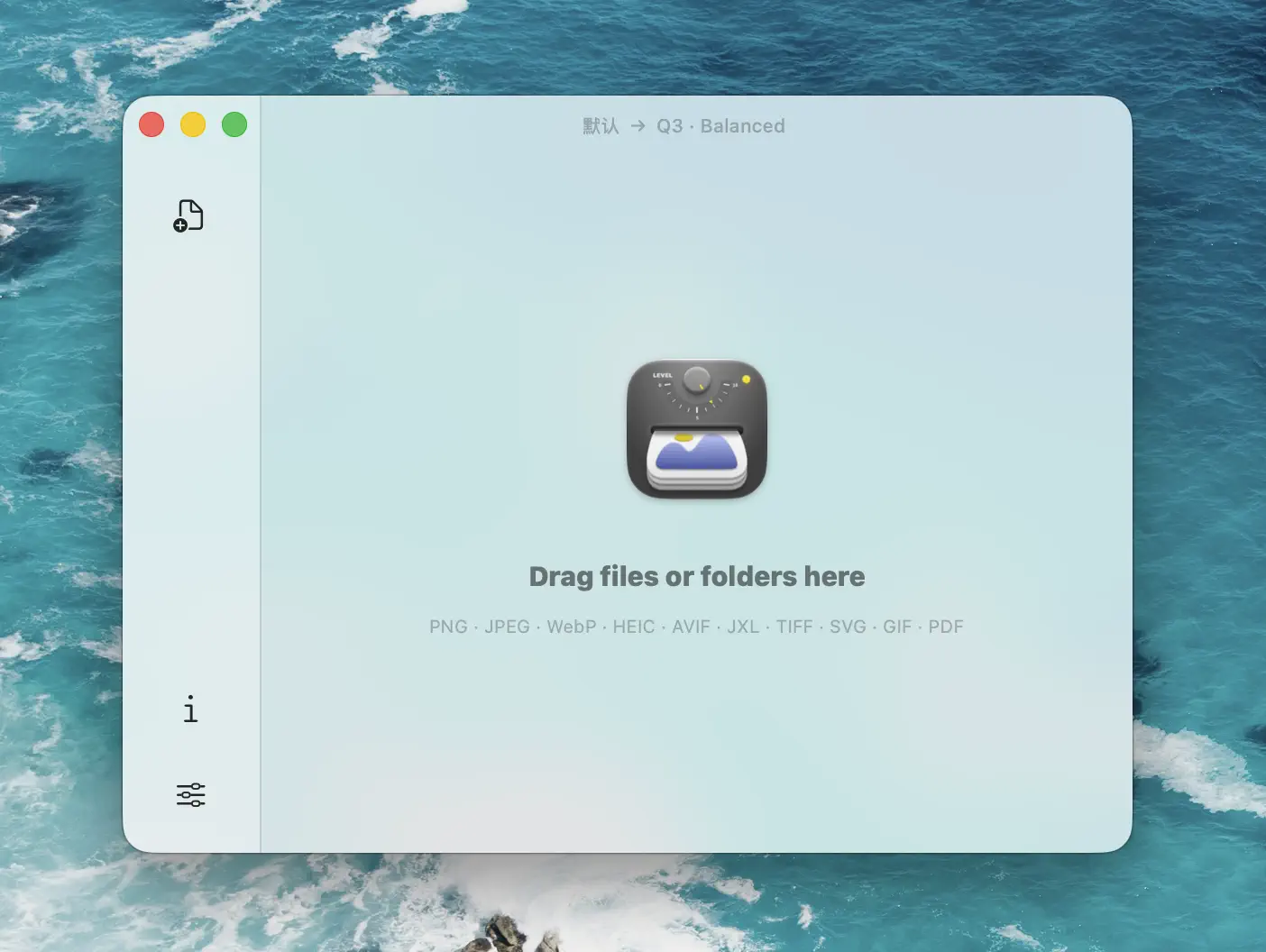
Zipic is a native macOS app that answers all three departure reasons at once. Compression runs entirely on your Mac — no uploads, no 48-hour retention window to think about. There are no per-session caps: the free tier gives you 25 images per day with no file size limit, and Pro removes every quota for a one-time $19.99 — about half of TinyPNG’s cheapest annual plan, paid once instead of every year.
Where it clearly outgrows TinyPNG’s web tool:
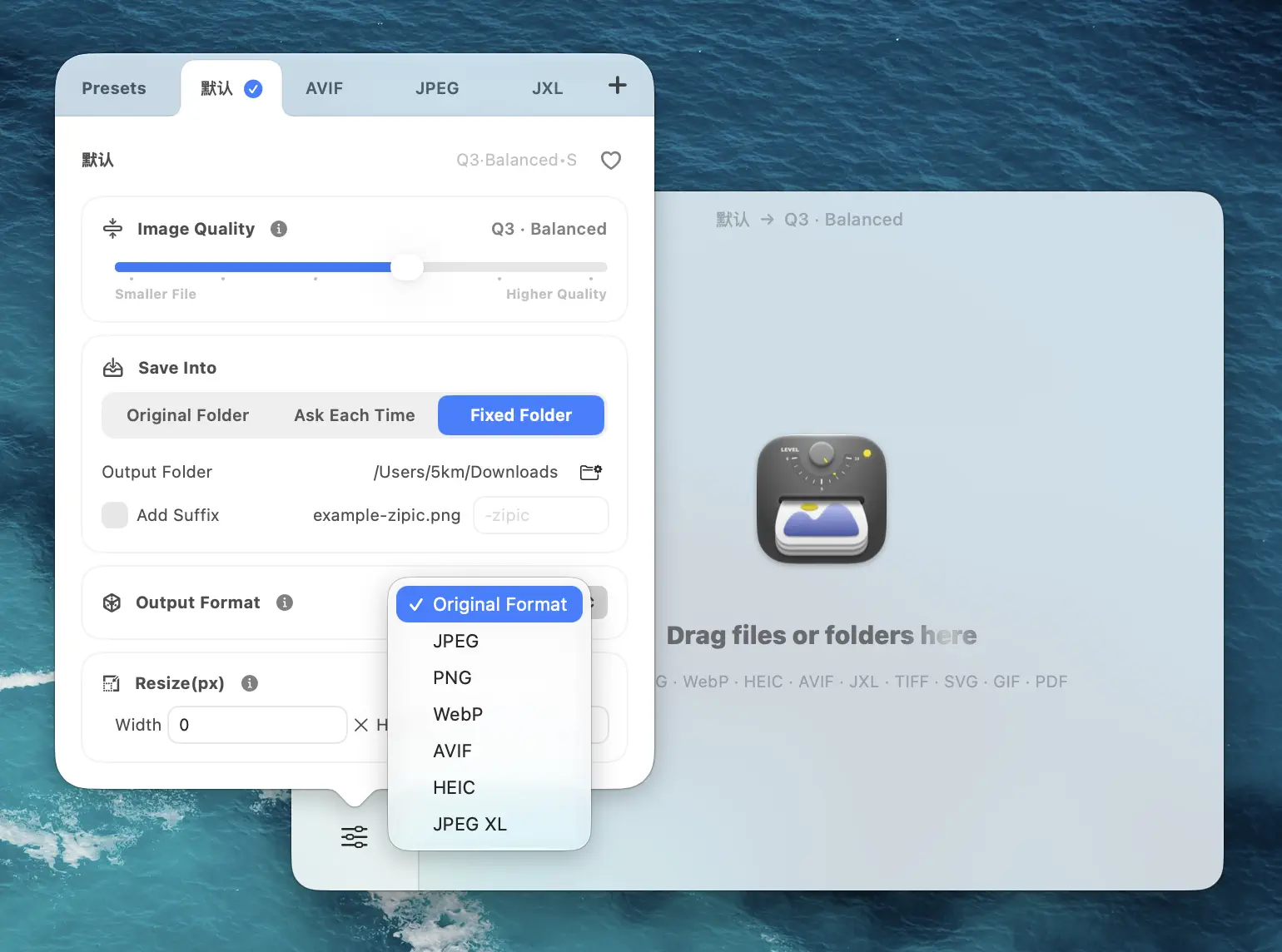
- 12 formats — JPEG, PNG, WebP, HEIC, GIF, AVIF, TIFF, ICNS, PDF, JPEG-XL, SVG, and APNG
- Unlimited format conversion — convert to JPEG, WebP, HEIC, AVIF, PNG, or JPEG-XL while compressing, with no per-session wall
- Resize built in — set a target width or height and the aspect ratio follows; the web version of TinyPNG can’t do this at all
- Compression control — six quality steps plus savable presets, instead of one automatic setting
- Automation — watched folders that compress anything dropped into them, Notch Drop, clipboard compression, a Raycast extension, and Apple Shortcuts support
The workflow starts from a preset: pick or configure one, add images (drag-and-drop, Finder context menu, paste — 8 input methods), and compression runs automatically. For folder-based pipelines, see the folder monitoring guide.
Coming from TinyPNG: your “open tab, drag 20, wait, download, repeat” loop becomes “drag the whole folder once.” For the full head-to-head, read Zipic vs TinyPNG.
Best for: anyone who wants TinyPNG’s simplicity with batch scale, privacy, and modern formats.
2. ImageOptim — Free forever, no accounts, no quotas
ImageOptim is the opposite trade: it does less than TinyPNG, but with absolute freedom. It’s open source and completely free — no daily counts, no sessions, no sign-up. Drop in any number of JPEG, PNG, SVG, or GIF files and it optimizes them in place, losslessly by default, with an optional lossy mode in preferences.
Know what you’re giving up: it handles only those 4 formats, doesn’t convert between formats, and doesn’t resize. Development has slowed — the last release, 1.9.3, shipped in October 2023, though the project still receives maintenance commits and runs natively on Apple Silicon.
Coming from TinyPNG: you lose WebP/AVIF output and gain unlimited, upload-free batches. If your work is “make these PNGs and JPEGs smaller before shipping,” that’s the whole job.
Best for: users who want a zero-cost, zero-quota optimizer and only touch classic formats. If you later outgrow it, that’s a separate comparison.
3. Caesium — Open-source batch workhorse with WebP
Caesium Image Compressor sits between ImageOptim’s minimalism and a paid app’s feature set. It’s free, open source (GPL-3.0), and actively developed — version 2.8.5 shipped in May 2025 and a 3.0 is in the works. It compresses JPG, PNG, and WebP, converts between them, offers both lossy and lossless modes, and takes whole folders — including recursive subfolder processing via its command-line companion.
The desktop app requires macOS 12 or later. One caveat for M-series Macs: the project doesn’t officially document Apple Silicon native support, so expect the possibility of running under Rosetta.
Coming from TinyPNG: JPG, PNG, and WebP are the three formats most people actually feed TinyPNG (newer ones like AVIF aren’t covered) — but with no session caps, no uploads, and quality control TinyPNG never gives you.
Best for: budget-conscious users who batch-process web images and want WebP conversion without paying for it.
4. Optimage — Perceptual quality tuning, with a caveat
Optimage compresses to a “visually lossless” target — it measures perceived quality instead of applying a fixed setting. Its free tier allows 24 images per day; the full version is a $15 one-time purchase. Output format coverage is reasonably broad: JPEG, PNG, APNG, GIF, SVG, WebP, HEIC, PDF, ICO, and ICNS, though no AVIF or JPEG-XL.
The honest caveat: Optimage’s public changelog hasn’t recorded a feature release since late 2021, and Apple Silicon native support is not documented anywhere official. It still works, and the quality-first approach remains genuinely distinctive — but in 2026 you’re buying a tool that shows little sign of active development.
Coming from TinyPNG: similar “don’t make me think about settings” philosophy, executed locally. Just weigh the maintenance risk before making it your daily driver.
Best for: quality-obsessed users who want automatic perceptual compression and accept a slow-moving app.
5. Compresto — When your problem is bigger than images
Compresto (formerly CompressX) is the pick if TinyPNG was only ever solving part of your problem. It compresses images (JPEG, PNG, WebP, AVIF, HEIC, GIF, TIFF, SVG, BMP), video (MP4 and MOV with hardware-accelerated HEVC), and PDFs — all locally, with official Apple Silicon support, on macOS 13+.
Pricing changed with the rebrand: a one-time license is $49 for one device or $69 for two, with subscription options at $19–29/year and a $7/month Lite plan. There’s no standalone free tier on the official pricing page, so it’s the biggest commitment on this list.
Coming from TinyPNG: you get a much wider media scope than any image-only tool — at a price that only makes sense if you’ll actually use the video and PDF sides.
Best for: creators juggling screen recordings, PDFs, and images who want one local app for all three.
Which Alternative Fits Your TinyPNG Habit?
| You leave TinyPNG because… | Switch to | Cost |
|---|---|---|
| Session caps break your batches | Zipic or Caesium | $19.99 once / free |
| Files must not leave your Mac | Any of the five — Zipic for the fullest feature set | — |
| You need AVIF / JPEG-XL output | Zipic (Compresto compresses AVIF files but converts only to WebP/JPG/PNG) | $19.99 once |
| You just want free and unlimited | ImageOptim (classic formats) or Caesium (adds WebP) | free |
| You also compress video and PDFs | Compresto | $49 once |
| You want set-and-forget quality | Optimage — noting the maintenance caveat | $15 once |
Two of the five are completely free, and none requires a subscription — worth remembering when TinyPNG’s unlimited tiers run $39–149 every year. For help picking output formats once you’ve switched, see the format selection guide.
Should Anyone Just Stay with TinyPNG?
Yes — three groups, honestly:
- WordPress site owners. TinyPNG’s official plugin compresses images automatically on upload, server-side. A Mac desktop app can pre-optimize before you upload, but it can’t touch what your CMS generates. If the plugin’s ~100 free images per month covers your posting pace, stay.
- API and CI/CD users. The Tinify API with its 500 free monthly compressions is built for build pipelines. Desktop apps automate the desktop; they don’t replace a server-side API.
- The once-a-month compressor. If your usage is five screenshots before a blog post, the 20-image session cap will never bite you, and installing an app solves a problem you don’t have.
Everyone else — the batch workers, the privacy-bound, the offline crowd — has better options above.
Try the Local Approach
The fastest way to know whether a desktop workflow beats your TinyPNG tab is to run one real batch through it. Download Zipic and drop in a folder — the free tier’s 25 images per day has no file size limit, and there’s nothing to upload, ever. Every download includes a full 7-day Pro trial. When the quotas start feeling small, Zipic Pro removes all of them for a one-time $19.99.
Related Articles
- Zipic vs TinyPNG: Desktop App vs Online Tool Compared
- Best ImageOptim Alternatives for Mac in 2026
- Best Free Image Compression Tools for Mac in 2026
- Best Image Compression Software for Mac in 2026
- Batch Compress Images on Mac: Complete Tutorial
Explore all features in the Zipic documentation.
Related Reading

Best ImageOptim Alternatives for Mac in 2026
Looking for an ImageOptim alternative? Compare the top Mac image compression tools — Zipic, Squoosh, TinyPNG, Compresto, and Optimage — with features, pricing, and recommendations.

Best Image Compression Software for Mac: 7 Apps (2026)
Compare 7 image compressor apps for Mac by format support, batch workflow, privacy, automation, and price, then choose the right tool for your images.

Best Free Image Compression Tools for Mac in 2026
The best free image compressor apps for Mac in 2026 — Zipic free, ImageOptim, Squoosh, macOS Preview, TinyPNG, Optimage, and JPEGmini. What each free tier actually lets you do.

Zipic vs TinyPNG: Desktop App vs Online Tool Compared
Zipic vs TinyPNG — compare privacy, file limits, format support, and pricing. See why a native Mac app beats an online uploader for image compression.