Batch Compress Images on Mac: Complete Tutorial
Learn how to batch compress hundreds of images on Mac using drag-and-drop, folder monitoring, Raycast, and Apple Shortcuts with Zipic.
Compressing images one by one doesn’t scale. Whether you’re preparing a product catalog with hundreds of photos, optimizing a website’s asset folder, or processing a day’s worth of screenshots, you need batch compression.
Here’s every method available on Mac — from the simplest drag-and-drop to fully automated pipelines.
Method 1: Drag and Drop Folders
The simplest batch approach. Drag an entire folder from Finder into the Zipic window — every image inside gets compressed using your current preset.
Zipic processes all supported formats in the folder simultaneously: JPEG, PNG, WebP, HEIC, GIF, and (with Pro) AVIF, TIFF, ICNS, PDF, JPEG-XL, SVG, APNG.
Tips:
- Hold ⌥ (Option) while dragging to quickly switch compression presets
- Drop multiple folders at once — Zipic handles them all
- Mixed formats are fine — each file uses the appropriate compression algorithm
- Check your save settings first — decide whether to replace originals or save copies
For complete save option details, see Configuring Save Options.
Method 2: Folder Monitoring (Pro)
For ongoing batch workflows, folder monitoring is the most powerful option. Configure Zipic to watch specific directories — any new image added to those folders gets compressed automatically.
Setup:
- Open Zipic Settings → Automation
- Add a folder to monitor
- Choose monitoring depth (0 = root only, up to 5 levels deep)
- Select a compression preset
Use cases:
- Screenshots folder — every screenshot you take gets compressed instantly
- Downloads folder — images downloaded from the web are auto-optimized
- Design export folder — Figma/Sketch exports are compressed as they land
- E-commerce upload folder — product photos are optimized before upload
Folder monitoring only processes new files — existing images aren’t re-compressed. Zipic also automatically skips previously compressed files to avoid redundant processing (Smart Skip). For the full setup guide, see Monitoring Directory Autocompression.
Method 3: Finder Right-Click
Select multiple images in Finder, right-click, and choose Open With → Zipic. All selected files are compressed using your current preset.
This is great for ad-hoc batch compression when you don’t want to open Zipic’s main window.
Method 4: Raycast Extension
If you use Raycast, the Zipic extension lets you compress selected Finder files without switching apps:
- Select images in Finder
- Open Raycast (⌘ + Space or your hotkey)
- Type “Compress Images” and hit Enter
You can assign a global hotkey (like ⇧⌥Z) for instant access. See the Raycast Extension Guide.
Method 5: URL Scheme + Apple Shortcuts (Pro)
For advanced automation, Zipic’s URL Scheme lets you build custom compression pipelines:
zipic://compress?url=/path/to/folder&level=3&format=webpCombine this with Apple Shortcuts to create one-tap workflows:
- “Compress my Downloads folder to WebP at level 3”
- “Optimize all PNGs in Desktop to AVIF”
- “Resize and compress everything in a folder to 1200px wide”
Full parameter reference in the Workflow Integration Guide.
Batch Compression Best Practices
Choose the Right Preset
Before batch processing, select a preset that matches your goal:
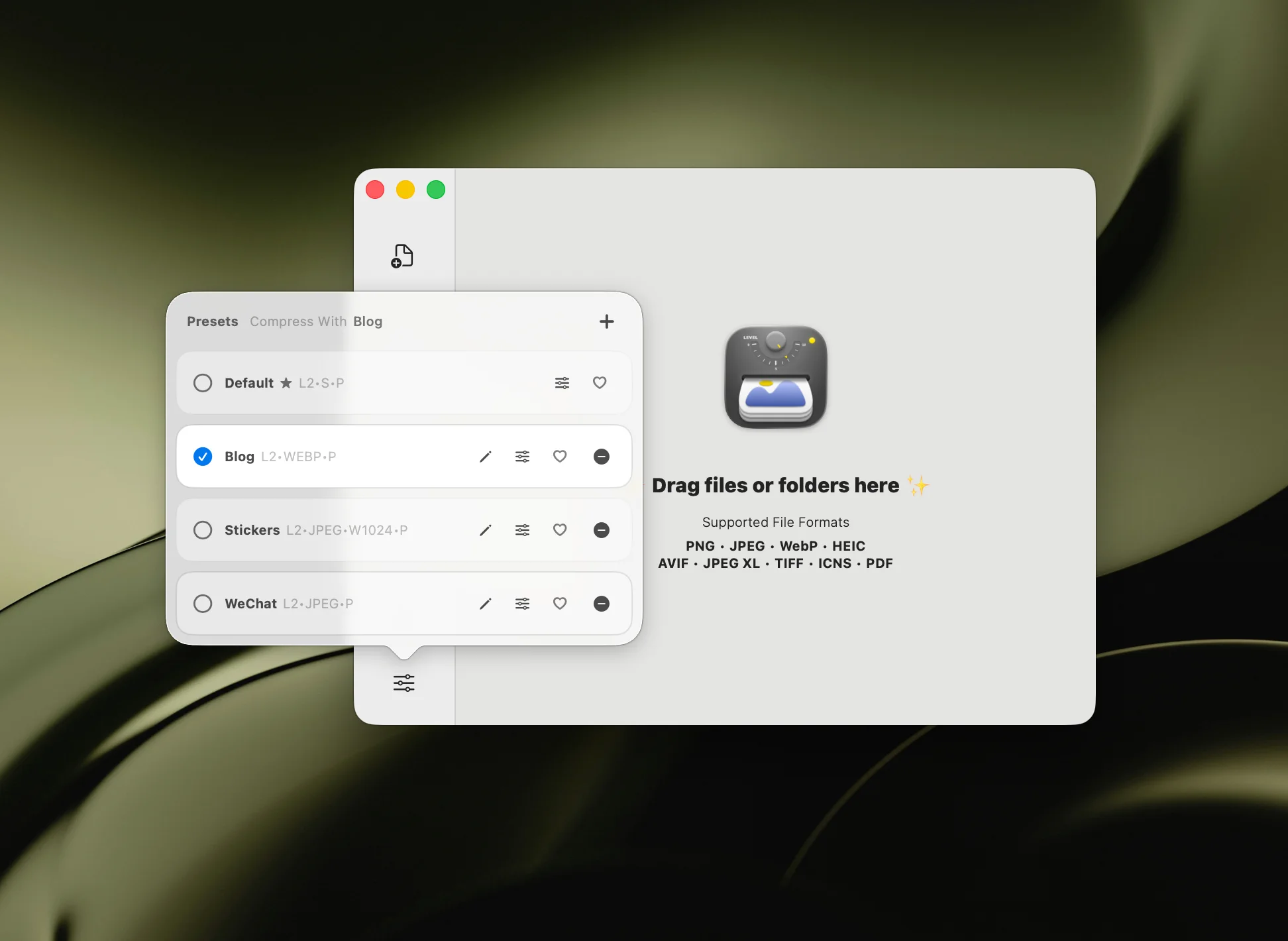
- Web assets: Level 3, WebP output
- Email attachments: Level 4, JPEG output
- Archival quality: Level 1, original format
- E-commerce: Level 2-3, WebP with resize to 1200px
Resize During Batch Compression
Need consistent image dimensions? Enable resize in your preset:
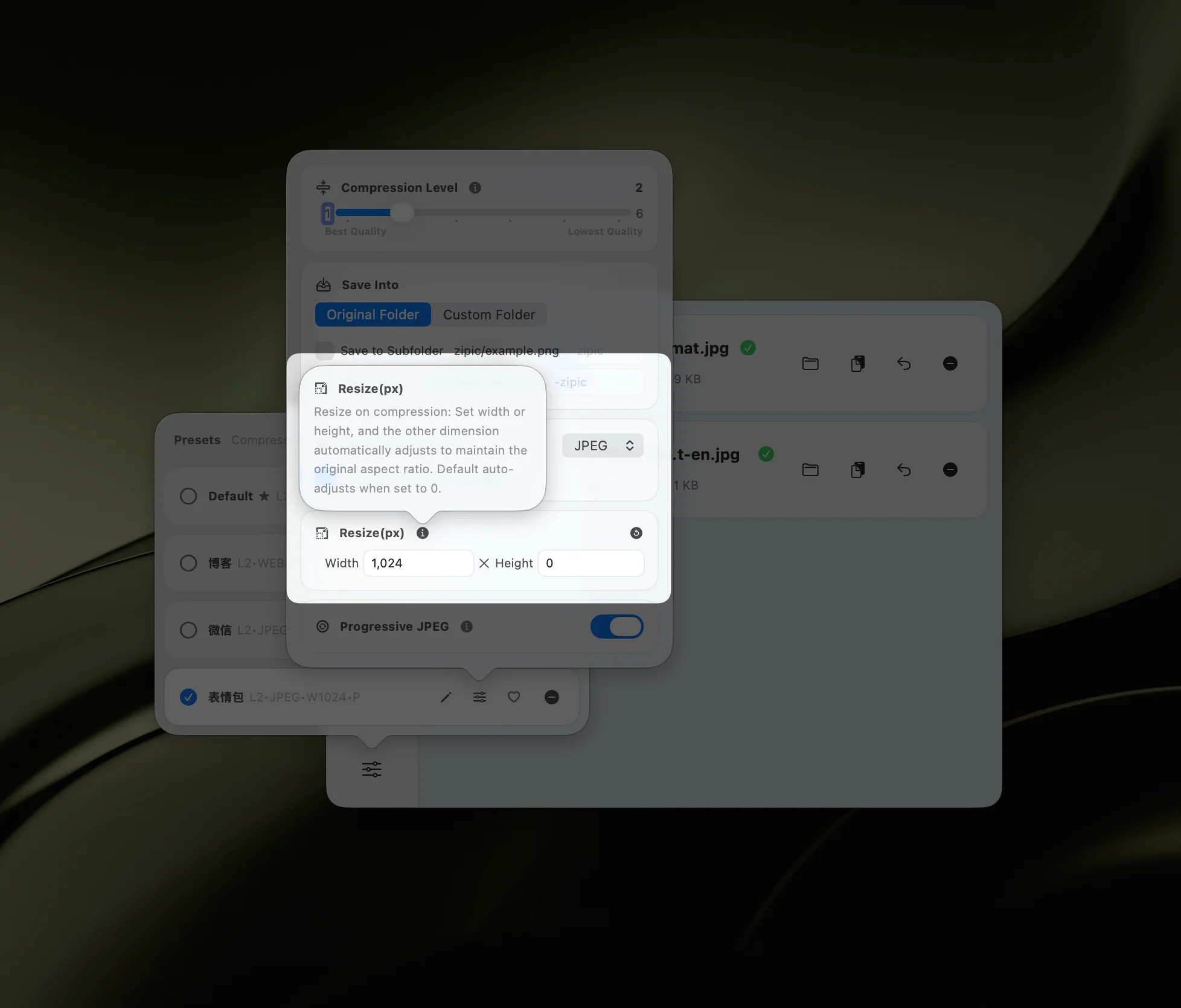
Set a target width (e.g., 1200px for web) and Zipic automatically maintains the aspect ratio. Every image in the batch gets resized and compressed in one pass.
For resize details, see Resizing Images.
Convert Formats During Batch
Batch-converting formats is just as easy — select your target format in the preset and every image in the batch converts during compression:
Common batch conversions:
- PNG screenshots → WebP (60-70% smaller)
- HEIC photos → JPEG (universal compatibility)
- JPEG product photos → AVIF (maximum compression)
Summary: Which Method to Use
| Method | Best For | Requires Pro |
|---|---|---|
| Drag & drop folders | Quick one-off batches | No |
| Folder monitoring | Ongoing automated workflows | Yes |
| Finder right-click | Ad-hoc selection in Finder | Yes |
| Raycast extension | Keyboard-driven workflow | No |
| URL Scheme / Shortcuts | Custom automation pipelines | Yes |
Start with drag-and-drop for immediate needs, then set up folder monitoring for workflows you repeat daily.
Ready to batch compress? Download Zipic — free for 25 images/day. Zipic Pro unlocks folder monitoring, unlimited compression, and full automation.
Related Articles
- macOS Automation: Auto-Compress with Folder Monitoring
- Optimize Images for Web Performance
- JPEG vs PNG vs WebP: Which Image Format Should You Use?
- How to Compress Images on Mac
Full documentation: Image Compression Basic.