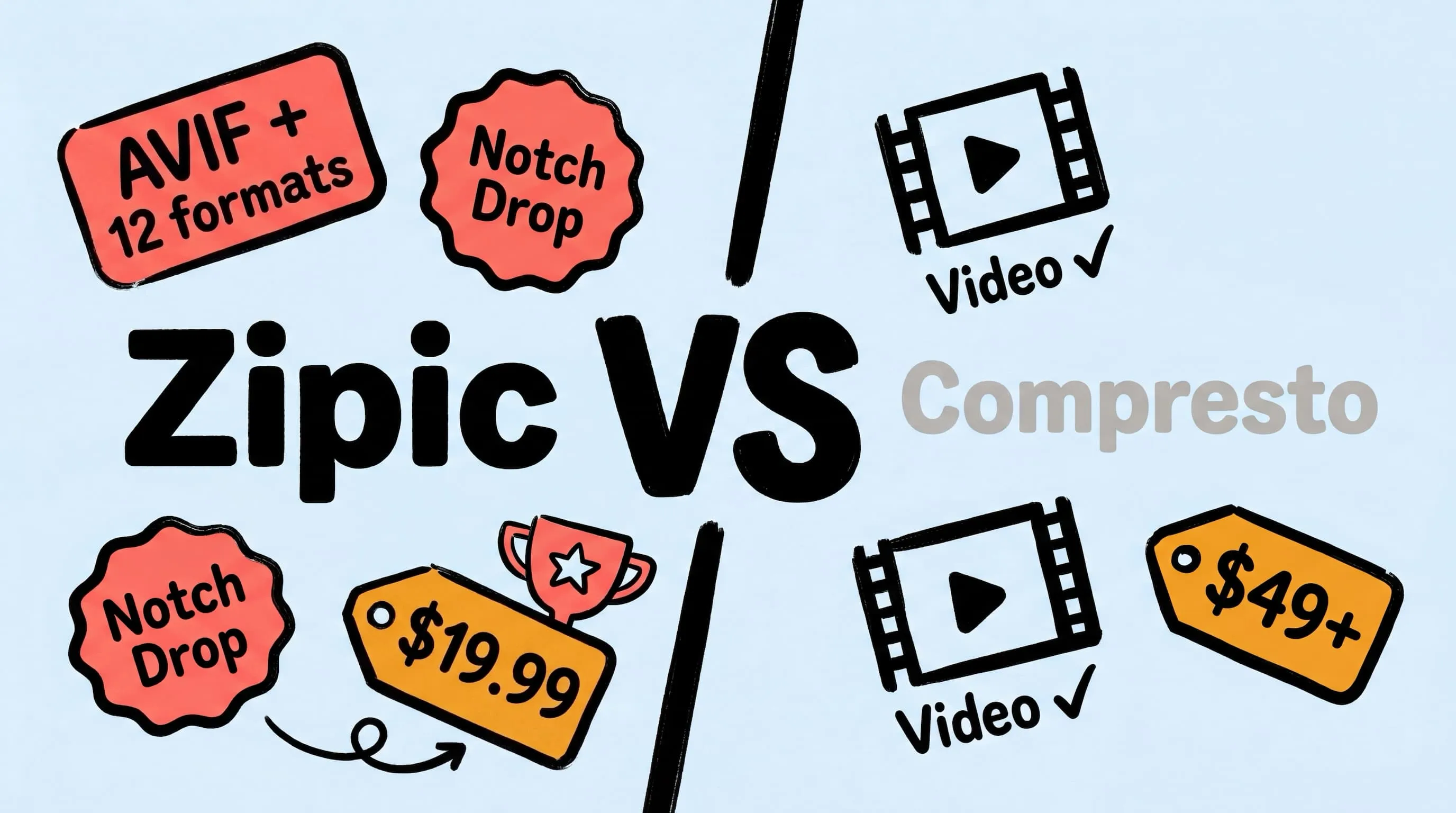
Zipic vs Compresto: Mac Image Compression Tools Compared
Looking for a Compresto alternative? Compare Zipic and Compresto on image format support, compression control, automation, pricing, and video capabilities for Mac.
Compresto is a native macOS app for compressing images, videos, and PDFs. It supports target file size compression, H.265 video encoding, and folder monitoring — making it a popular choice for users who need to handle multiple media types. If you’re evaluating a Compresto alternative focused specifically on image compression, Zipic offers broader format support, deeper automation, a side-by-side preview, and a significantly lower price point.
Here’s how these two tools compare across the features that matter most.
At-a-Glance Comparison
| Feature | Zipic | Compresto |
|---|---|---|
| Type | Native macOS app | Native macOS app |
| Processing | 100% local on your Mac | 100% local |
| Media types | Images + PDF | Videos + Images + GIF + PDF |
| Image formats | 12 (incl. AVIF, JPEG-XL, SVG, APNG) | 9+ (no AVIF, JPEG-XL, ICNS) |
| Video compression | No | Yes (H.265/HEVC) |
| Compression control | 6 levels + presets | Quality presets + target size |
| Folder monitoring | Yes (Pro) | Yes |
| Notch Drop | Yes (Pro) | No |
| Clipboard auto-compress | Yes (Pro) | No |
| Apple Shortcuts | Yes (Pro) | No |
| Raycast extension | Yes | Yes |
| URL Scheme | Yes (Pro) | Yes |
| Side-by-side preview | Yes (Pro) | No |
| Free tier | Yes (25/day) | No |
| Price | Free / Pro $19.99 one-time | From $49 one-time / $7/mo |
Both apps process files entirely on your Mac — no cloud uploads, no privacy concerns. The key difference: Compresto covers video and image compression broadly, while Zipic focuses exclusively on image compression with deeper controls and more automation.
Image Format Support
Compresto handles common image formats — JPEG, PNG, WebP, HEIC, GIF, TIFF — plus SVG and BMP as inputs. However, it does not support three important modern and professional formats: AVIF, JPEG-XL, and ICNS.
Zipic supports 12 formats, including all the ones Compresto handles plus additional modern and professional formats:
| Format | Zipic | Compresto |
|---|---|---|
| JPEG | ✅ | ✅ |
| PNG | ✅ | ✅ |
| WebP | ✅ | ✅ |
| HEIC | ✅ | ✅ |
| GIF | ✅ | ✅ |
| TIFF | ✅ (Pro) | ✅ |
| AVIF | ✅ (Pro) | ❌ |
| JPEG-XL | ✅ (Pro) | ❌ |
| ICNS | ✅ (Pro) | ❌ |
| SVG | ✅ (Pro) | ✅ |
| APNG | ✅ (Pro) | ❌ |
| ✅ (Pro) | ✅ | |
| BMP (input) | ❌ | ✅ |
AVIF and JPEG-XL are the next-generation web formats — they deliver significantly better compression ratios than JPEG and WebP at equivalent quality. If you’re optimizing images for modern websites, AVIF support alone is a compelling reason to choose Zipic. ICNS is essential for macOS app developers working with app icon files.
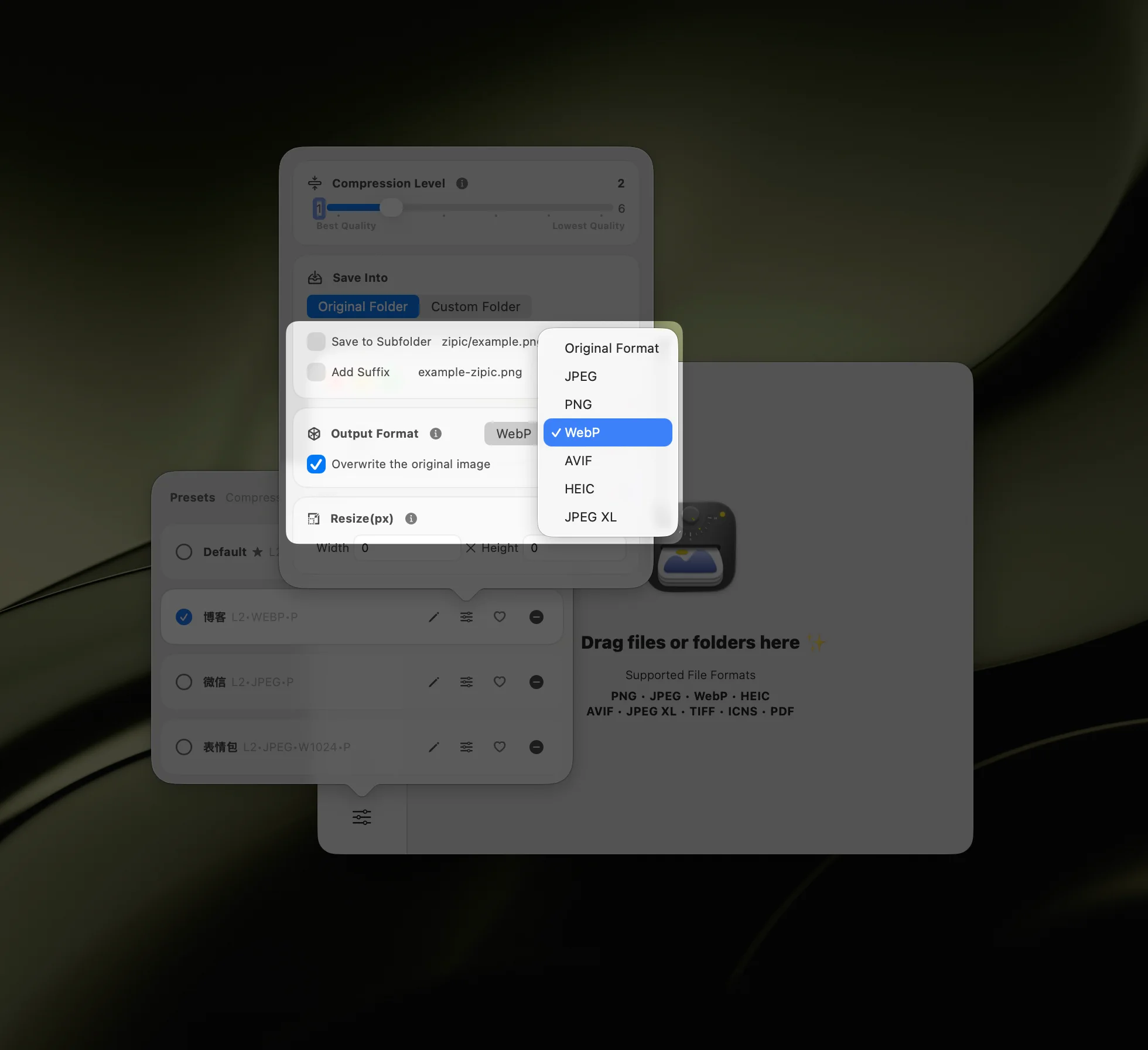
Zipic 1.9.0 adds native SVG compression and APNG support as Pro features. Compresto also accepts SVG and BMP as input formats. For a detailed comparison of when to use each format, see the format selection guide.
Compression Control
Compresto offers quality presets and a target file size option — you can specify the exact KB or MB you want the output file to be. This is useful when you have strict file size requirements (e.g., upload limits on a web portal).
Zipic takes a different approach with 6 compression levels and a preset system. Each preset saves your preferred compression level, output format, save location, and resize options — so you configure once and apply consistently:
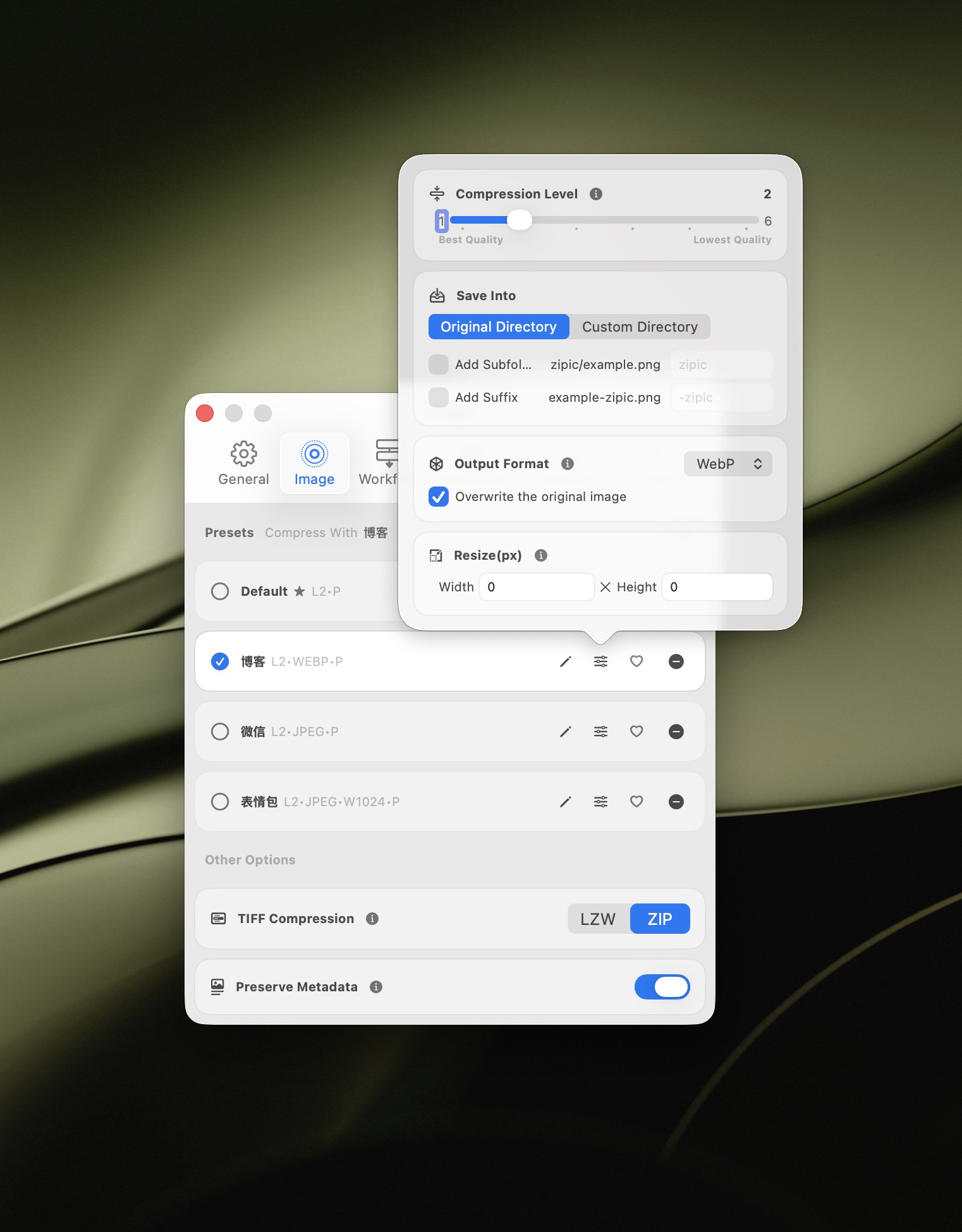
- Levels 1–2 — near-lossless, ideal for archival and print
- Levels 2–3 — balanced quality-to-size ratio (recommended for most users)
- Levels 4–6 — aggressive compression for web thumbnails and email
Zipic Pro also includes a side-by-side before/after preview, letting you visually compare the original and compressed image before committing. Compresto does not offer this visual comparison feature.
Both approaches have merit. Target file size is great when you need to hit a specific limit. Zipic’s level system is faster for batch workflows — pick a level once and apply it consistently across thousands of images without per-file decisions.
Batch Processing
Both Zipic and Compresto support batch processing — you can drag multiple files or entire folders into either app.
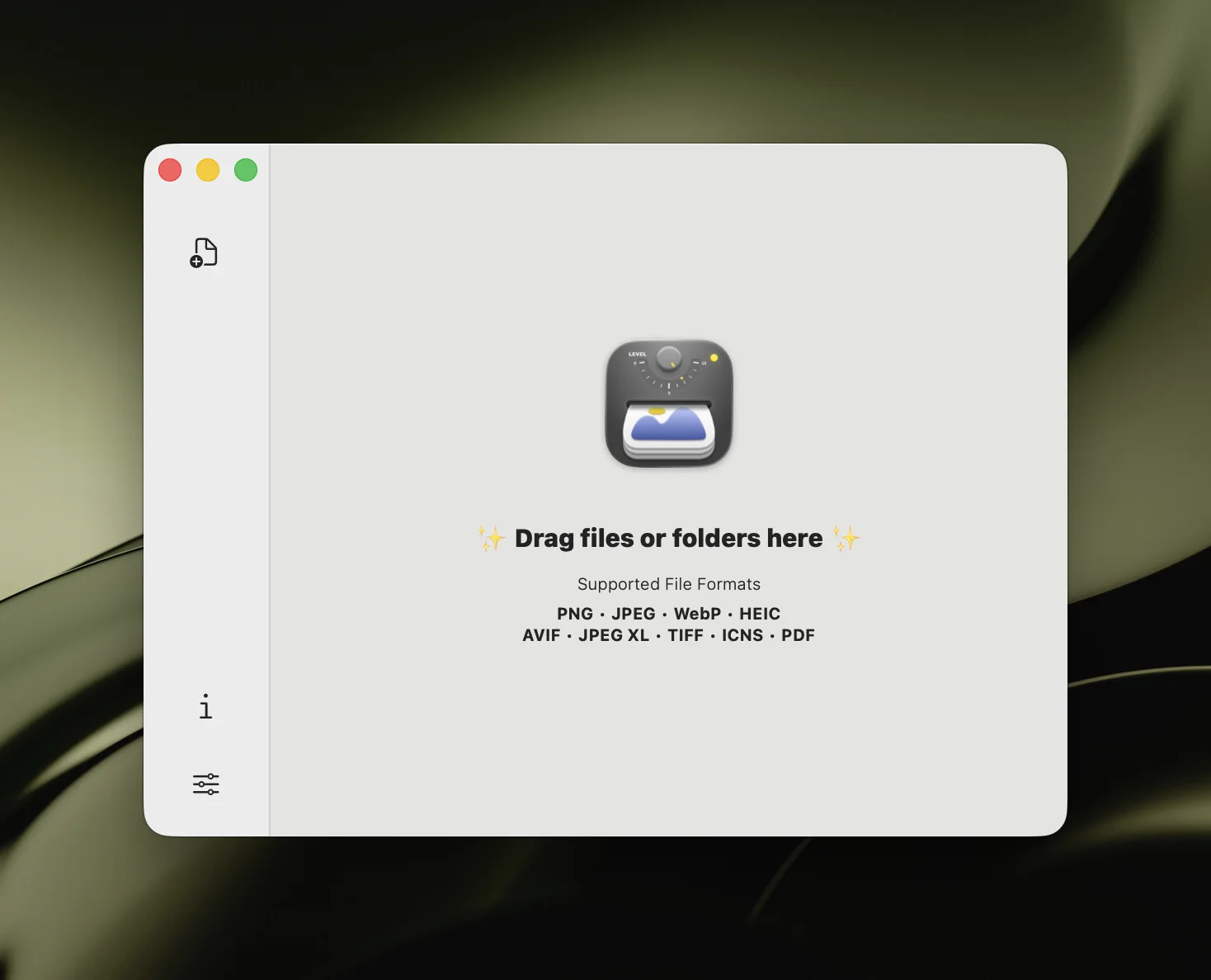
The difference is in the details:
- Zipic Free allows 25 images per day with batch support. Zipic Pro removes all limits — unlimited files, unlimited folders, no daily cap.
- Compresto supports batch processing but requires a paid license from the start — there’s no free tier.
For users who need to compress images in batches regularly, both tools handle the core task. Zipic’s advantage is offering a free tier so you can evaluate the workflow before committing.
Workflow and Automation
This is where Zipic pulls significantly ahead. Compresto offers folder monitoring and a URL scheme, which covers basic automation. But Zipic provides a much deeper integration with macOS:
- Folder monitoring (Pro) — auto-compress new images added to watched directories. Set it on your Screenshots folder or Downloads and never think about compression again. See the folder monitoring guide.
- Notch Drop (Pro) — drag files toward the screen notch for instant compression without opening the main app
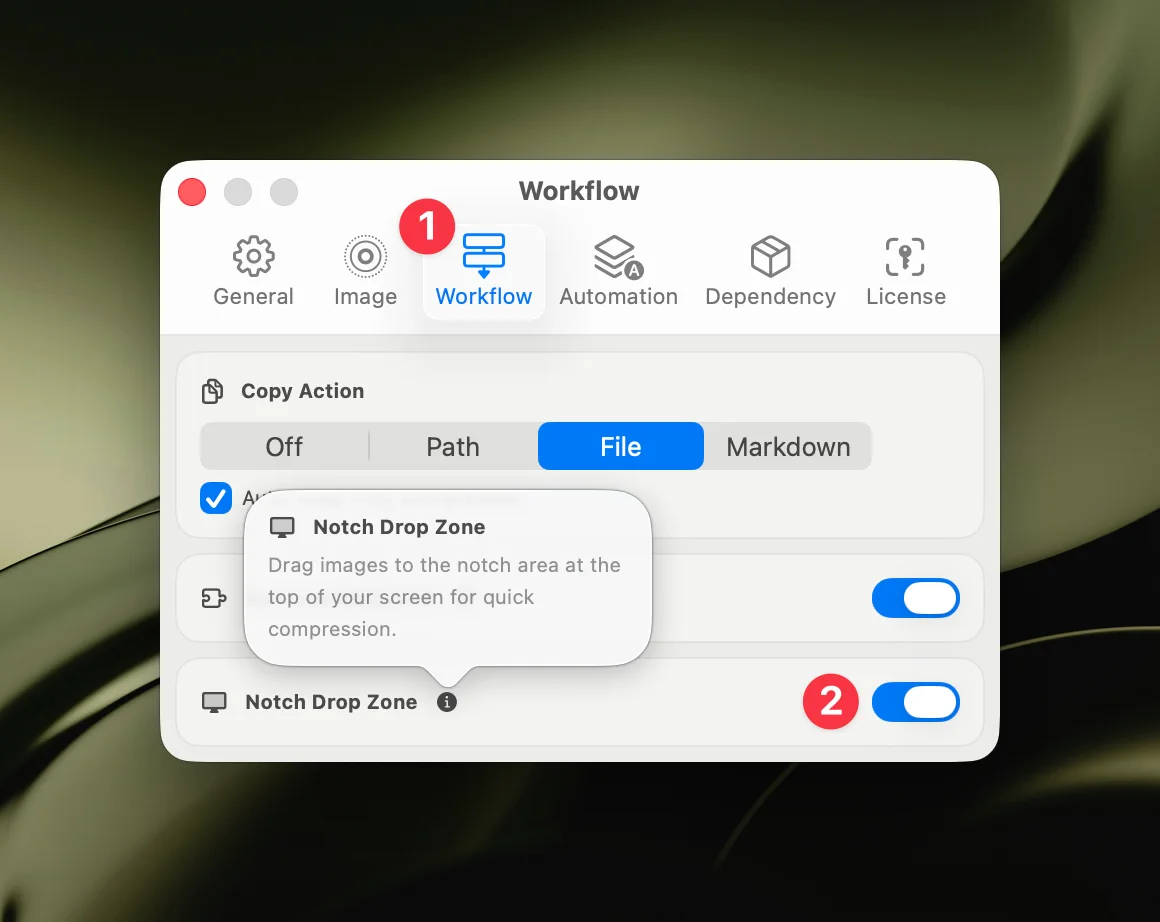
- Clipboard auto-compress (Pro) — copy an image and it’s compressed automatically
- Apple Shortcuts (Pro) — build custom automation workflows with full parameter control, integrating Zipic into broader macOS workflows
- Raycast extension — compress from the Raycast command palette
Compresto has folder monitoring and a Raycast extension, but lacks Notch Drop, clipboard auto-compress, and Apple Shortcuts integration. For anyone who compresses images as part of a regular workflow — designers, developers, content creators — Zipic’s automation depth saves significant time.
Video and PDF Compression
This is Compresto’s standout feature. Compresto supports video compression with H.265/HEVC hardware acceleration, video-to-GIF conversion, and batch video processing. If you regularly compress MP4 or MOV files alongside images, Compresto handles both in one app.
Both Zipic and Compresto support PDF compression. Zipic Pro compresses PDFs using the same level-based system as images, now enhanced with the Ghostscript engine for improved PDF compression quality and smaller output sizes.
Zipic does not compress video. It’s a dedicated image compression tool — this is a deliberate design choice, not a limitation. By focusing exclusively on images and PDFs, Zipic delivers deeper capabilities in that domain: more formats, finer control, more automation options, and visual preview.
If video compression is a core requirement, Compresto offers genuine value there. If your workflow is primarily images, Zipic’s focused approach gives you more for less.
Pricing
| Compresto | Zipic Free | Zipic Pro | |
|---|---|---|---|
| Price | From $49 (one-time) or $7/mo | Free | $19.99 (one-time) |
| Free tier | No | Yes (25/day) | — |
| Daily limit | Unlimited | 25 images | Unlimited |
| Image formats | 9+ | 5 | 12 |
| Video compression | Yes | No | No |
| Automation | Folder monitoring, URL scheme | Basic | Full (Notch Drop, Shortcuts, clipboard) |
Compresto’s pricing starts at $49 for a one-time license or $7/month subscription. There’s no free version — you pay before using it.
Zipic Pro is $19.99 one-time — less than half the cost of Compresto’s one-time license. And Zipic Free gives you 25 compressions per day at no cost, so you can fully evaluate the tool before deciding to upgrade.
For image-focused workflows, Zipic Pro delivers more formats, more automation, and visual preview at a significantly lower price.
Competitor details were last checked on 2026-03-16.
When to Choose Compresto
- Video compression is essential — you regularly compress MP4/MOV files and want one app for both video and images
- Target file size — you need to compress images to a specific KB/MB limit
- BMP input — you work with BMP files that need compression (both apps now support SVG)
- All-in-one media tool — you value having image, video, GIF, and PDF compression in a single app
When to Choose Zipic
- More image formats — you need AVIF, JPEG-XL, ICNS, SVG, or APNG alongside JPEG, PNG, WebP, HEIC, and others
- Deeper automation — Notch Drop, clipboard auto-compress, Apple Shortcuts, and Raycast integration
- Lower price — $19.99 vs $49, plus a free tier to evaluate first
- Side-by-side preview — visually compare before/after compression results
- Focused image tool — you want the best possible image compression experience rather than a broad media tool
- Professional workflows — consistent presets across large batches with deep macOS integration
Final Verdict
Compresto is a solid all-in-one media compression app. Its video compression with H.265 hardware acceleration is genuinely useful, and the target file size feature addresses a real need. If you compress video and images equally, Compresto’s breadth is appealing.
Zipic is the better choice for image-focused workflows. It supports 12 formats including next-gen AVIF and JPEG-XL, SVG, and APNG, offers deeper macOS automation (Notch Drop, Shortcuts, clipboard auto-compress), provides side-by-side preview, and costs less than half the price. The free tier means you can try everything before paying.
The decision comes down to scope: if you need video compression, Compresto has that. For everything image-related — format breadth, compression control, automation depth, and price — Zipic wins.
Ready to try a focused image compression tool? Download Zipic free and compress your first 25 images today. Upgrade to Zipic Pro to unlock all 12 formats, unlimited batch processing, and full automation.
Related Articles
- Best ImageOptim Alternatives for Mac in 2026
- Zipic vs Squoosh: Desktop App vs Browser Tool
- Zipic vs ImageOptim: Which Mac Image Compressor Is Right for You?
- Batch Compress Images on Mac: Complete Tutorial
- macOS Automation: Auto-Compress with Folder Monitoring
Explore all features in the Zipic documentation.