Zipic vs ImageOptim: Which Mac Image Compressor Wins?
Compare Zipic and ImageOptim side by side. See how they differ on format support, compression control, automation, and pricing for Mac image compression.
Looking for the right image compressor for your Mac? ImageOptim and Zipic are both popular choices, but they serve different needs. ImageOptim is a free, open-source tool focused on lossless optimization. Zipic is a feature-rich native app with format conversion, automation, and granular compression control.
Here’s a detailed breakdown to help you decide.
At-a-Glance Comparison
| Feature | Zipic | ImageOptim |
|---|---|---|
| Supported formats | JPEG, PNG, WebP, HEIC, GIF, AVIF, TIFF, ICNS, PDF, JPEG-XL, SVG, APNG | JPEG, PNG, GIF, SVG |
| Compression control | 6 levels + custom presets | Automatic only |
| Lossy + lossless | Both, user-selectable | Lossless by default (lossy optional) |
| Format conversion | Yes — convert between any supported format | No |
| Batch processing | Yes — files and folders | Yes — files and folders |
| Resize during compression | Yes — set target width/height | No |
| Folder monitoring | Yes (Pro) — auto-compress new files | No |
| Notch Drop | Yes (Pro) — drag to screen notch | No |
| Clipboard auto-compress | Yes (Pro) | No |
| Raycast extension | Yes | No |
| URL Scheme / Shortcuts | Yes (Pro) — full automation | No (CLI only) |
| Apple Silicon support | Yes | Yes |
| Side-by-side preview | Yes (Pro) | No |
| Privacy | Local processing only | Local processing only |
| Price | Free (25/day) / Pro $19.99 one-time | Free (open-source) |
| macOS requirement | macOS 13+ | macOS 11+ |
Format Support
This is where the difference is most dramatic.
ImageOptim supports 4 image formats: JPEG, PNG, GIF, and SVG. It relies on specialized open-source compressors — MozJPEG for JPEG, pngquant and Pngcrush for PNG, Gifsicle for GIF, and SVGO for SVG.
Zipic supports 12 formats: JPEG, PNG, WebP, HEIC, GIF, AVIF, TIFF, ICNS, PDF, JPEG-XL, SVG (Pro), and APNG (Pro). Beyond compression, Zipic can convert between formats — turn HEIC photos into WebP for the web, or batch-convert PNG screenshots to AVIF for maximum savings.
Both tools now support SVG, but Zipic goes further — offering 6 compression levels, batch processing, and side-by-side comparison view for SVG files, whereas ImageOptim only applies automatic SVGO optimization with no user control.
If you work with modern formats like AVIF, HEIC, or JPEG-XL, ImageOptim simply doesn’t support them. For a deeper look at format tradeoffs, see our guide to choosing image formats.
Compression Control
ImageOptim takes a hands-off approach: drop images in, get optimized images out. By default, it applies lossless compression — stripping metadata, optimizing encoding, and reducing file size without any visible quality loss. You can enable lossy mode in preferences, but there’s no fine-grained control over compression aggressiveness.
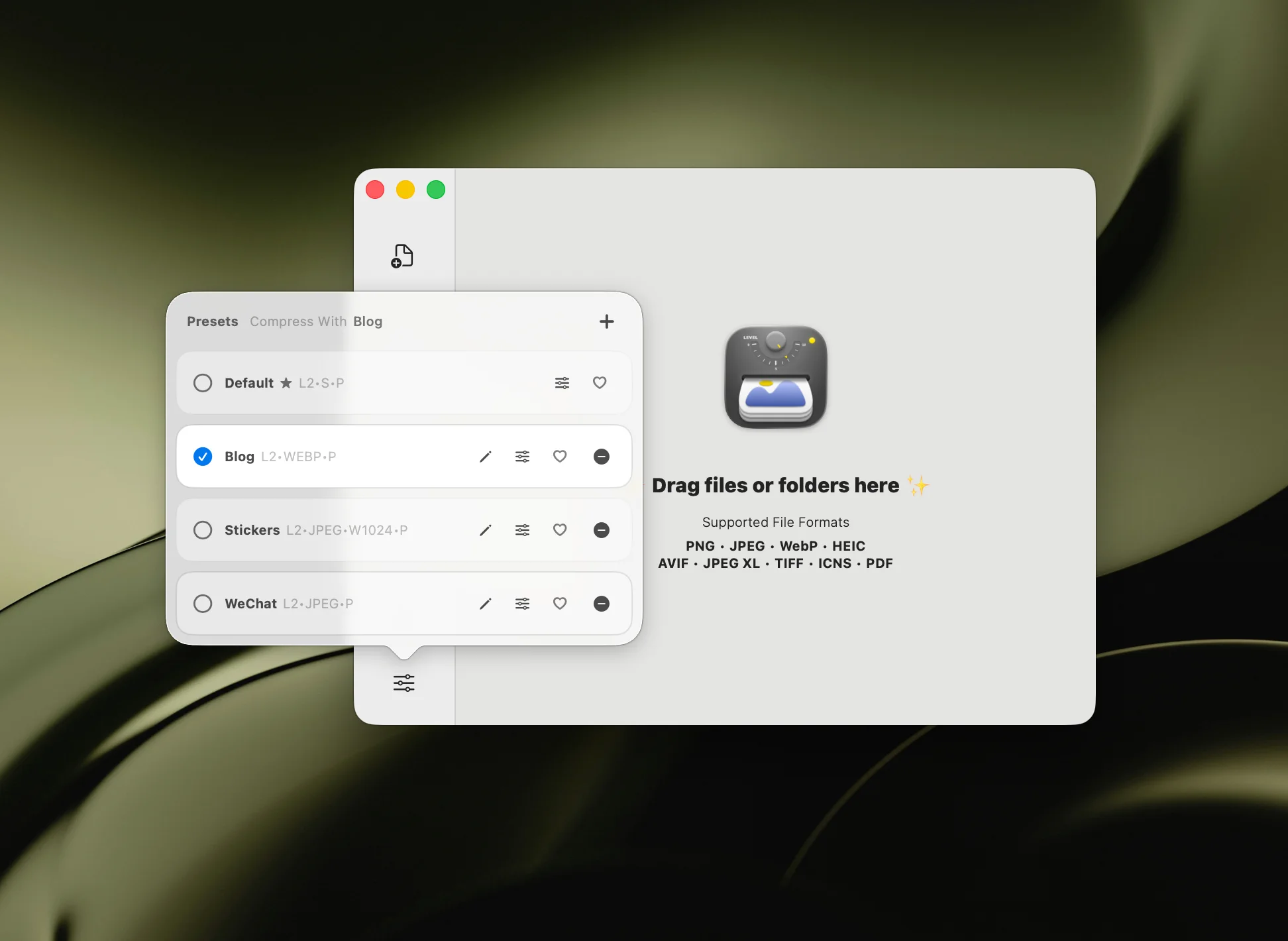
Zipic gives you 6 compression levels and a full preset system:
- Level 1 — minimal compression, near-lossless quality
- Level 2–3 — recommended for most users, best quality-to-size ratio
- Level 4–6 — aggressive compression for maximum file size savings
You can save different presets for different workflows — one for web assets, another for email attachments, a third for archival quality. Learn more about compression settings.
Automation and Workflow
This is where Zipic pulls far ahead.
ImageOptim’s automation is limited to CLI usage — you can call it from shell scripts or build pipelines, which makes it useful for developers who need to optimize assets during deployment.
Zipic offers multiple automation paths:
- Folder monitoring (Pro) — Zipic watches specified directories and auto-compresses any new image added. Ideal for screenshot folders, download directories, or design asset pipelines.
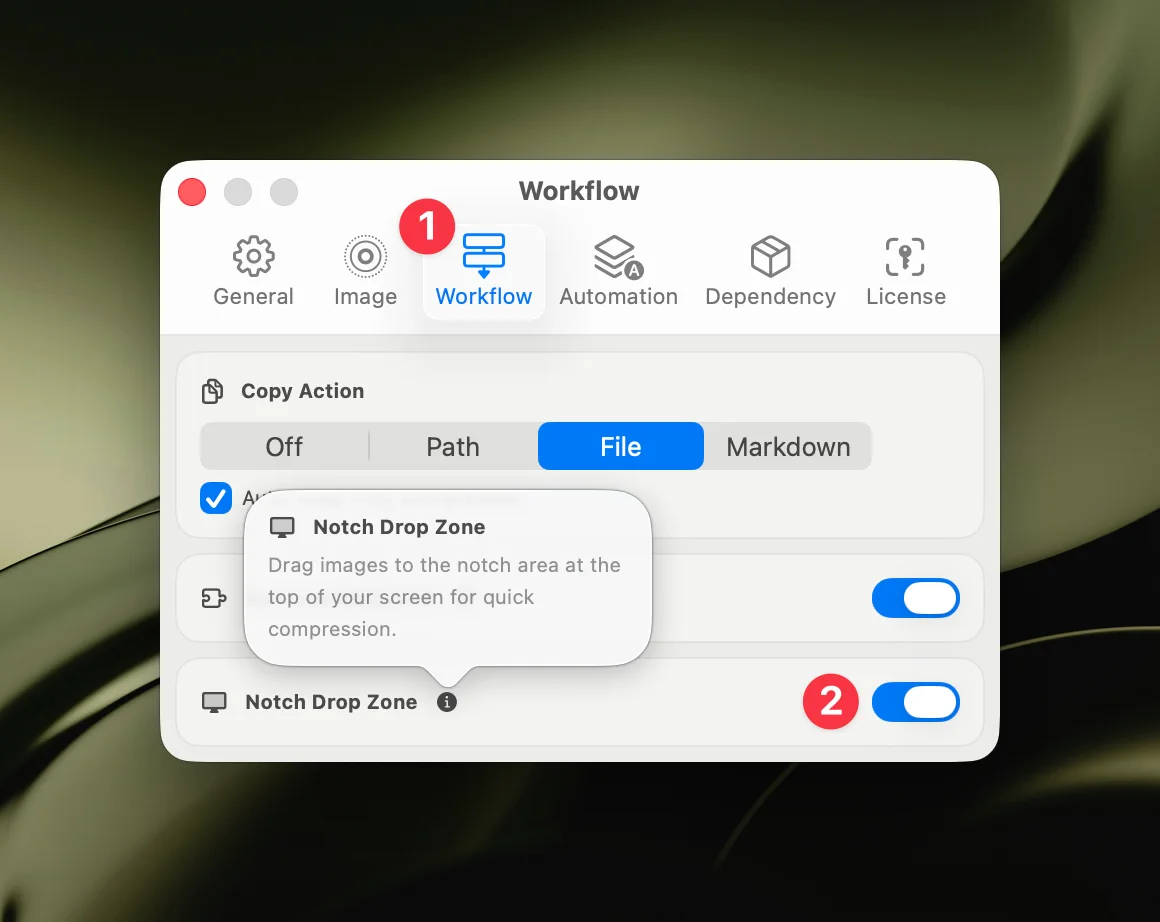
- Notch Drop (Pro) — drag files toward the screen notch and a drop zone appears. Release to compress instantly, without opening the main window.
- Clipboard auto-compress (Pro) — copy an image and Zipic compresses it automatically.
- Raycast extension — compress selected files from Raycast without switching apps. See the Raycast extension guide.
- URL Scheme + Apple Shortcuts (Pro) — build custom automation workflows with full parameter control. See the workflow integration guide.
Performance
ImageOptim supports Apple Silicon, but it is primarily focused on straightforward optimization workflows with fewer automation controls.
Zipic is built as a native macOS app optimized for Apple Silicon, with additional workflow features for batch and automated pipelines.
When to Choose ImageOptim
ImageOptim is a solid choice when:
- Budget is zero — it’s completely free and open-source
- You only need JPEG/PNG/GIF/SVG — these are the only formats you work with
- Lossless is mandatory — you need pixel-perfect optimization with zero quality loss
- CI/CD integration — you want CLI tools for build scripts and deployment pipelines
- Simplicity matters — drop files in, done, no settings to think about
When to Choose Zipic
Zipic is the better choice when:
- You need modern formats — AVIF, HEIC, JPEG-XL, WebP, TIFF, ICNS, PDF, SVG, APNG
- You want control — 6 compression levels, custom presets, resize during compression
- Automation matters — folder monitoring, Notch Drop, clipboard auto-compress, Shortcuts
- You convert formats — turn HEIC to WebP, PNG to AVIF, etc.
- You compare results — side-by-side before/after preview with zoom (Pro)
- You value speed — Apple Silicon optimized native app
Pricing
ImageOptim is free. No subscriptions, no limits, no Pro tier. The ImageOptim API (a separate cloud service) starts at $12/month, but the desktop app is fully free.
Zipic has a free tier with 25 compressions per day, supporting JPEG, PNG, WebP, HEIC, and GIF. Zipic Pro is a one-time purchase starting at $19.99 — no subscription — unlocking unlimited compressions, all formats, folder monitoring, Notch Drop, clipboard auto-compress, and all automation features.
| ImageOptim | Zipic Free | Zipic Pro | |
|---|---|---|---|
| Price | Free | Free | $19.99 (one-time) |
| Daily limit | Unlimited | 25 images | Unlimited |
| Formats | 4 | 5 | 12 |
| Automation | CLI only | Basic | Full |
Competitor details were last checked on 2026-02-28.
Final Verdict
ImageOptim is a trusted, free tool that does one thing well — lossless image optimization for JPEG, PNG, GIF, and SVG. If that’s all you need, it’s hard to beat free.
Zipic is the choice for users who need more: modern format support, compression control, format conversion, resize, and deep macOS automation. At $19.99 one-time, it’s a modest investment that covers significantly more ground.
Both tools process images locally — your files never leave your Mac.
Ready to try Zipic? Download Zipic free and compress your first 25 images today. Upgrade to Zipic Pro to unlock all formats and automation features.
Related Articles
- Zipic vs TinyPNG: Desktop App vs Online Tool Compared
- Best ImageOptim Alternatives for Mac in 2026
- JPEG vs PNG vs WebP: Which Image Format Should You Use?
- Batch Compress Images on Mac: Complete Tutorial
For the full feature breakdown, visit the Zipic documentation.