Image Compression CLI on Mac: Zipic for AI Agents and Scripts
Use Zipic's image compression CLI on Mac with --json, dry runs, exit codes, and presets so AI agents and scripts can compress locally.
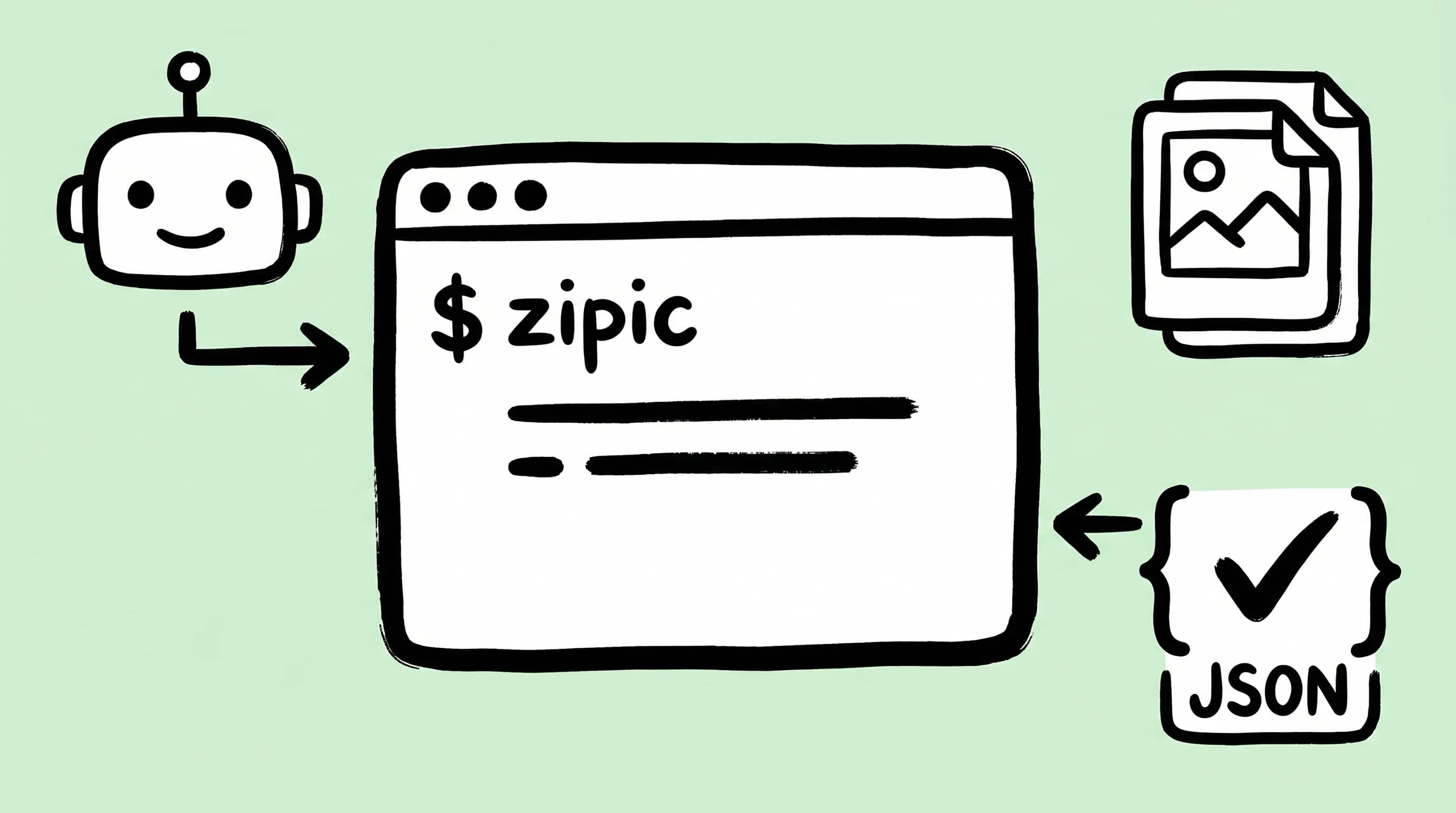
An image compression CLI on Mac should do more than launch an app and hope the files changed. Scripts need to know when the job is finished, what happened to each file, and why a run failed. Zipic’s zipic CLI gives Claude Code, Codex, shell scripts, and build tasks a local result they can read.
Zipic 1.9.5 ships a thin command-line client named zipic. It talks to the running Zipic.app over a Unix domain socket and reuses the same compression pipeline, saved presets, and license state as the GUI. The CLI does not upload images or run a separate compressor.
Why CLI Works Better Than URL Scheme for Agents
Zipic also supports a URL Scheme for tools that can only open URLs. That works well for Shortcuts snippets, launchers, and quick terminal triggers. Agents and scripts usually need more: exit status, stdout, and structured errors.
The CLI gives an agent five things a URL Scheme cannot:
| Agent need | zipic CLI |
URL Scheme |
|---|---|---|
| Know whether compression succeeded | Exit code | No return value |
| Read one result per file | --json lines |
No stdout |
| Preview the operation first | --dry-run |
Not available |
| Detect Pro or quota limits | Structured error fields | UI-only feedback |
| Wait until work is complete | Synchronous command | Fire-and-forget |
A human can open Finder and inspect the output. A script needs a direct answer: this file compressed, this one was kept by Smart Skip, this batch hit a Pro-only format, or this command used invalid arguments.
Full reference: Command Line Tool and AI & CLI Integration.
Install and Verify the zipic CLI
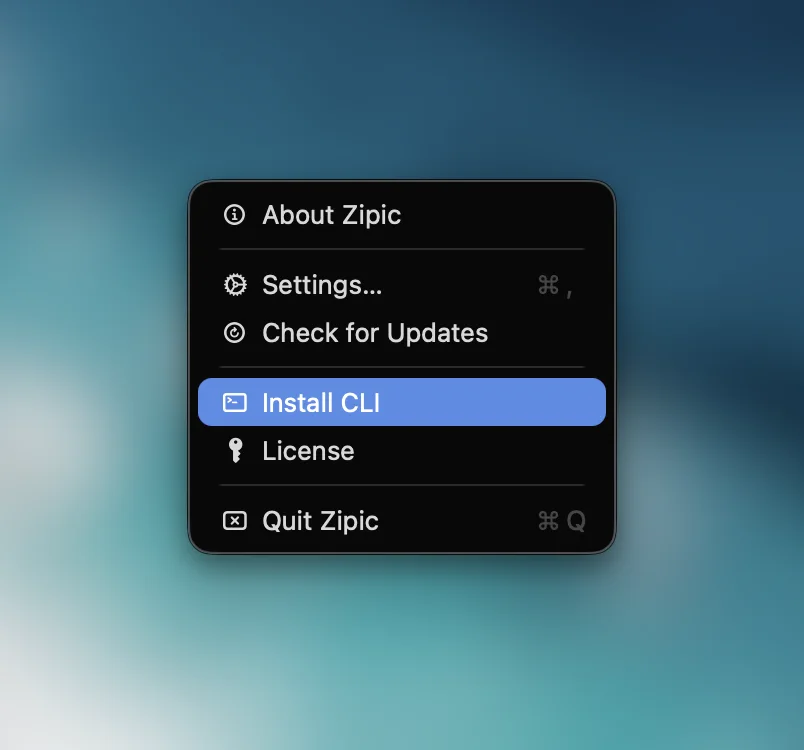
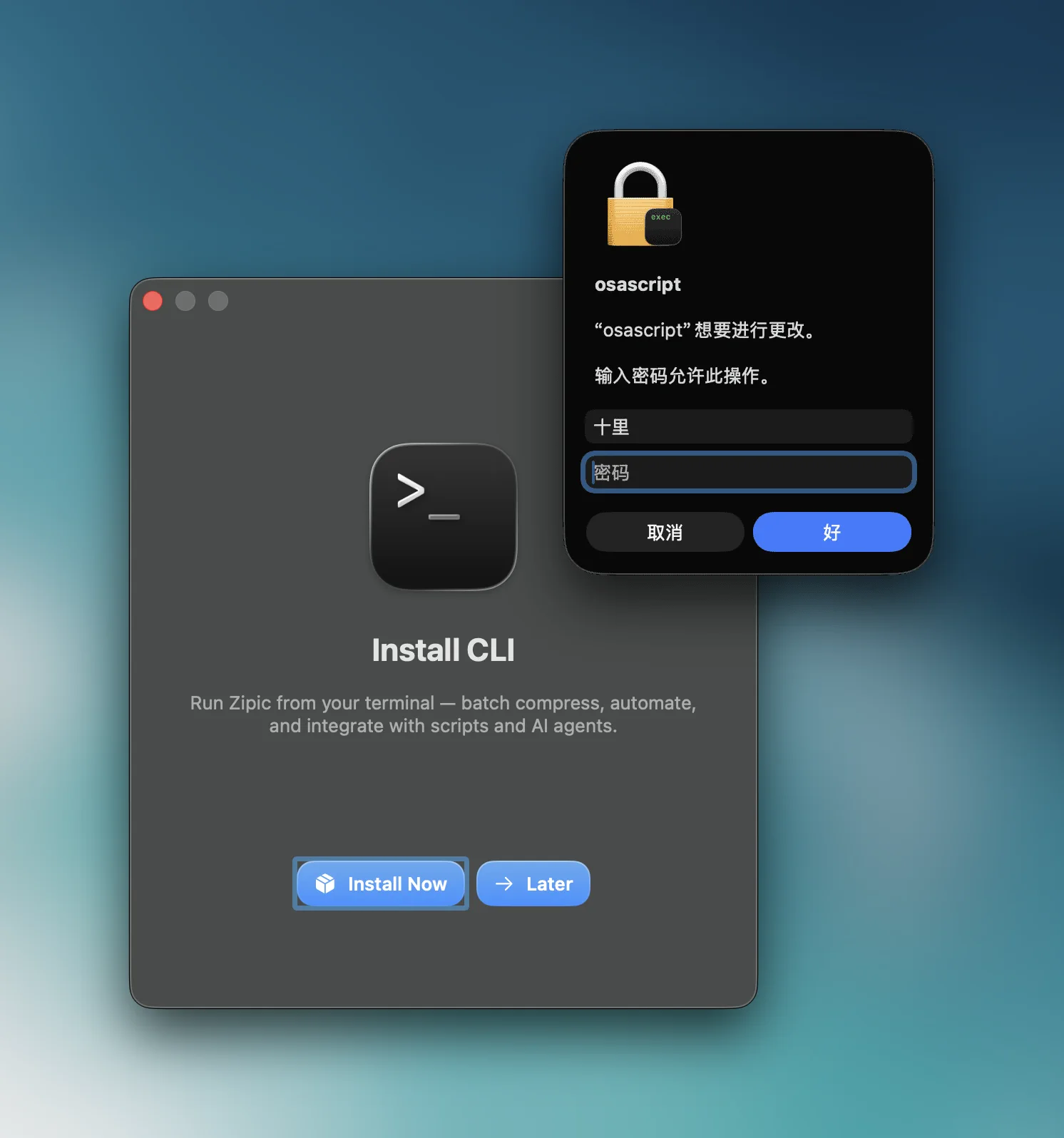
Install the command from inside Zipic. The app creates a symlink at /usr/local/bin/zipic, so Terminal, shell scripts, and coding agents can call it like any other command-line tool.
You have two install paths:
- Use the Zipic menu bar item and choose Install zipic CLI.
- Use the onboarding flow’s Install CLI step on first launch.
Verify the binary before wiring it into automation:
command -v zipic
zipic --version
zipic --help
In a May 2026 local check, Zipic.app was version 1.9.5 and the CLI binary reported zipic 0.1.0. These are different versions: one belongs to the app, the other to the CLI client.
The help output documents the command family:
zipic compress <files-or-dirs>...
zipic preset list
zipic preset show <name-or-id>
zipic list
zipic list clear
For first-time users, run zipic preset list --json after installation. It confirms the CLI can talk to Zipic.app and shows the presets your future commands can reuse.
Install the Zipic AI Skill
If your real workflow starts with an AI agent, do not stop at handing it a raw command. Install the Zipic Skill so the agent knows Zipic’s capabilities, limits, and fallback paths.
The official docs use this command:
npx skills add okooo5km/Skills4U --skill zipicAfter that, you can ask Claude Code, Codex, or another AI Skills-compatible tool:
- “Compress the images in
~/Downloads/screenshots/.” - “Convert this PNG to WebP for the blog.”
- “Resize these product photos to 1920px wide and save them as AVIF.”
The skill does more than save keystrokes. It checks whether Zipic is available, handles paths with spaces or non-ASCII characters, chooses sensible formats such as WebP, AVIF, HEIC, or JPEG, and gives clearer guidance when a request hits a Pro feature or free-tier quota.
In practice, use the two pieces together: the zipic CLI runs the job and returns parseable results; the Zipic Skill turns natural language into a safer call. When the environment can run a binary, prefer the CLI. When it cannot, fall back to URL Scheme.
Dry Run, Then Compress with JSON Output
For AI agents, use a simple pattern: preview the plan, check it, then run the real compression.
zipic compress ~/Downloads/screenshots \
  --format webp \
  --level 3 \
  --dry-run \
  --json
--dry-run returns the planned operation without compressing files. The JSON includes resolved input paths and effective options such as output_format, level, location, width, height, suffix behavior, overwrite behavior, and aspect-ratio handling.
When the plan matches the user’s intent, remove --dry-run:
zipic compress ~/Downloads/screenshots \
  --format webp \
  --level 3 \
  --json
With --json, Zipic emits line-oriented output that tools can pipe into jq, Node, Python, or an agent runtime. The official docs describe result states such as "success" for compressed files and "kept_source" when Smart Skip keeps the source because recompression would not help.
zipic compress ~/Downloads/screenshots --format webp --level 3 --json | \
  jq -c 'select(.state == "success") | {file: .source, saved: .saved_bytes}'
The agent can read the output and report: “five files compressed, two kept because they were already smaller.” It does not need to infer results from file timestamps.
Use Presets Instead of Hard-Coding Every Option
Hard-coded flags are fine for one-off scripts. For repeated work, use Zipic presets. Keep the policy in the app; let scripts reference a preset name or ID.
zipic preset list --json
zipic compress ~/Projects/site/public/images --preset WebP --json
Presets are especially useful when your team has different asset classes:
| Asset class | Preset idea | Why |
|---|---|---|
| Blog screenshots | WebP, Q2 or 3 | Keeps UI text readable while reducing PNG weight |
| Marketing photos | AVIF or WebP, Q3 | Smaller web assets with modern format support |
| Social previews | JPEG, fixed width | Maximizes compatibility |
| Documentation captures | Original format, low compression level | Avoids visible artifacts on text |
You can create and manage presets from the CLI:
zipic preset create --name BlogWebP --format webp --level 3
zipic preset show BlogWebP --json
zipic preset set-default BlogWebP
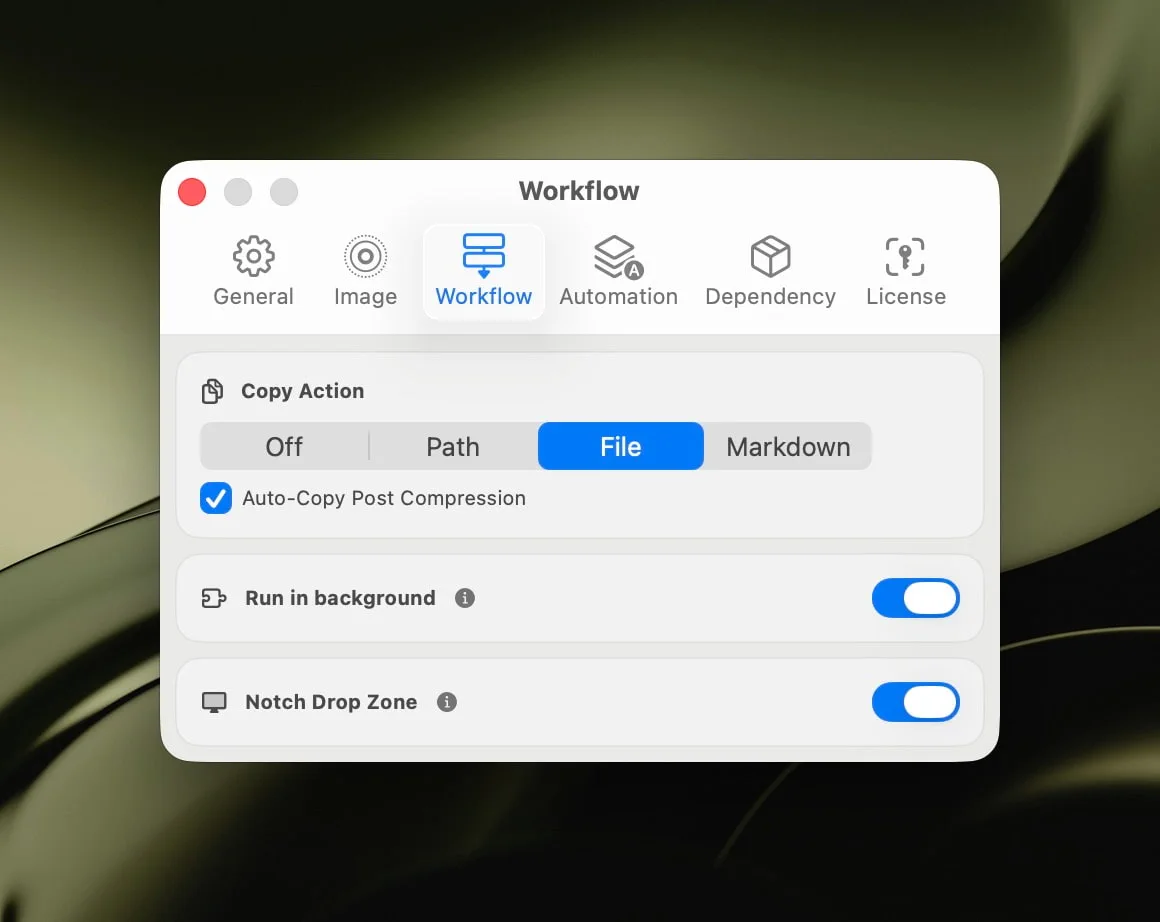
If you prefer a visual setup, configure the same behavior in Zipic’s Workflow settings, then call it from the CLI later.
For a broader automation overview, see Image Compression for Web Developers and the official Integrating Zipic guide.
Handle Exit Codes, Smart Skip, and Pro Limits
Branch on exit codes first. Zipic’s CLI documents four codes:
| Exit code | Meaning | Agent behavior |
|---|---|---|
0 |
Success | Parse results and summarize savings |
1 |
Business or runtime error | Read JSON error fields and report the reason |
64 |
Invalid arguments | Fix command construction before retrying |
65 |
Zipic.app is not running and could not be launched | Ask the user to open or reinstall Zipic |
The Pro boundary is the same as the GUI. Basic free-tier compression works from the CLI, while advanced formats, advanced inputs, custom preset limits, and daily quota limits require Pro or an active trial. In JSON mode, Pro and quota errors can include fields such as purchase_url, blocked_format, remaining, and requested.
That makes scripting straightforward:
zipic compress "$folder" --format avif --level 3 --json
case "$?" in
  0) echo "Compression completed";;
  1) echo "Read JSON error and offer fallback or Pro link";;
  64) echo "Fix arguments";;
  65) echo "Open Zipic.app and retry";;
esac
If Zipic reports kept_source, do not treat it as a failure. It means Zipic kept the source because recompressing would not help. Scripts should count it separately.
Where CLI Fits Beside URL Scheme, Shortcuts, and Raycast
Use the CLI when the caller needs to read results. Use the other surfaces when the caller only needs to trigger compression.
| Surface | Best fit |
|---|---|
zipic CLI |
AI agents, shell scripts, CI jobs, local build tasks, batch jobs that need status |
| URL Scheme | One-shot triggers from apps that can open URLs |
| Apple Shortcuts / AppIntents | Finder Quick Actions, share sheet actions, user-facing automations |
| Raycast extension | Keyboard-first one-off compression from Finder selection |
| Folder Monitoring | Always-on compression when files land in a watched directory |
The URL Scheme still has a place. If a tool cannot execute a binary, open "zipic://compress?... is the fallback. If Claude Code, Codex, a Node script, or a Makefile can run a command, use the CLI first.
The video below shows the URL Scheme terminal path. It is useful context, but agent-driven work should start with the CLI.
Related Articles
- Zipic URL Scheme Guide — complete reference for
zipic://compress. - Image Compression for Web Developers — broader automation patterns for web projects.
- Compress AI-Generated Images — optimize Midjourney, DALL-E, and Stable Diffusion output.
- Automate Image Compression with Apple Shortcuts — AppIntents and Finder Quick Actions.
- Raycast Image Compression — quick keyboard-driven compression.
- Batch Compress Images on Mac — manual batch compression when you want to inspect everything.
Full documentation: Command Line Tool | AI & CLI Integration | Workflow Integration
Want a local image compression CLI your scripts can parse? Download Zipic and install the zipic command from the app. Every download includes a full 7-day Pro trial. Zipic Pro unlocks advanced formats, automation features, and higher-volume batch work beyond the free daily limit.
Related Reading
Zipic URL Scheme Guide: Integrate Compression into Any Workflow
Complete reference for Zipic's URL Scheme — parameters, multi-language code examples, and automation recipes to build an image compression API on Mac.
Raycast Image Compression: Hotkey Compress with Zipic
Set up Raycast image compression with the Zipic extension on macOS. Install, bind a global hotkey, and compress any Finder selection in one keystroke.
Automate Image Compression with Apple Shortcuts and Zipic
Drive Zipic Pro's native AppIntents from Apple Shortcuts on macOS. Five ways to trigger compression — Quick Action, in-app hotkey, menu bar, Share Sheet, and scheduled automation — paired with five real recipes.
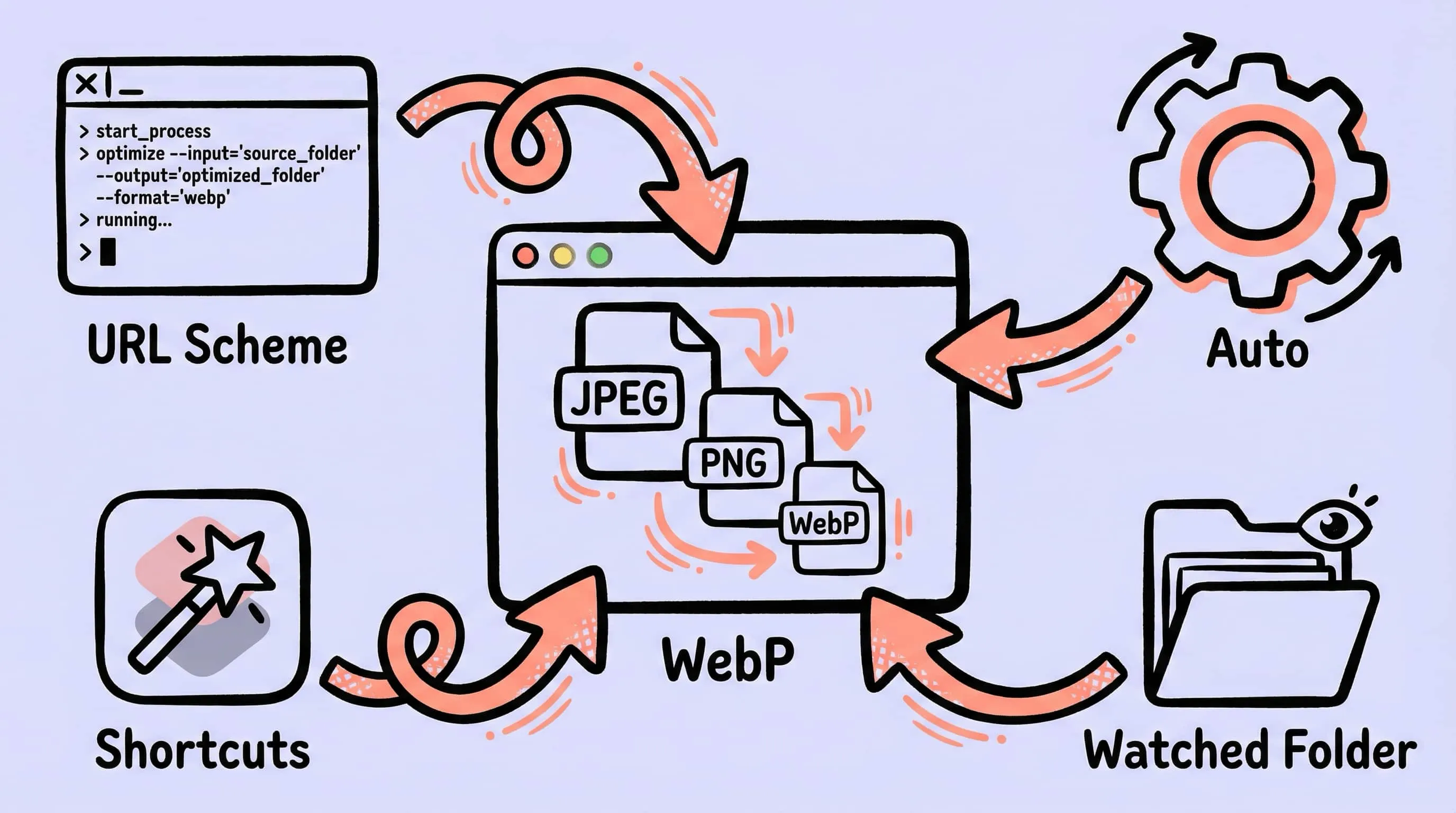
Image Compression for Web Developers: Automate Your Workflow
An image optimizer for developers on Mac. Compress images for web development with URL Scheme, Apple Shortcuts, folder monitoring, and an image compression API.