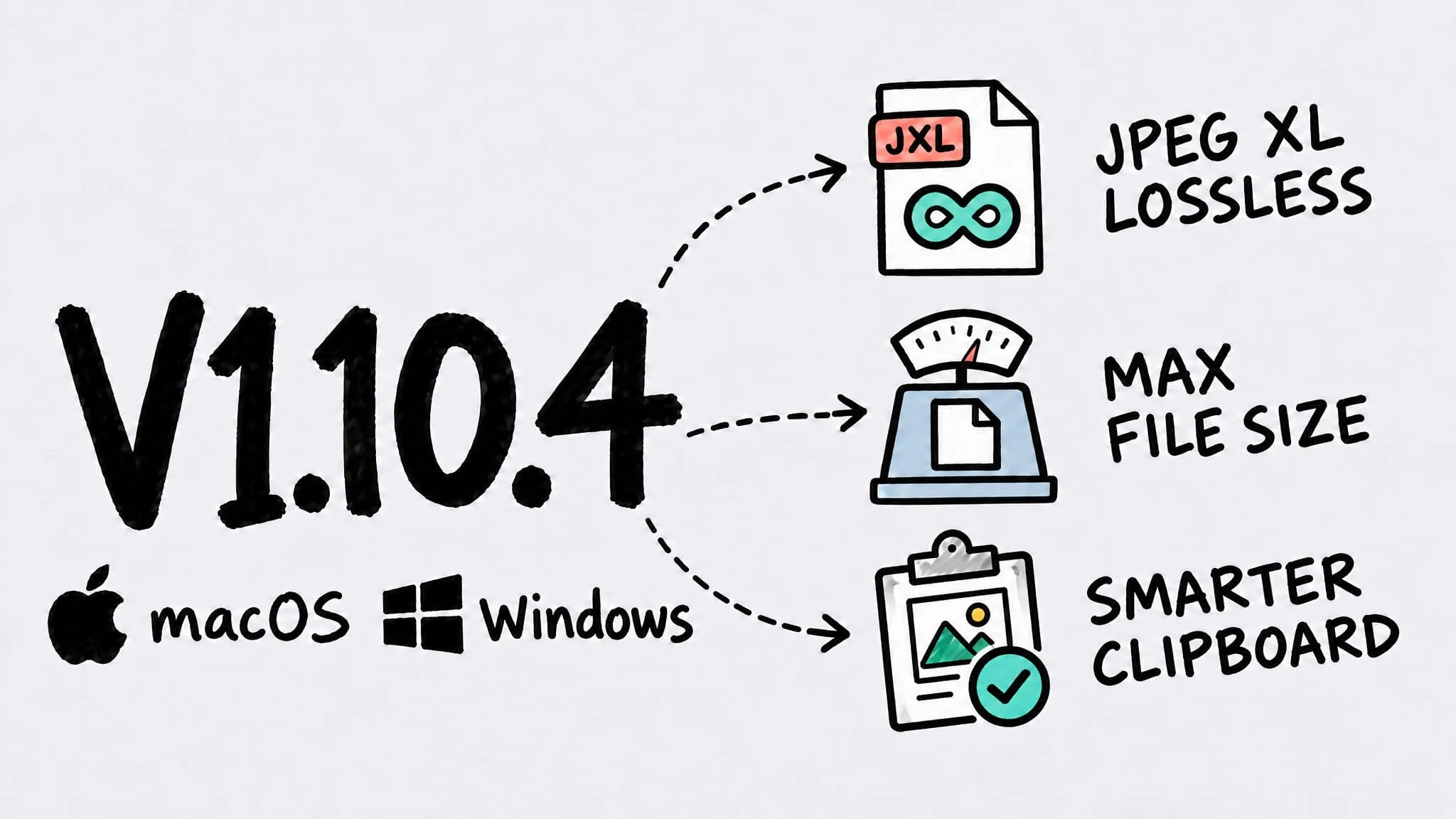
V1.10.4
Zipic v1.10.4 ships for both macOS and Windows (Beta) under the same version number. Both platforms gain a max file size limit (Pro) and a JPEG XL lossless mode, can compress images copied from WeChat, and fix missing text in some compressed PDFs and wrong orientation after resizing or converting photos. macOS also adds background updates, a Full Disk Access guide, and several clipboard and folder-monitoring fixes; Windows also keeps the clipboard format when copying results back and fixes HEIC quality levels and TIFF ZIP compression.
Thanks to fridtjof (JPEG XL lossless and TIFF conversion), 奥赛 (folder monitoring and WeChat clipboard), and Yerik (missing PDF text) — many of the improvements in this release came straight from your detailed feedback.
This time macOS and Windows (Beta) share the same version number: v1.10.4. Items without a platform tag apply to both; platform-specific items are marked in their title. The Windows version rolls out via the Microsoft Store.
✨ New Features
- Max file size (Pro): presets can now set a file size limit, and Zipic finds the best quality that fits. On macOS, if even the lowest quality is still too large, Zipic scales the image down (or keeps dimensions if you prefer), and the limit is also available in the CLI, Shortcuts, and URL Scheme.
- Lossless JPEG XL: turn on “Lossless” for JXL output. JPEGs are converted without any loss into smaller files that can be restored byte-for-byte, while PNG, TIFF, and other lossless sources are compressed pixel-perfect, keeping the bit depth of 16-bit sources. Images that can’t be handled losslessly are skipped and left untouched.
- WeChat images: images copied from WeChat can now be compressed directly by clipboard monitoring; on macOS, images copied with Telegram’s “Copy media” work too.
- Background updates (macOS): new versions download in the background — click the badge to restart and install in one step, or let it install quietly when you quit. You can turn this off in General settings.
- Full Disk Access guide (macOS): when macOS blocks Zipic from reading the clipboard or a monitored folder, Zipic explains why and shows a draggable icon next to System Settings — drop it into the list and you’re done.
- Clipboard keeps its format (Windows): copying results back to the clipboard keeps the original format.
🐛 Bug Fixes
- Missing PDF text: fixed text disappearing from some pages of certain PDFs after compression.
- Photo orientation: portrait shots and other photos with orientation info no longer come out rotated or distorted after resizing or converting. On macOS, resizing now follows how the photo actually displays, PNG output keeps the correct orientation, and TIFFs are no longer rotated twice; on Windows, converting to AVIF or WebP keeps the right orientation.
- Copying the same image again (macOS): copying the same image a second time no longer gets skipped as “already processed” and pasted uncompressed.
- Overwritten files in monitored folders (macOS): images saved over an existing file with the same name (such as automated screenshots) now trigger compression.
- TIFF conversion errors (macOS): TIFFs with embedded thumbnails (e.g. from DxO) no longer fail when converting to JXL or turn into two-frame animations when converting to WebP.
- 16-bit images to JXL (macOS): 16-bit sources keep their full bit depth when converted to JXL.
- More thorough metadata removal (macOS): with metadata preservation turned off, lossless JPEG transcoding now also strips GPS, copyright, and similar data from embedded images.
- HEIC quality levels (Windows): quality levels now actually take effect, so output sizes at each level differ from before.
- TIFF ZIP compression (Windows): choosing ZIP now truly outputs ZIP instead of LZW.
- Other apps’ files left alone (Windows): images in other apps’ private folders are no longer overwritten in place when compressed from the clipboard.
- No double compression (Windows): copying a file from the results list no longer gets picked up as a new image and compressed again.